I. Download Installation Package
Download address: https://maven.apache.org/download.cgi
Historical version download address: https://maven.apache.org/docs/history.html
It is recommended to select versions from the 3.8.x or 3.9.x series for installation.
Note
- The 3.9.9 version is used as an example during the installation process.
- On Linux/macOS systems, use the default terminal; on Windows systems, use PowerShell.
II. Installation
(I) Download
# Linux/macOS
curl -L https://dlcdn.apache.org/maven/maven-3/3.9.9/binaries/apache-maven-3.9.9-bin.tar.gz -o apache-maven-3.9.9-bin.tar.gz# Windows
Invoke-WebRequest -Uri "https://dlcdn.apache.org/maven/maven-3/3.9.9/binaries/apache-maven-3.9.9-bin.zip" -OutFile "apache-maven-3.9.9-bin.zip"(II) Unzip
Use visualization tools or the following commands to unzip:
# Linux/macOS
tar zxvf apache-maven-3.9.9-bin.tar.gz -C <Maven installation directory># Windows
Expand-Archive apache-maven-3.9.9-bin.zip <Maven installation directory>Create a soft link (optional):
# Linux/macOS
ln -s apache-maven-3.9.9 maven# Windows
New-Item -Path .\maven\ -ItemType SymbolicLink -Target .\apache-maven-3.9.9(III) Configure Environment Variables
1. Configure Environment Variables on Linux/macOS
Note
When configuring environment variables, the configuration path in the script needs to be replaced with the corresponding Shell profile file path:
- For Zsh, use
${HOME}/.zshrc - For Bash, use
${HOME}/.bashrc
# Linux/macOS
cat >> Replace with specific Shell configuration file << EOF
export M2_HOME="<Maven installation directory>"
export PATH=\$M2_HOME/bin:\$PATH
EOFThe following provides two ways to configure environment variables: visual interface configuration and command-line configuration. Choose either way for configuration, no need to use both.
2. Configure Environment Variables on Windows
- Set user-level environment variables via visual interface
Trigger with keyboard Win + R to display the following interface:
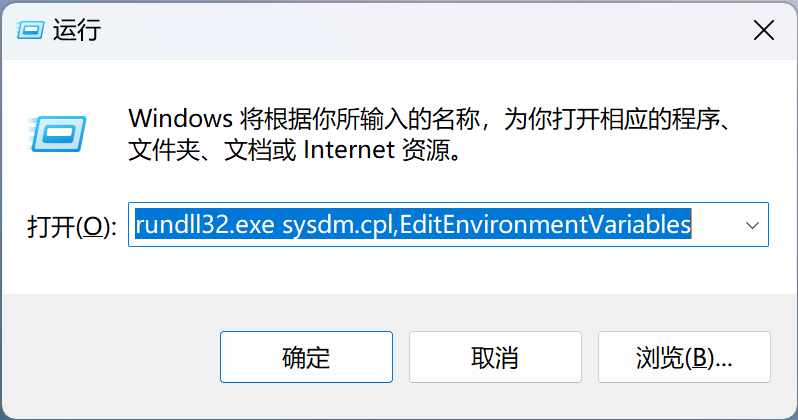
Enter the following code and click OK:
# Launch environment variable configuration interface
rundll32.exe sysdm.cpl,EditEnvironmentVariablesSet M2_HOME to C:\Users\yakir\Developer\apache-maven-3.9.9\
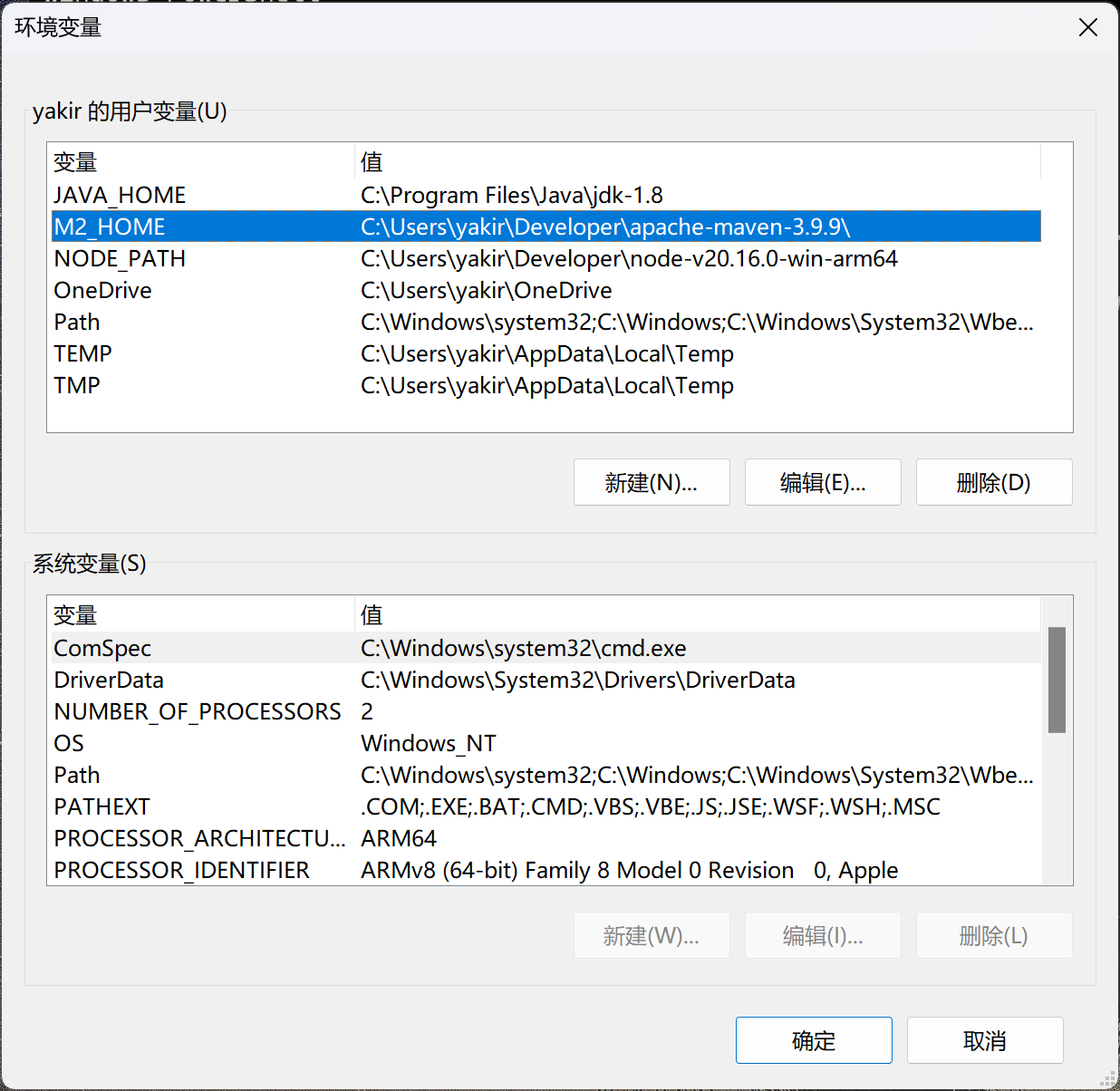
Append to Path: ;%M2_HOME%\bin
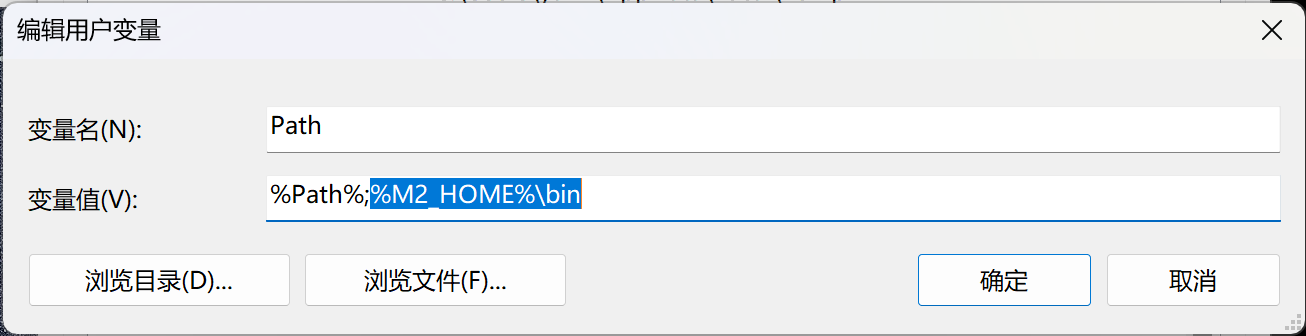
- Set user-level environment variables via command line_(Optional)_
Run CMD, PowerShell, or Terminal:
# Set M2_HOME
# Set M2_HOME to the absolute path of the default installation directory or a custom directory
setx "M2_HOME" "<Maven installation directory>"
# For example: setx "M2_HOME" C:\Users\yakir\Developer\apache-maven-3.9.9\# Append to PATH
setx "Path" "%Path%;%M2_HOME%\bin"III. Verification
Enter in the command line:
mvn --version
# Linux/macOS
Apache Maven 3.9.9 (8e8579a9e76f7d015ee5ec7bfcdc97d260186937)
Maven home: /Users/yakir/local/maven
Java version: 1.8.0_452, vendor: BellSoft, runtime: /Library/Java/JavaVirtualMachines/liberica-jdk-8-full.jdk/Contents/Home/jre
Default locale: zh_CN, platform encoding: UTF-8
OS name: "mac os x", version: "15.3.2", arch: "aarch64", family: "mac"# Windows
Apache Maven 3.9.9 (8e8579a9e76f7d015ee5ec7bfcdc97d260186937)
Maven home: C:\Users\yakir\Developer\apache-maven-3.9.9
Java version: 1.8.0_441, vendor: Oracle Corporation, runtime: C:\Program Files\Java\jdk-1.8\jre
Default locale: zh_CN, platform encoding: GBK
OS name: "windows 11", version: "10.0", arch: "amd64", family: "windows"Output similar to the above indicates that Maven is successfully installed.