I. Overview
Each build version is isolated in its own container (Linux namespace container).
The foundation is to prepare a Linux server with 4 cores and 16GB of memory. CentOS 7.6 64-bit is recommended for the operating system, which has all the necessary dependencies for Oinone and common useful packages installed.
It is suitable for using Oinone in formal, R&D, and testing environments. After additional deployment and maintenance work, it can be used long-term. Compared with docker-full, this image only includes Oinone's front-end and back-end applications, requiring additional deployment of middleware. In practical use, middleware such as Redis, Zookeeper, and RocketMQ can be deployed on independent servers. The deployment structure is illustrated as follows:
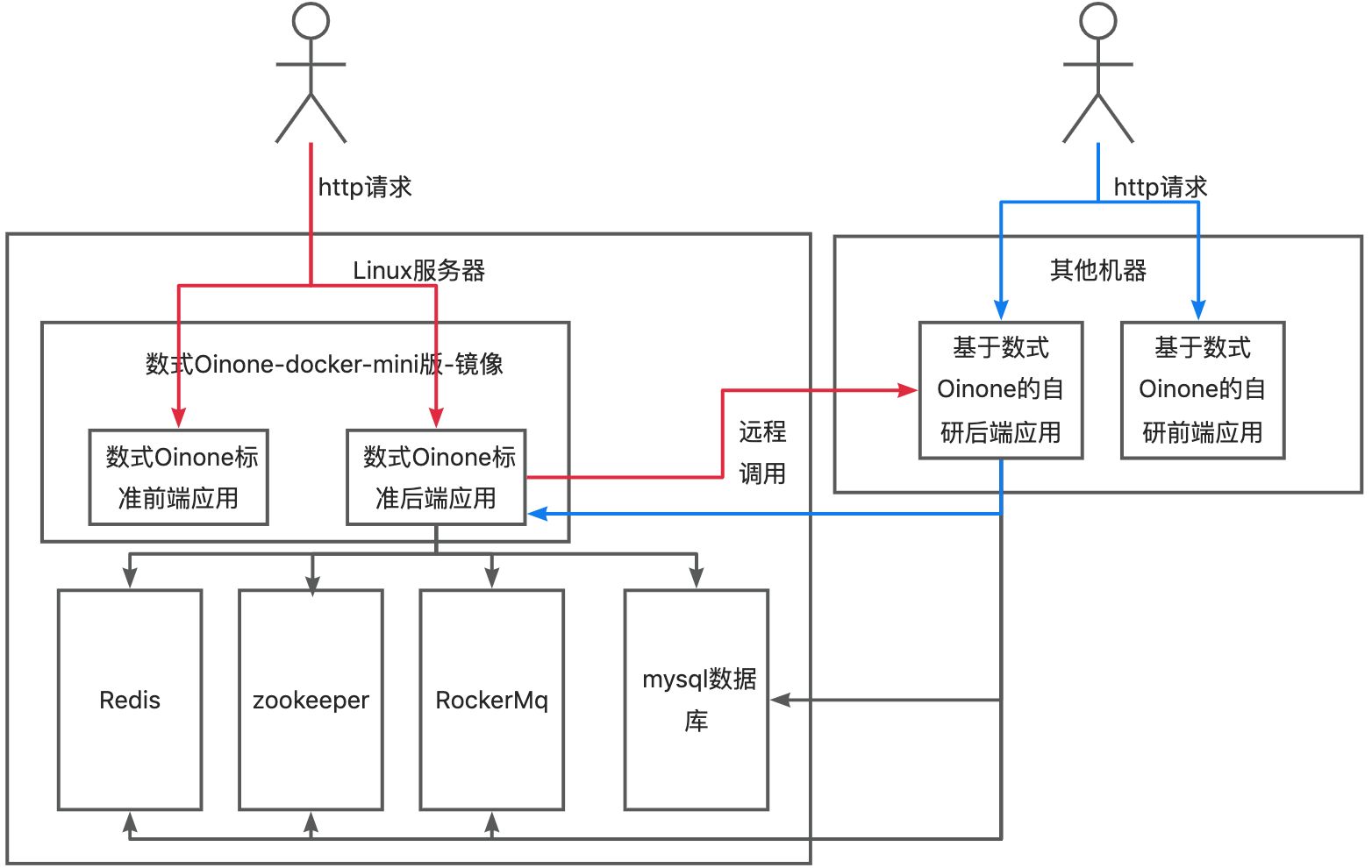
Note: If experiencing with other environments, networks need to be interoperable
Can the local development IP communicate with the server IP? Execute the command locally: ping 192.168.0.121 (replace with your own server IP)
Can the host IP where Docker is deployed communicate with the local development IP? Enter the server and execute the command: ping 192.168.0.60 (replace with your own local IP)
II. Install MySQL Database
If there is no existing database, you can download and install it from the official website: https://dev.mysql.com/downloads/mysql/.
Refer to MySQL Installation and Precautions
III. Deploy Other Middleware
| Middleware | Required | Version |
|---|---|---|
| RocketMQ | Yes | Above 4.7.1 |
| Redis | Yes | Above 5.0.2 |
| Zookeeper | Yes | Above 3.5.8 |
IV. Install Docker
If Docker is not installed, please download and install it from the official website: https://www.docker.com/get-started/
Tip
When installing within China, if the <code>docker</code> repository is abnormal, you can change the official repository to Alibaba Cloud's repository:
Change from https://download.docker.com/linux/centos/docker-ce.repo to http://mirrors.aliyun.com/docker-ce/linux/centos/docker-ce.repo
Command: yum-config-manager --add-repo http://mirrors.aliyun.com/docker-ce/linux/centos/docker-ce.repo
V. Download Image
(I) Confirm System Architecture
Check the current system architecture: Use the arch (recommended) or uname -a command
- x86_64: Indicates support for AMD64 architecture.
- aarch64: Indicates support for ARM64 architecture
Note: Image support
All images on this platform use docker manifest to support amd64 and arm64 architectures! (If there are other architectures, please contact Oinone personnel first to confirm usability)
(II) Pull Image
Special notes
If the digital staff has already sent you a deployment package, use 'oinone-op-ds-all-mini' in the deployment package and the version specified in the deployment package; This article serves as a reference for the deployment process.
Community Edition
Not currently provided, please use the source code installation method
Enterprise Edition
##oinone-designer-mini-vMajorVersion.MediumVersion:FullVersion
## The version numbers 6.2:6.2.1 are just examples and will vary based on the actual version of the digital Oinone image
docker pull harbor.oinone.top/oinone/oinone-designer-mini-v6.2:6.2.1If the image pull is too slow, you can add -amd64 or -arm64 suffix to the corresponding image Tag to obtain a single-architecture image.
##oinone-designer-mini-vMajorVersion.MediumVersion:FullVersion-ArchitectureTag
## The version numbers 6.2:6.2.1 are just examples and will vary based on the actual version of the digital Oinone image
docker pull harbor.oinone.top/oinone/oinone-designer-mini-v6.2:6.2.1-amd64
docker pull harbor.oinone.top/oinone/oinone-designer-mini-v6.2:6.2.1-arm64VI. Run Oinone
(I) Download Structure Package
- First, create a folder on the server (it is recommended to create it in the home directory for easy searching), then enter the folder.
# Create directory on server
# Go to home directory
cd ~
# Create folder
mkdir oinone
# Enter folder
cd oinone- Download the structure package oinone-op-ds-all-mini.zip locally, unzip it, and upload the structure package from the local computer to the server
# Upload structure package from local computer
scp home/user/myfolder(Replace with actual local unzip path) username@ip_address:/home/oinone(Replace with specific server path)(II) Introduction to Directory Structure
The following Oinone image-related directory structure and data volume (Volume) mounting with the host
# Structure package directory
|____config
| |____logback.xml
| |____application.yml
| |____oinone-demo.lic
|____logs
|____lib
|____nginx
| |____default.conf
|____startup.sh
|____startup.cmd# Image directory structure is all under /opt
├── jdk
├── nginx-1.15.5
├── nginx.conf
└── pamirs
│ ├── dist
│ ├── ext
│ │ ├── application.yml
│ │ ├── license.lic
│ │ └── logback.xml
│ ├── lib
│ ├── logs
│ │ └── sql-records
│ ├── nginx
│ │ └── vhost
│ ├── out
│ ├── outlib
│ ├── releases.jar
│ ├── run
│ │ └── run.sh
│ ├── static
│ └── tables.txt# startup.sh file content
#!/bin/bash
configDir=$(pwd)
majorVersion=6.2
version=6.2.1
IP=192.168.0.121
docker run -d --name designer-allinone \
-e DUBBO_IP_TO_REGISTRY=$IP \
-e DUBBO_PORT_TO_REGISTRY=20880 \
-p 8099:8091 \
-p 88:80 \
-p 20880:20880 \
-v $configDir/config/:/opt/pamirs/ext \
-v $configDir/nginx:/opt/pamirs/nginx/vhost \
-v $configDir/logs:/opt/pamirs/logs \
-v $configDir/lib:/opt/pamirs/outlib harbor.oinone.top/oinone/oinone-designer-mini-v$majorVersion:$version(III) Run startup.sh
1. Modify startup.sh File
Find the following code in the file and modify majorVersion, version, and the corresponding IP to the Docker host IP (i.e., server IP) and other configuration items
configDir=$(pwd)
majorVersion=6.2  # Modify according to the actual version of the Oinone image
version=6.2.1     # Modify according to the actual version of the Oinone image
IP=192.168.0.121 # Change to server IP2. Modify application.yml File in config Directory
If Mysql, Zookeeper, Redis, and RocketMQ are not on the same host, find the following code in the file and modify the IP, port, username, password, and other configuration items
- Mysql
# application.yml file
# Change to the IP, port (default port 3306, consistent with the port of MySQL on the server), username, password of the MySQL server
pamirs:
  datasource:
    pamirs:
      driverClassName: com.mysql.cj.jdbc.Driver
      type: com.alibaba.druid.pool.DruidDataSource
      url: jdbc:mysql://192.168.0.129:3306/demo_pamirs?useSSL=false&allowPublicKeyRetrieval=true&useServerPrepStmts=true&cachePrepStmts=true&useUnicode=true&characterEncoding=utf8&serverTimezone=Asia/Shanghai&autoReconnect=true&allowMultiQueries=true
      username: root
      password: shushi@2019
    base:
      driverClassName: com.mysql.cj.jdbc.Driver
      type: com.alibaba.druid.pool.DruidDataSource
      url: jdbc:mysql://192.168.0.129:3306/demo_base?useSSL=false&allowPublicKeyRetrieval=true&useServerPrepStmts=true&cachePrepStmts=true&useUnicode=true&characterEncoding=utf8&serverTimezone=Asia/Shanghai&autoReconnect=true&allowMultiQueries=true
      username: root
password: shushi@2019- Zookeeper
# application.yml file
dubbo:
  application:
    name: pamirs-designer
    version: 1.0.0
  registry:
    address: zookeeper://127.0.0.1:2181
  protocol:
    name: dubbo
    port: 20880
    serialization: pamirs
  consumer:
    timeout: 5000
  provider:
    timeout: 5000
  scan:
    base-packages: pro.shushi
  cloud:
    subscribed-services:
pamirs:
  zookeeper:
    zkConnectString: 127.0.0.1:2181
    zkSessionTimeout: 60000
rootPath: /oinone- Redis
# application.yml file
spring:
  redis:
    database: 0
    host: 127.0.0.1
    port: 6379
    timeout: 2000
    password: Abc@1234
    jedis:
      pool:
        # 连接池中的最大空闲连接 默认8
        max-idle: 16
        # 连接池中的最小空闲连接 默认0
        min-idle: 0
        # 连接池最大连接数 默认8 ,负数表示没有限制
        max-active: 16
        # 连接池最大阻塞等待时间(使用负值表示没有限制) 默认-1
max-wait: 3000- RocketMQ
# application.yml file
spring:
  rocketmq:
name-server: 127.0.0.1:9876- File storage OSS
cdn:
  oss:
    name: MINIO
    type: MINIO
    bucket: pamirs
    uploadUrl: http://xxx.xxx.xxx.xxx:9000
    downloadUrl: http://xxx.xxx.xxx.xxx:9000
    accessKeyId: xxx
    accessKeySecret: xxx
    mainDir: upload/demo/
    validTime: 3600000
    timeout: 600000
    active: true
    referer:
localFolderUrl:Warning
When experiencing the enterprise edition, Oinone will provide default configurations, but note that the CDN in the formal environment needs to be replaced with your own server instead of using the test server provided by Oinone Technology. This server is cleaned regularly, leading to file loss.
For more OSS configurations, please refer to: File Storage Configuration
3. Execute startup.sh and View Logs
sh startup.shView logs: First enter the logs folder and check if logs are generated?
cd logs # Enter logs folder# If logs are generated! You can execute the command:
tail -200f 2024.9.0.log(Change to the current day's log file name)
# The first startup will take relatively longer. Wait until you see the words "Startup successful" in the log file, which means the startup is successful# If logs are not generated, please first execute the following command
docker logs
# After execution, check whether it has started. If there is an error and you can't solve it, please export all error messages and send them to the group.After a successful startup, you can access http://ServerIP:88/ through a browser, with the account and password being admin/admin