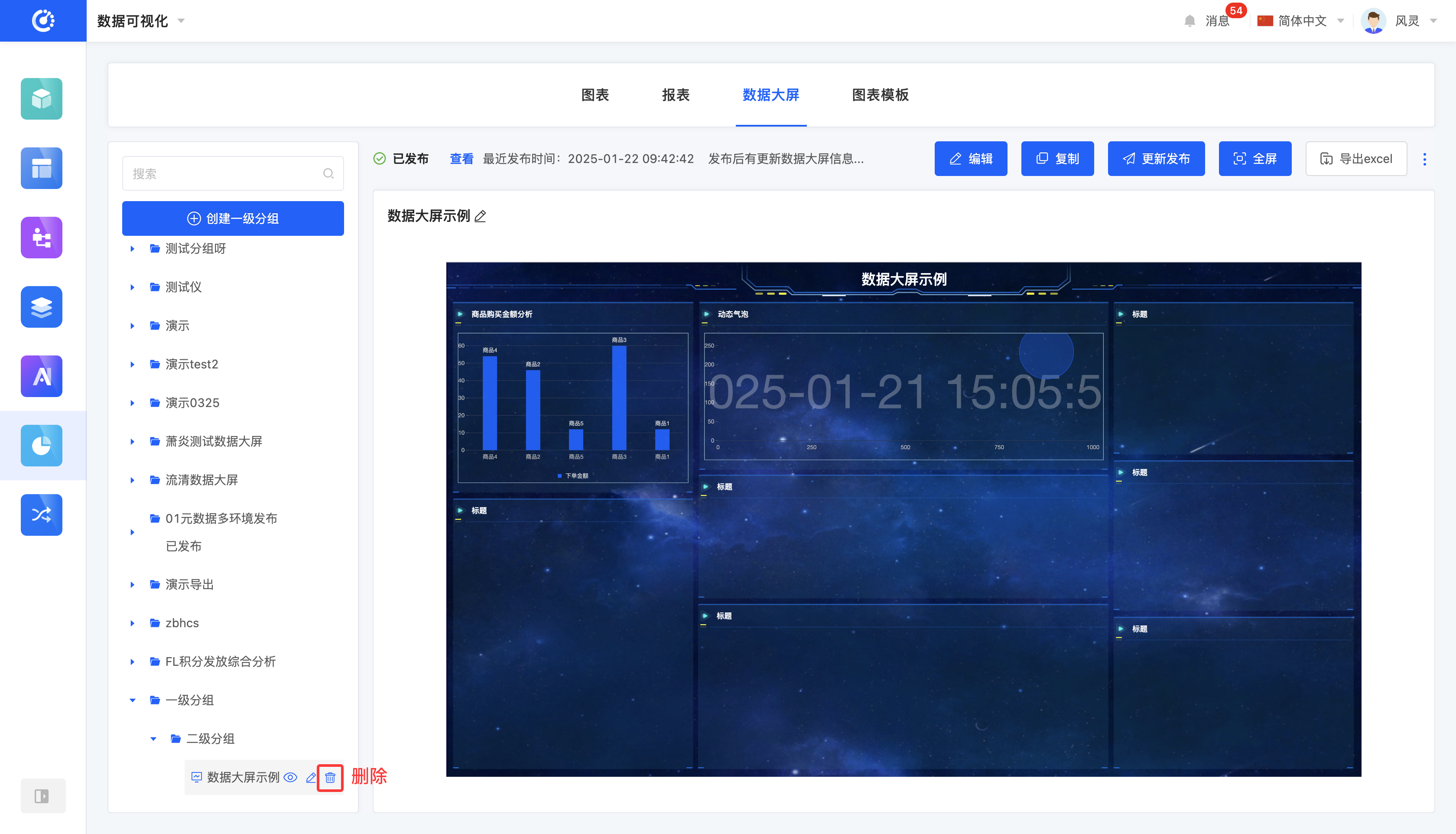
Data dashboards can present intuitive and clear data analysis results for enterprises in a graphical form in real-time. Through data dashboards, enterprises can instantly grasp the dynamic changes of various key indicators, quickly understand the business logic and trends behind the data, and thus provide strong data support for decision-making, helping enterprises achieve data-driven fine-grained management.
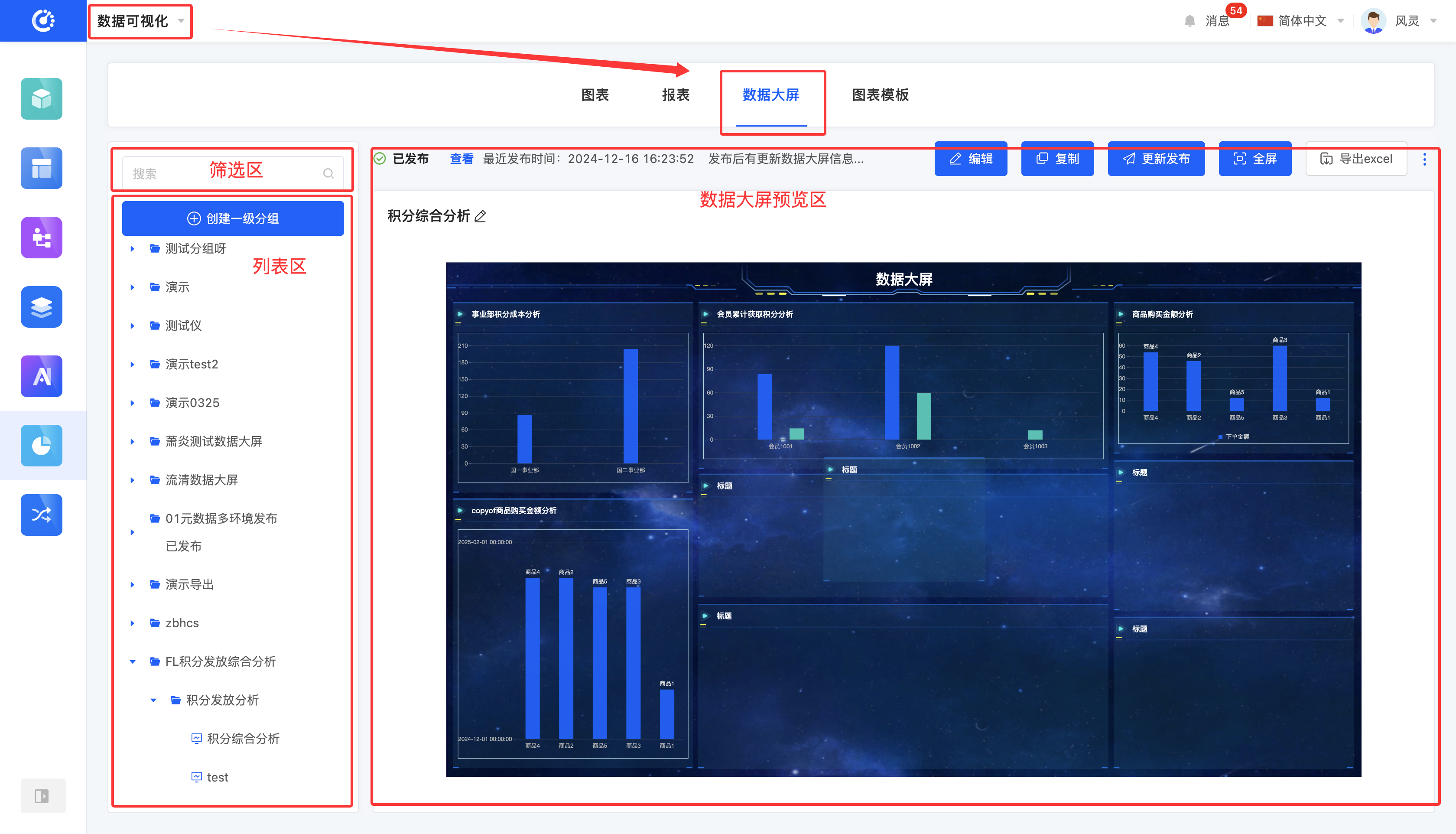
Enter the "Data Dashboards" page after entering data visualization to manage data dashboards. This page mainly consists of three parts: the filtering area, the list area, and the data dashboard preview area.
- Filtering area: Provides a data dashboard filtering function to facilitate users to quickly find the required data dashboard items.
- List area: Displays a list of data dashboards and their groups, clearly presenting the data dashboard structure.
- Data dashboard preview area: Displays the designed data dashboards, where users can perform operations such as editing, publishing, and exporting.
I. Filtering
1. Function Introduction
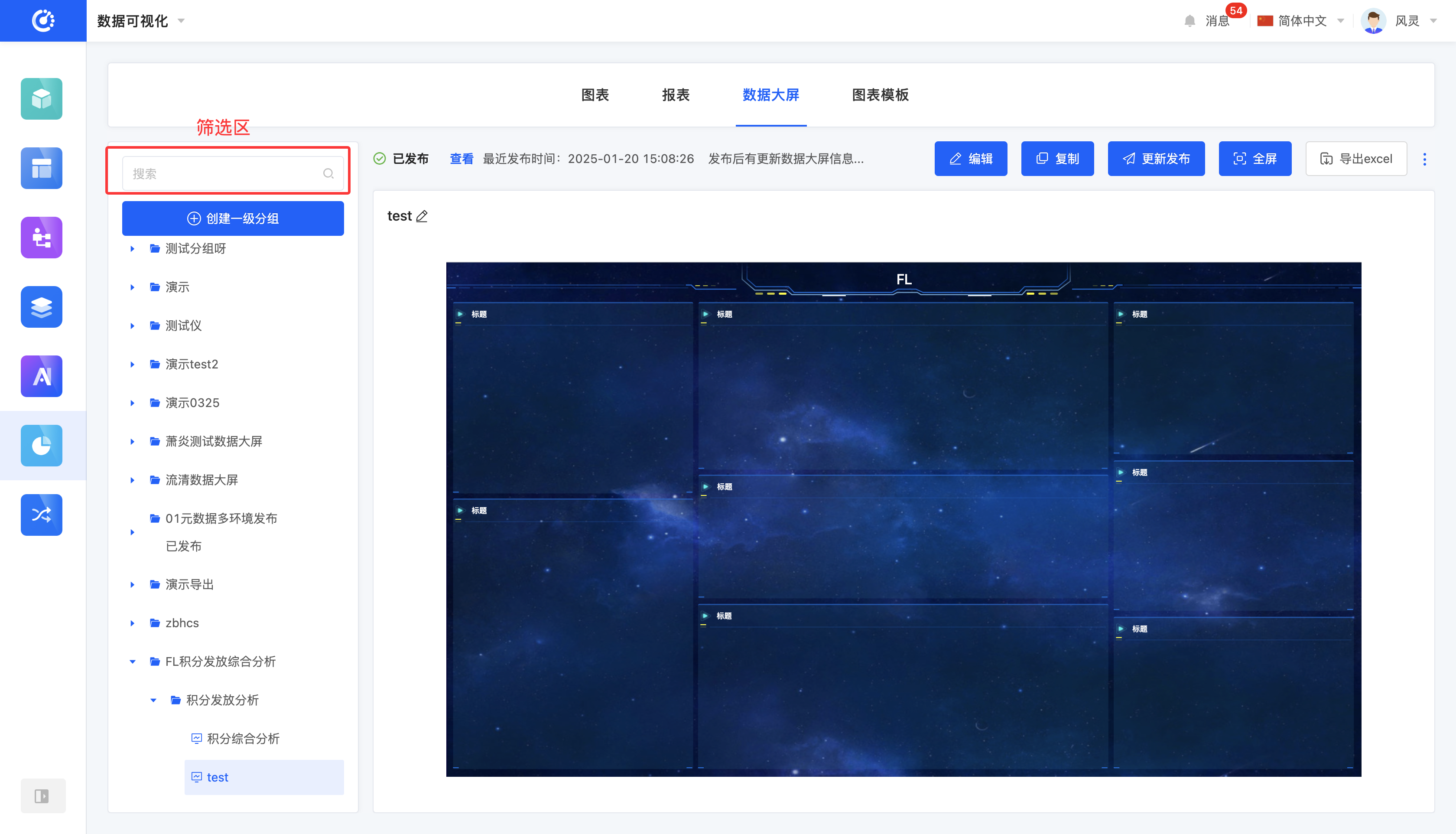
Customize data dashboard filtering conditions according to actual business needs. After entering the name of the data dashboard or group, you can precisely filter out the required items for subsequent operations.
2. Operation Method
Enter conditions in the filtering area to filter data dashboards or groups.
II. Group Management
1. Function Introduction
Use the grouping function to classify data dashboards.
2. Operation Method
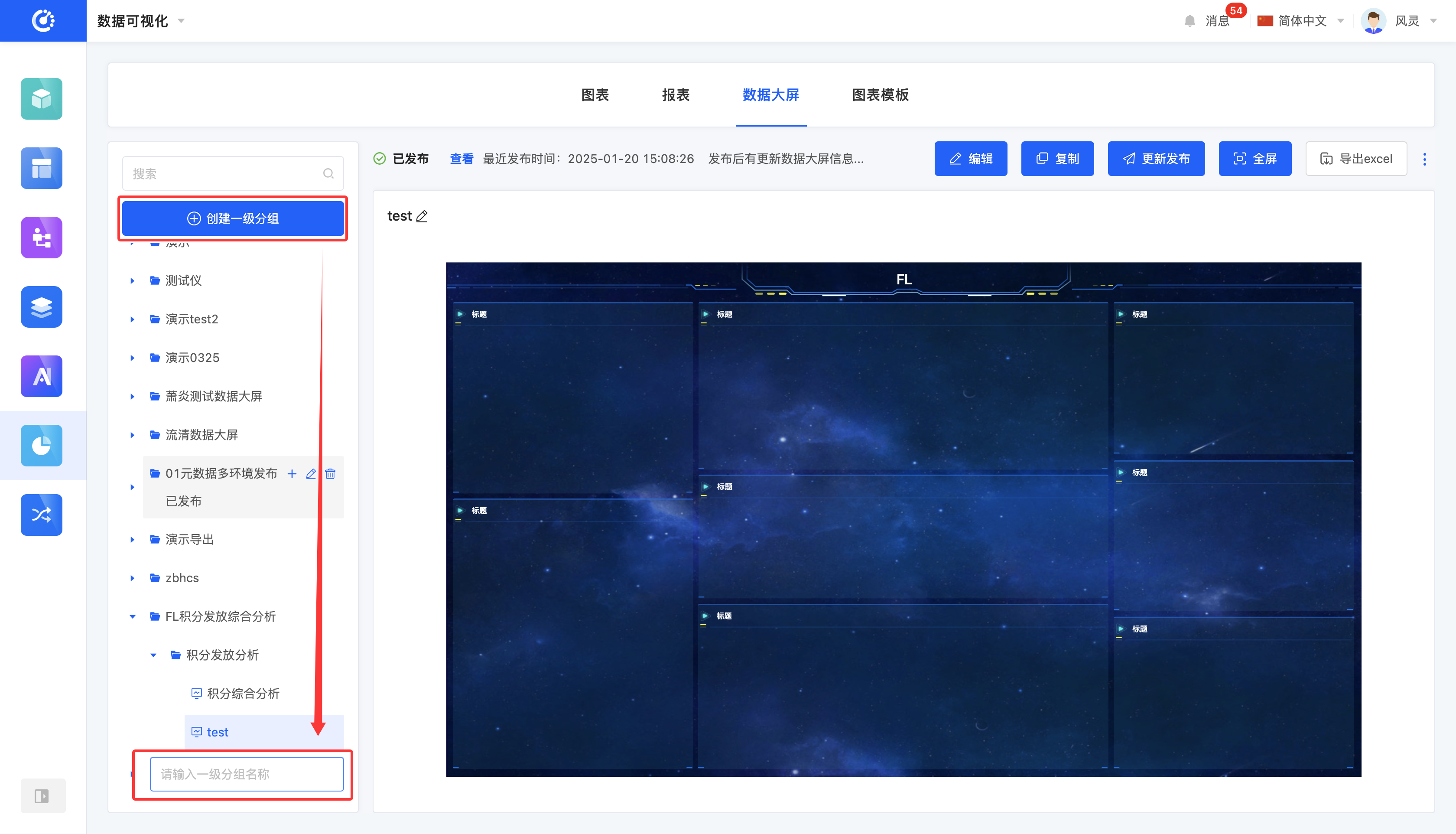
- Create a group: First, click the "Create First-Level Group" button and enter the first-level group name to complete the creation of the first-level group. Then, below the first-level group, click the "Create" icon and enter the second-level group name to successfully create the second-level group. At this point, the group creation is completed.
Note
- First-level group names are not allowed to be repeated, and first-level group names and second-level group names are not allowed to be repeated.
- Second-level group names under the same first-level group are not allowed to be repeated.
- Second-level group names under different first-level groups are allowed to be repeated.
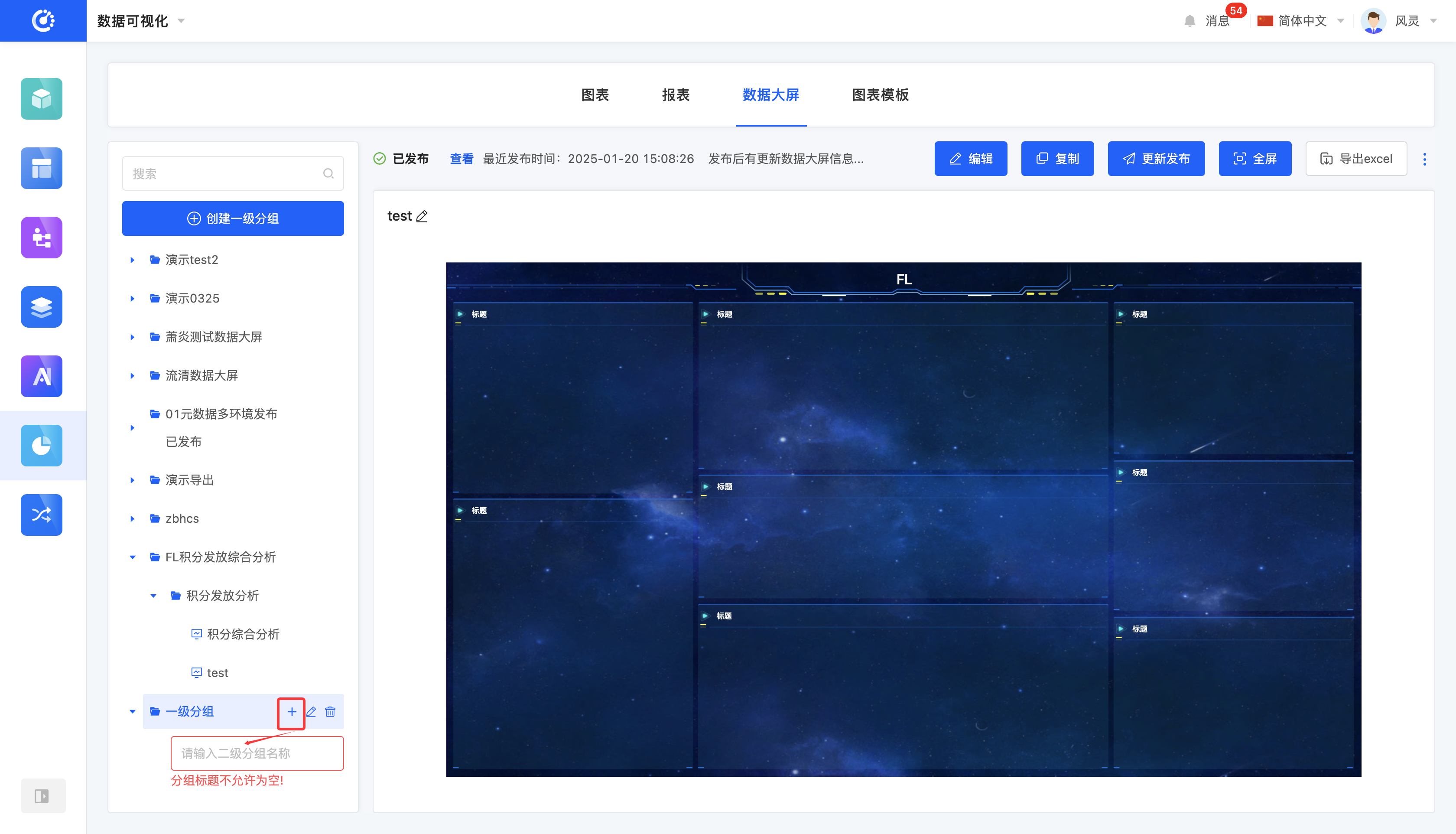
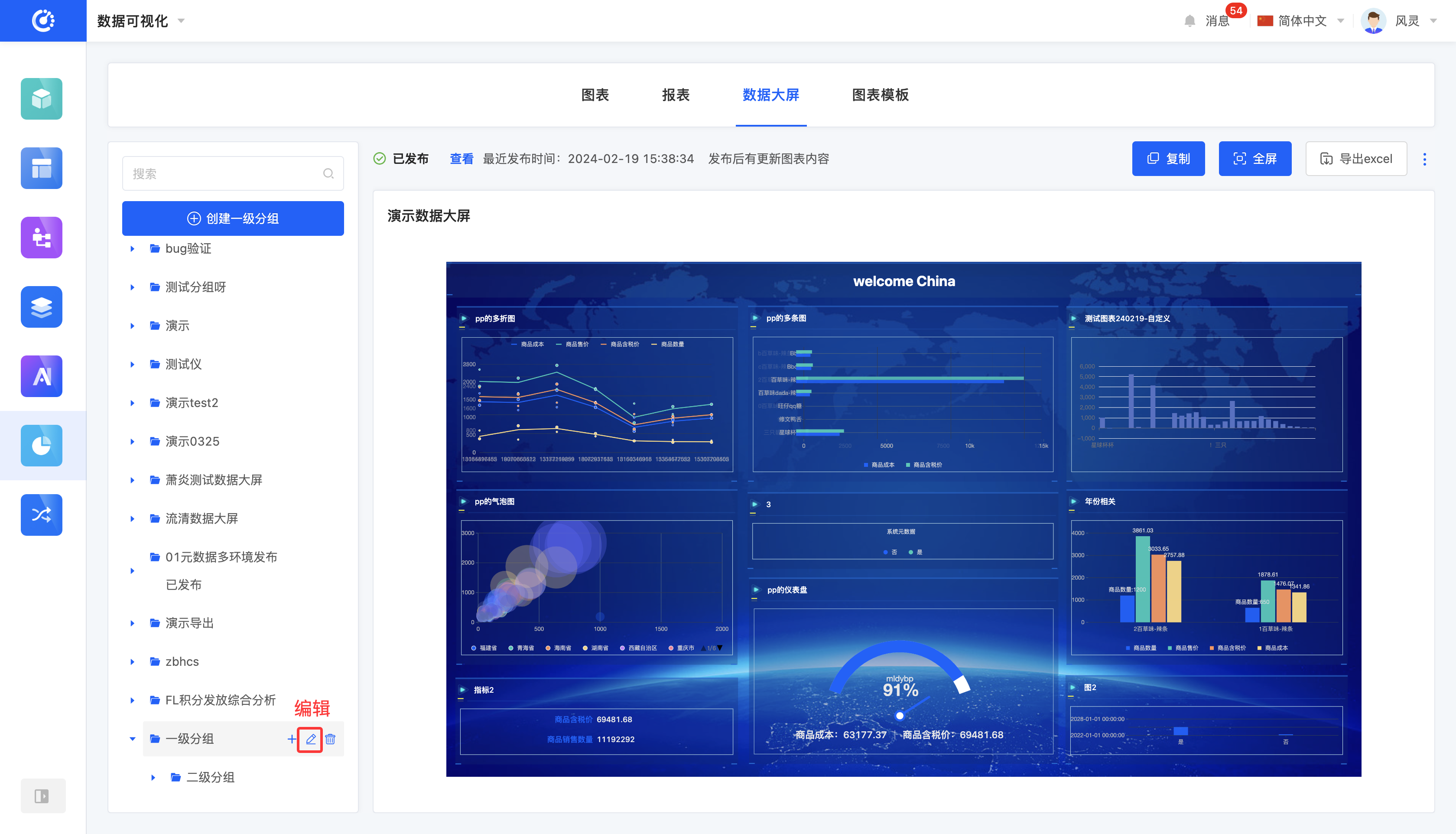
- Edit the group name: Move the mouse over the group to be modified, click the "Edit" icon, and then you can modify the group name.
- Modify the group position: Drag the group to change its position.
Note
- Only drag groups at the same level. You cannot change a first-level group into a second-level group or a second-level group into a first-level group. Similarly, created data dashboards are not allowed to become groups.
- You can move a second-level group under another first-level group.
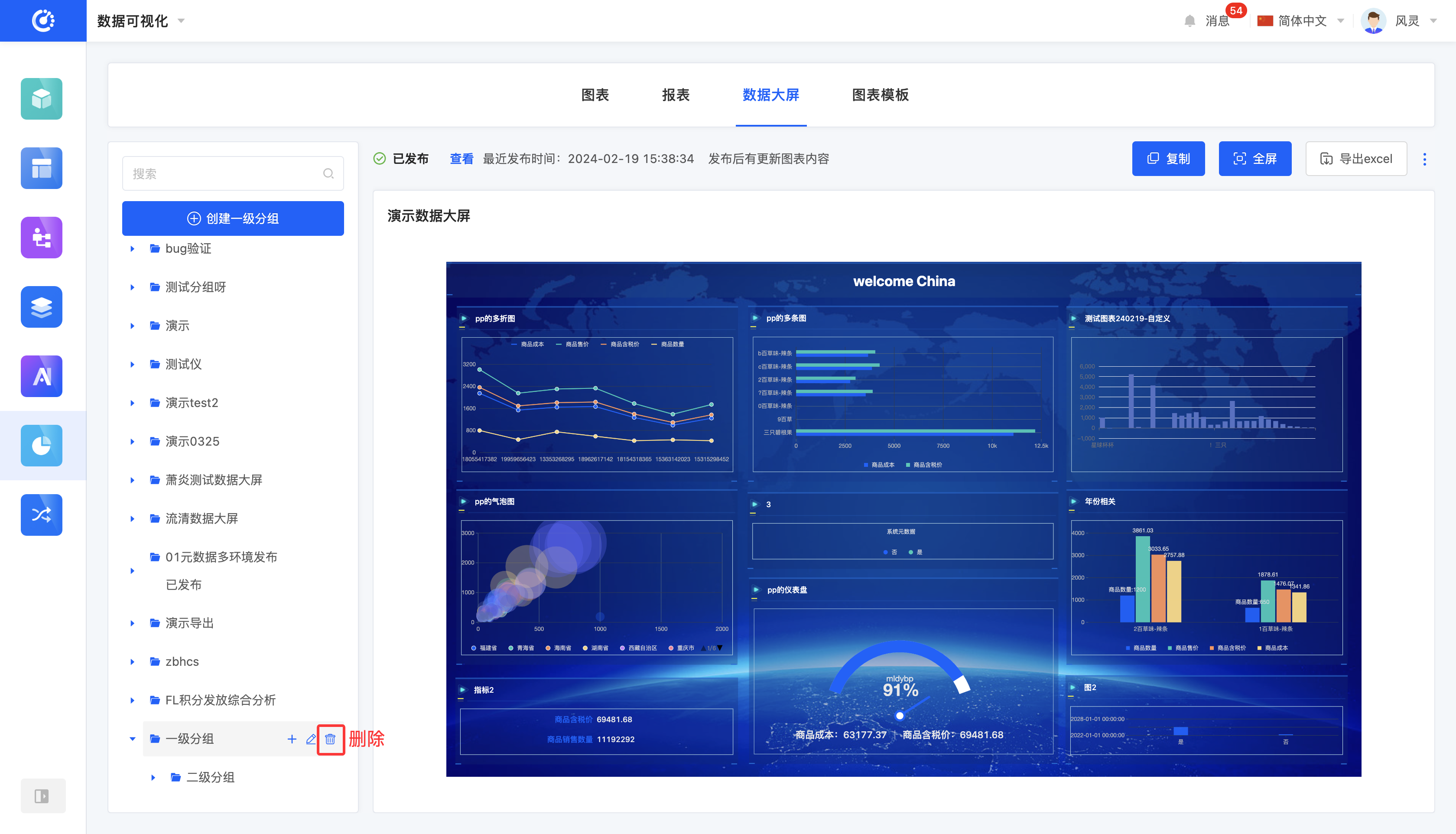
- Delete a group: Move the mouse over the group to be deleted, click the "Delete" icon, and then you can delete the group.
Note
- When deleting a first-level group, the second-level groups it contains will also be deleted.
- When there are charts under the group, the group cannot be successfully deleted.
III. Add a Data Dashboard
1. Function Introduction
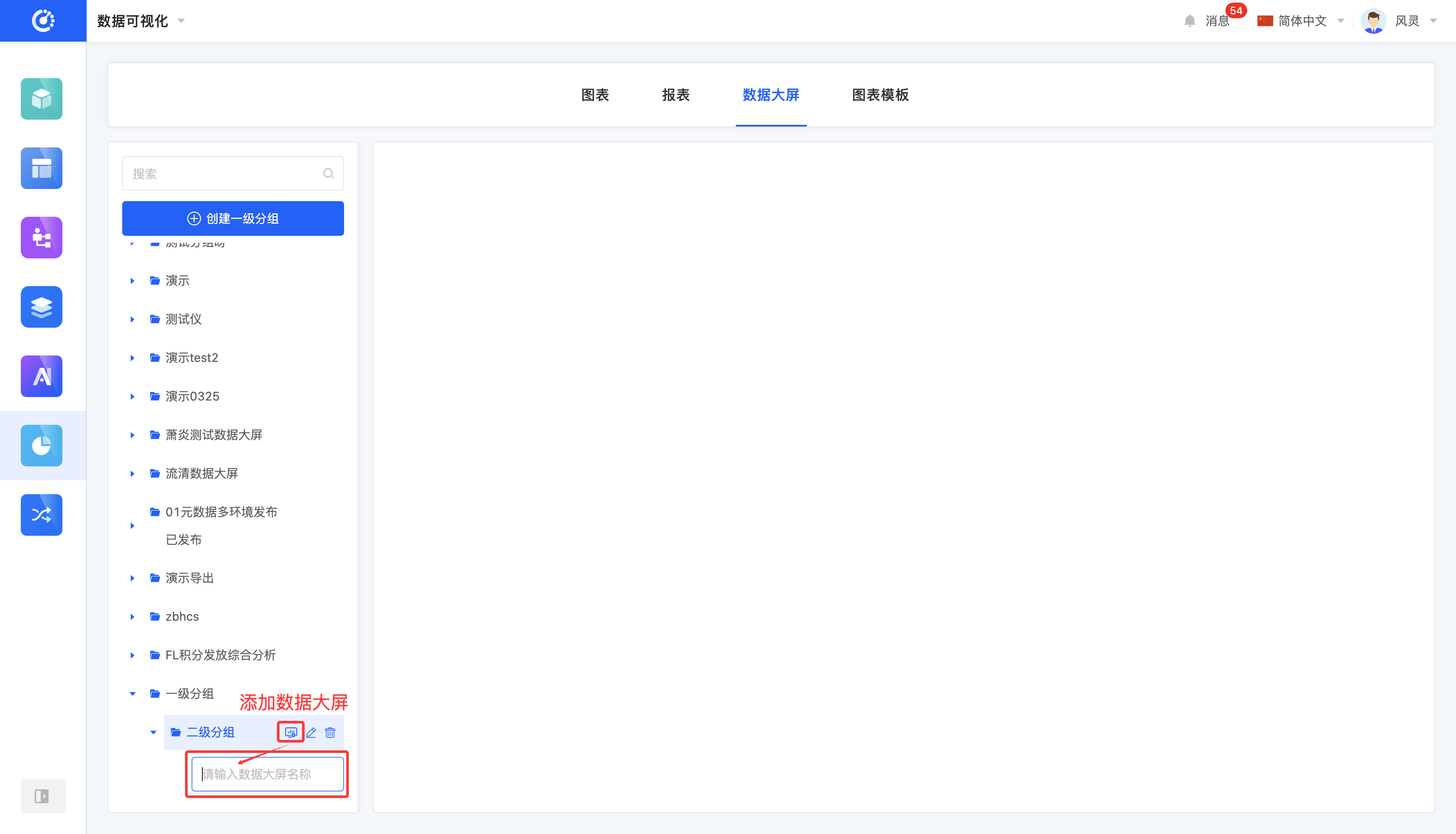
You can add a data dashboard under a second-level group. During the addition process, you need to edit the title of the data dashboard.
2. Operation Method
Click the "Add Data Dashboard" icon under the second-level group, enter the title, and then you can successfully create the data dashboard.
IV. Edit a Data Dashboard
1. Function Introduction
Supports editing charts that are not published or have been published but not hidden, providing two editing scenarios:
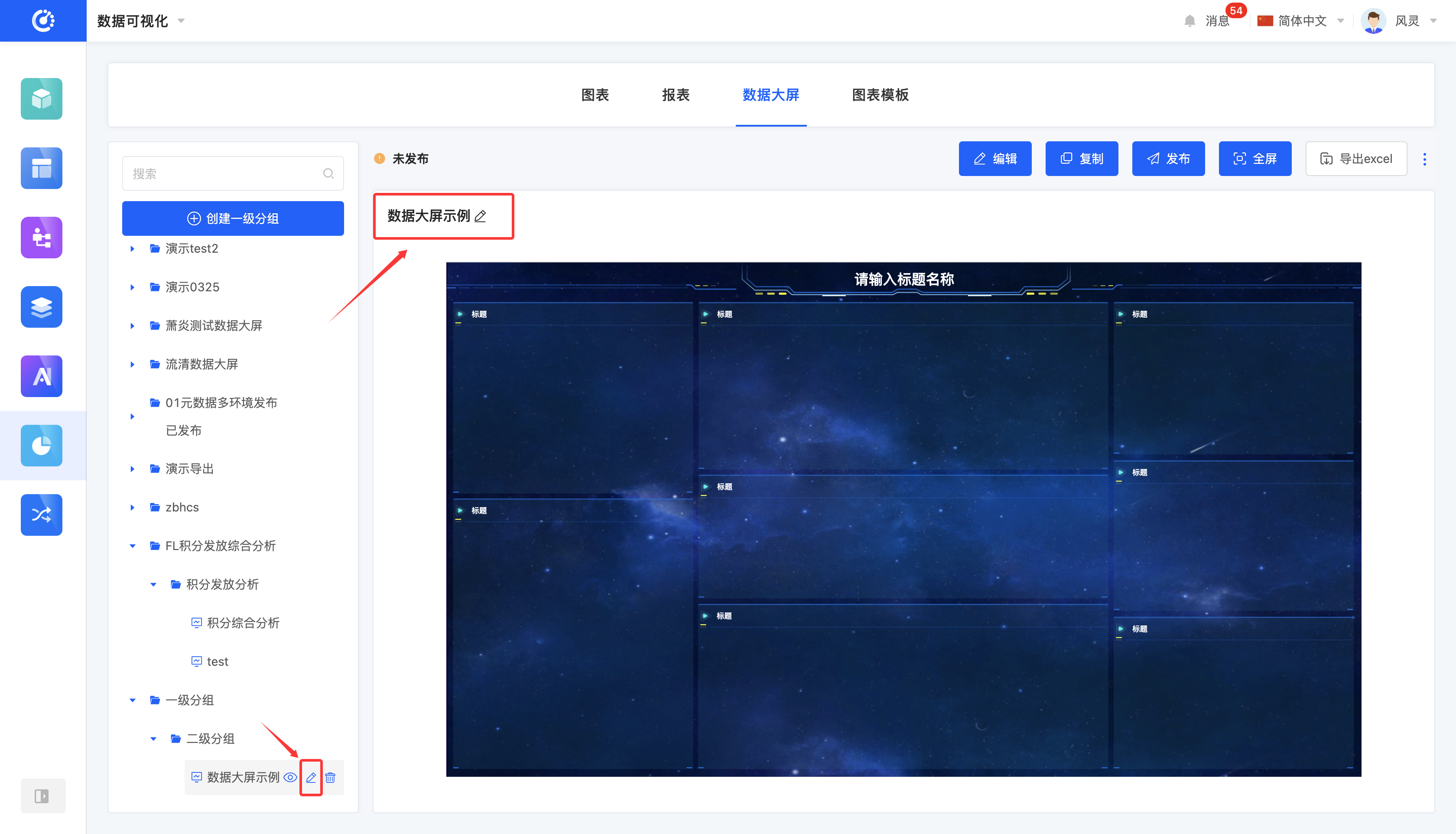
- Edit in the list area, where you can edit the title.
- Edit in the data dashboard preview area, where you can edit the title.
2. Operation Method
Click the "Edit" icon, enter the information, and then you can successfully edit the data dashboard.
V. Design a Data Dashboard
1. Function Introduction
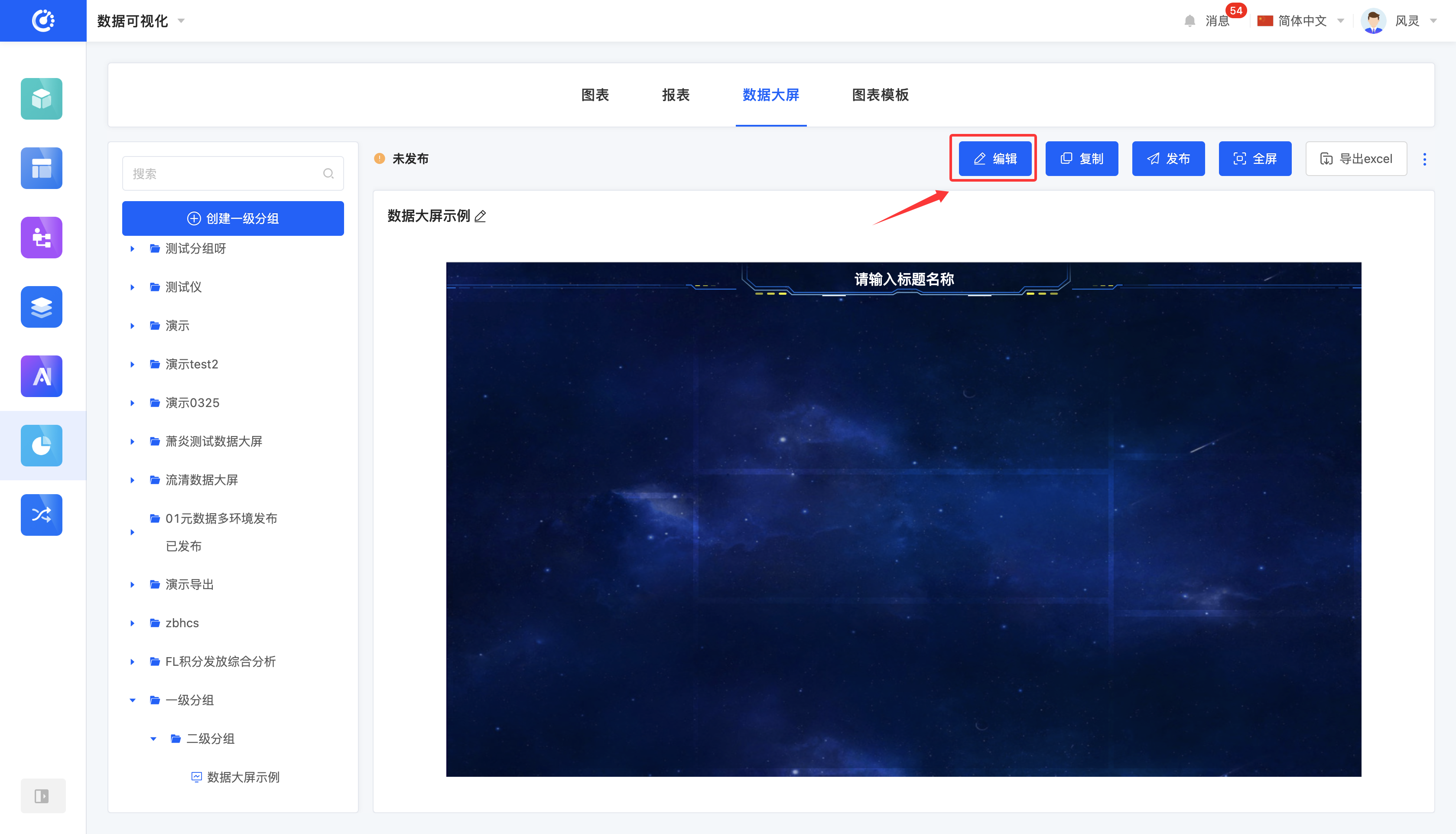
After creating a data dashboard, you can enter the data dashboard design interface to perform personalized design and layout on the data dashboard, including selecting different charts and components to meet diverse needs and styles. (See the data dashboard design documentation for details.)
Note
When a data dashboard is published and then hidden, you cannot enter the data dashboard design interface.
2. Operation Method
Click "Edit" to enter the data dashboard design interface.
VI. View Reference Information
1. Function Introduction
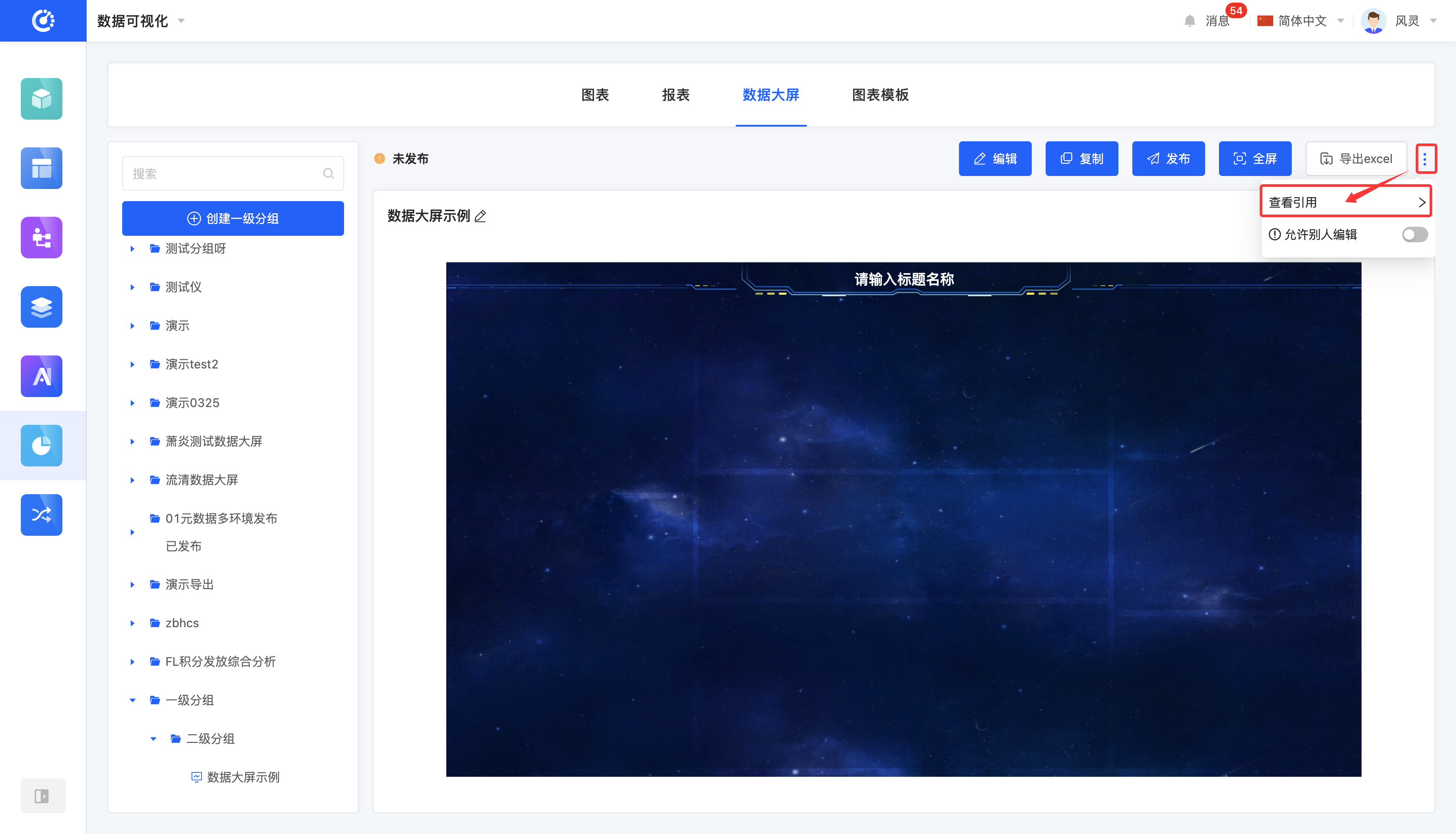
You can view various elements that have a reference relationship with the data dashboard.
Note
- For published data dashboards, a reference link can be provided, which can be directly copied and used elsewhere.
- For unpublished data dashboards, no reference link is provided.
2. Operation Method
Click "View Reference" to view the reference information.
VII. Copy a Data Dashboard
1. Function Introduction
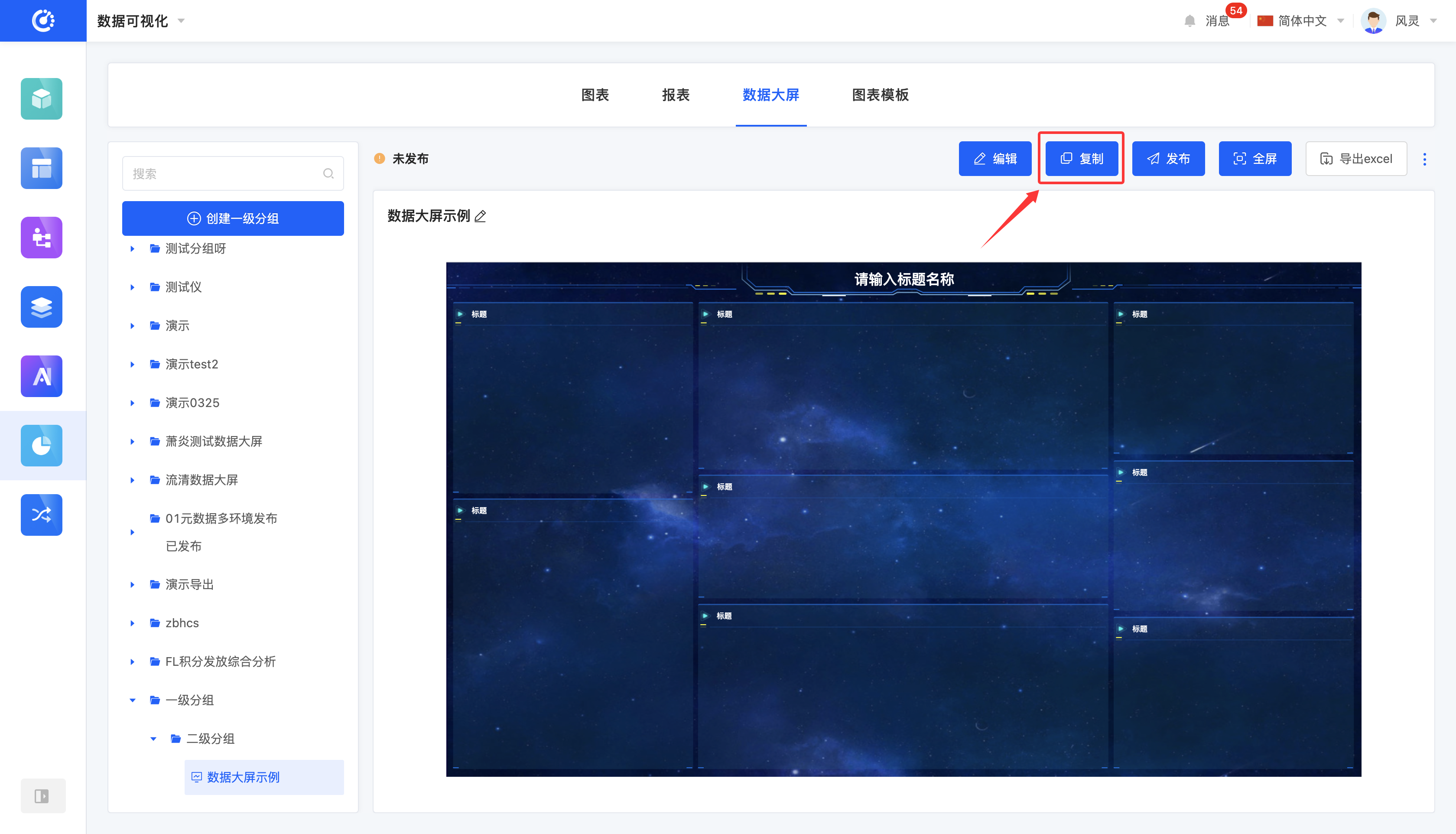
Provides a data dashboard copying function. This function will generate a copy at the bottom of the group where the original chart is located. The title of the copy will be "copy of [original chart name]".
2. Operation Method
Click "Copy" to successfully copy the data dashboard.
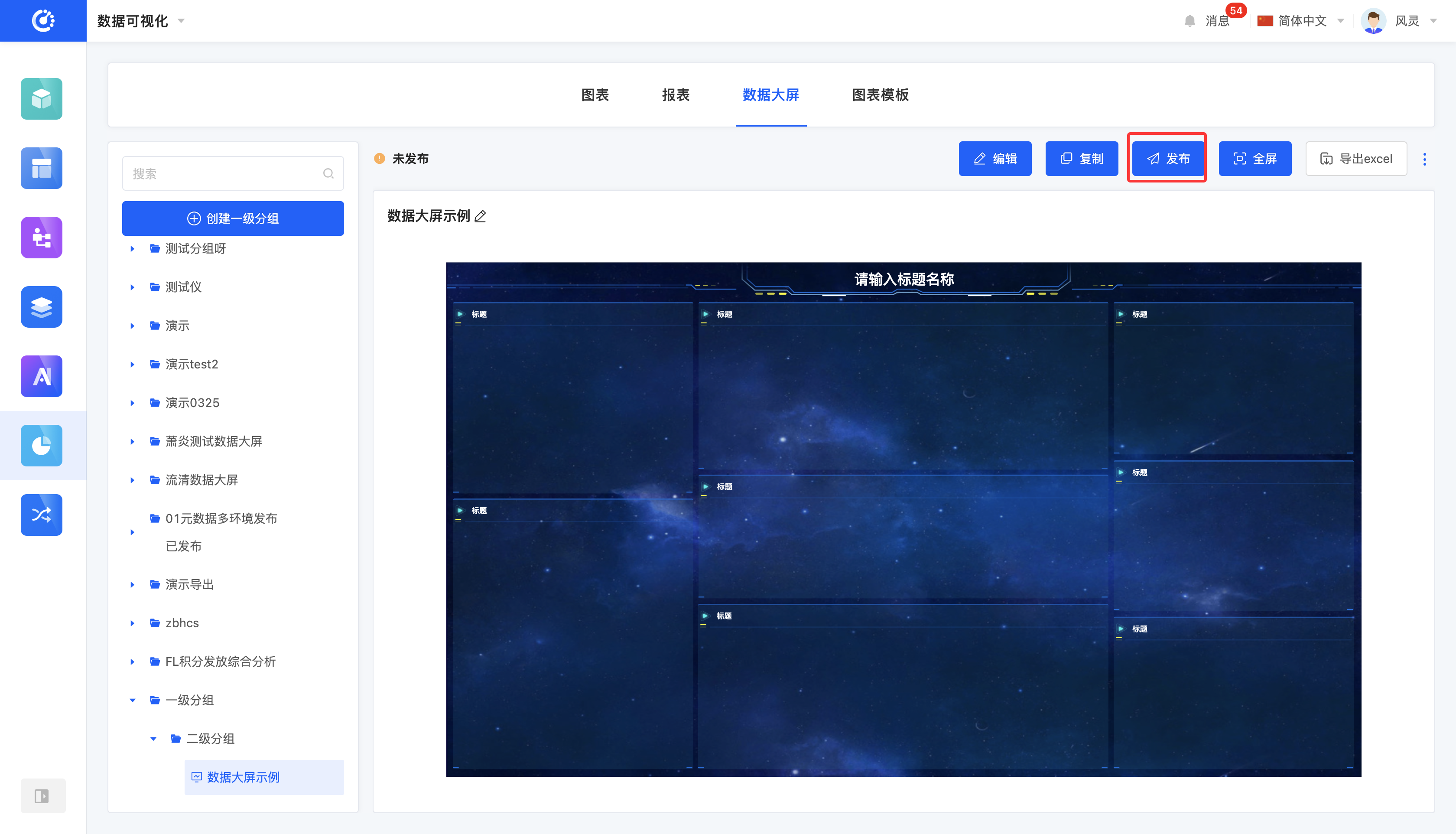
VIII. Publish a Data Dashboard
1. Function Introduction
After designing a data dashboard, users can choose to publish it. The published data dashboard can be referenced in other designers, and the latest publishing time will be displayed. If the content of the data dashboard is updated after publication, the original "Publish" button will become "Update and Publish".
Note
If the content is updated but not republished, the places where the data dashboard is referenced will still display the old version of the content.
Note
When a data dashboard is hidden, it cannot be published.
Note
To publish a data dashboard, ensure that the dashboard contains at least one chart or component to meet the basic requirements for publication.
2. Operation Method
Click "Publish/Update and Publish" to successfully publish the data dashboard.
IX. View the Latest Published Version
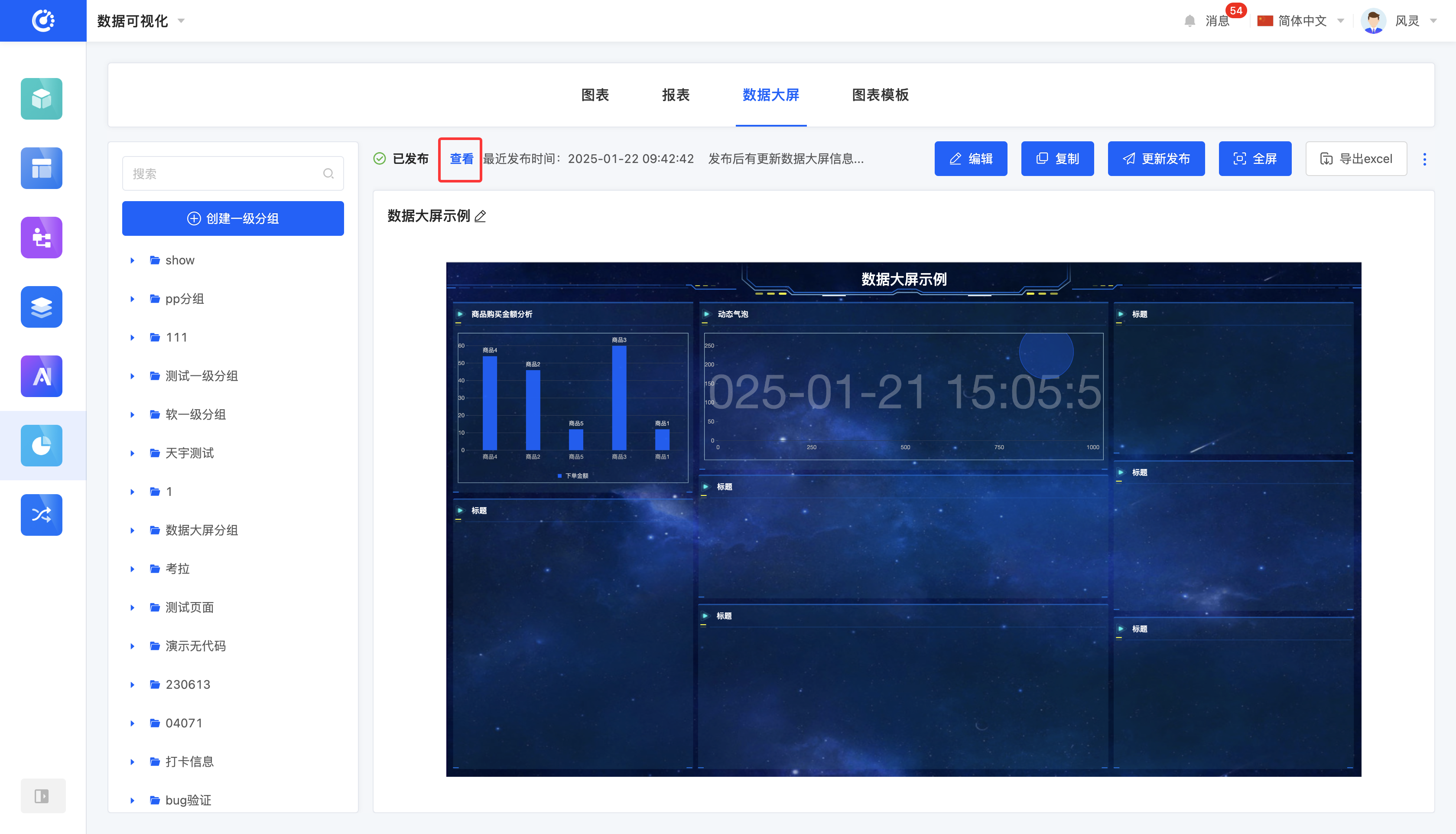
1. Function Introduction
When a data dashboard is updated after publication, the latest publishing time will be displayed in the upper-left area of the data dashboard preview area. You can view the latest published version.
2. Operation Method
Click "View", and the data dashboard preview area will display the latest published version.
X. Hide/Show a Data Dashboard
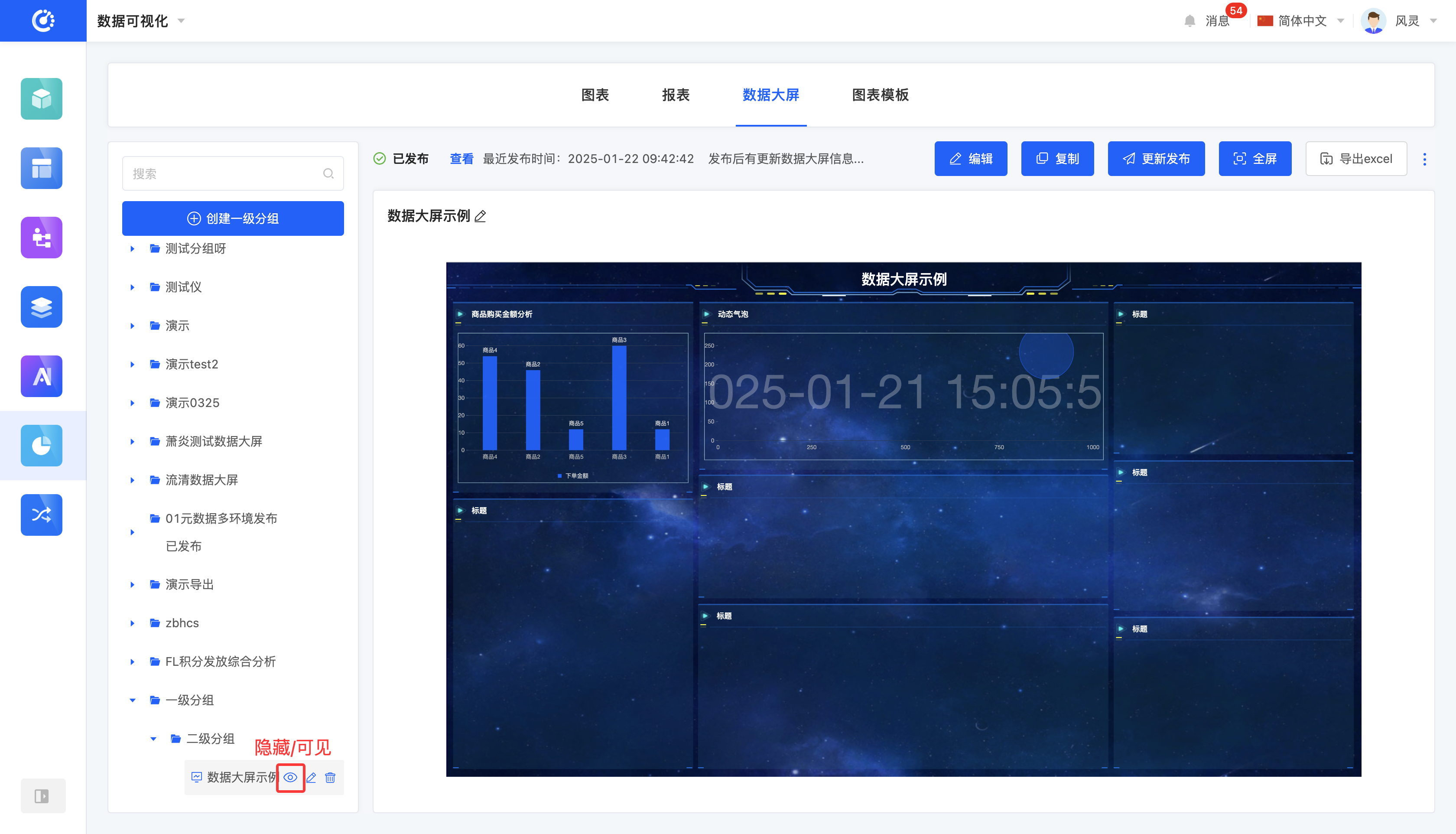
1. Function Introduction
For data dashboards that are not currently in use, you can perform a hiding operation. If needed in the future, simply set the hidden data dashboard to the visible state to put it back into use. Hidden data dashboards cannot be referenced, but it does not affect the already referenced data.
Note
- For published data dashboards, they cannot be edited after being hidden.
- For unpublished data dashboards, they can be edited after being hidden.
2. Operation Method
Click "Hide" to set the data dashboard to the hidden state; click again to restore the data dashboard to the visible state.
XI. Export to Excel
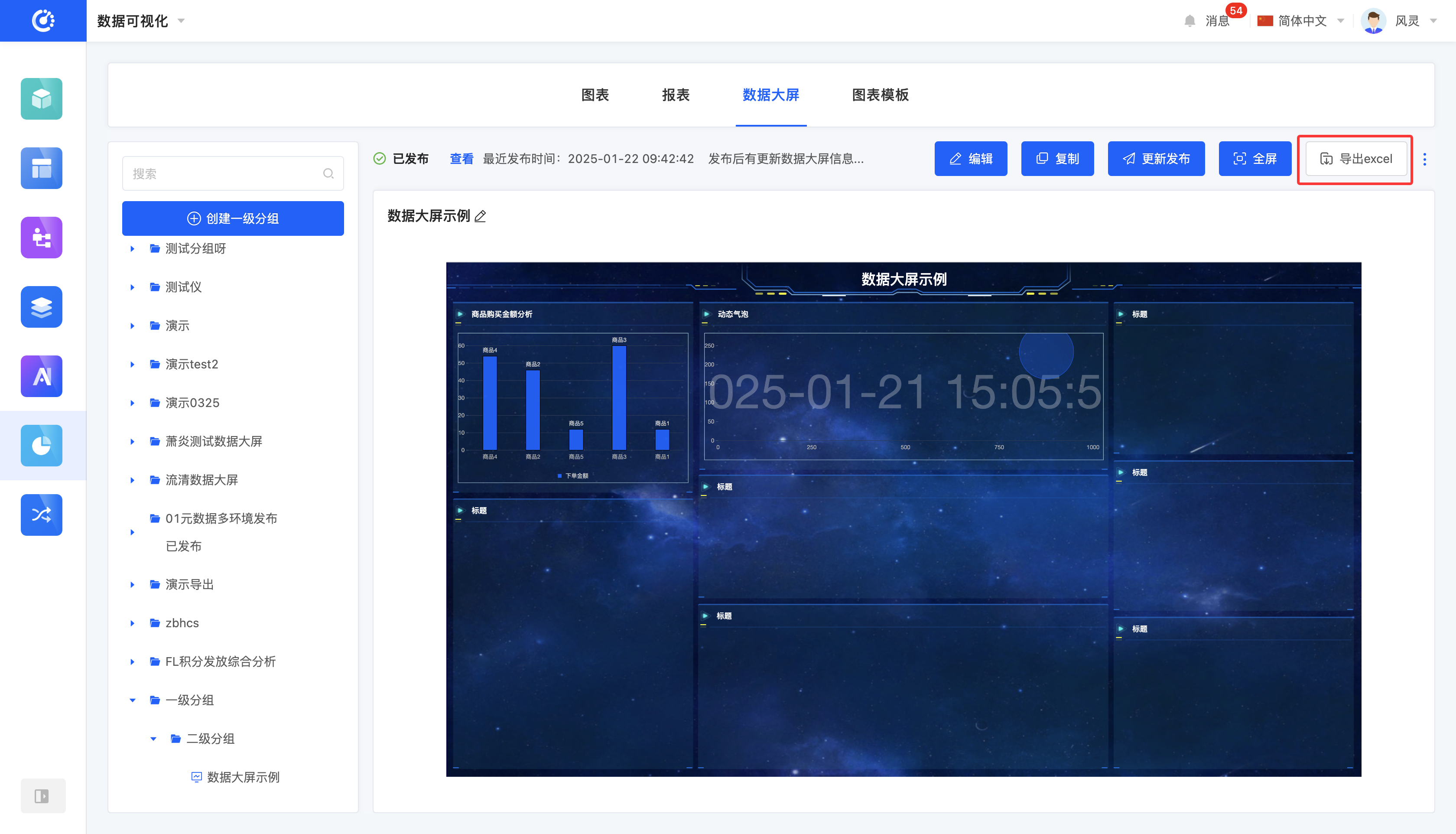
1. Function Introduction
You can export the data content of the data dashboard to a standardized Excel file format.
2. Operation Method
Click "Export to Excel" to export the data in the current chart in Excel format.
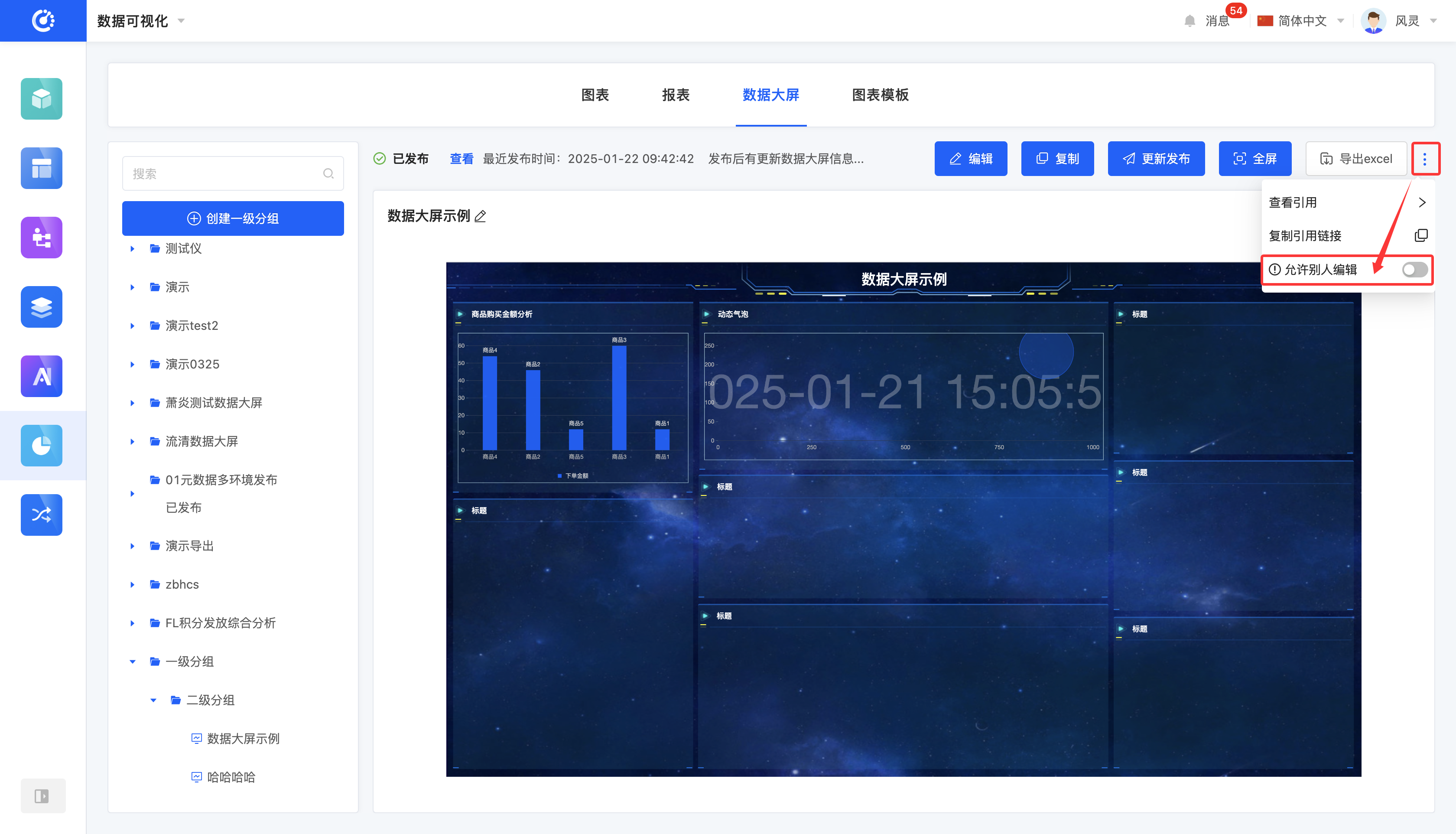
XII. Allow Others to Edit
1. Function Introduction
Supports customizing editing permissions. When the editing permission is turned off, non-creators cannot edit the content even if they log in.
2. Operation Method
Click the switch to change the status of this function.
XIII. Full Screen
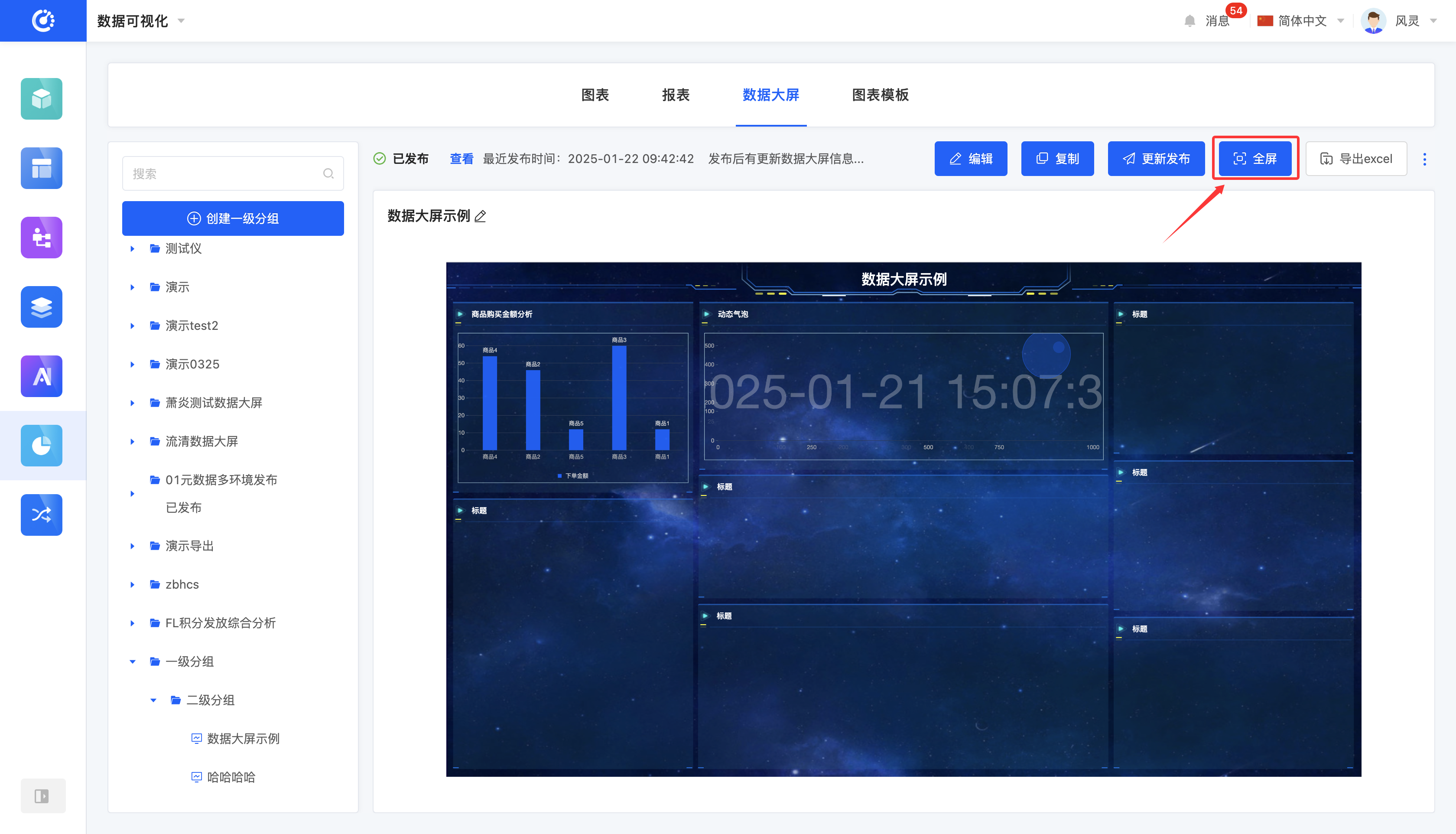
1. Function Introduction
Supports full-screen display of data dashboards. The data dashboard will occupy the entire screen space, and the display effect of charts and components will be more prominent and clear.
2. Operation Method
Click "Full Screen" to display the data dashboard in full screen.
XIV. Delete Data
1. Function Introduction
When a data dashboard is no longer needed, you can choose to delete it. If you are not sure whether to delete the data dashboard, you can hide it first.
Note
Before deletion, ensure that the data dashboard is not referenced by other designers; otherwise, the deletion operation will not be allowed.
Warning
Once a data dashboard is deleted, it cannot be restored. Please operate with caution!
2. Operation Method
Click the "Delete" icon, confirm the deletion, and then you can delete the data dashboard.