I. Translation Management
1. Feature Introduction
In the translation management system, translation items can be systematically managed and maintained. These rules are based on models and are used to maintain the translation values of fields, ensuring the accuracy and consistency of translations.
2. Operation Methods
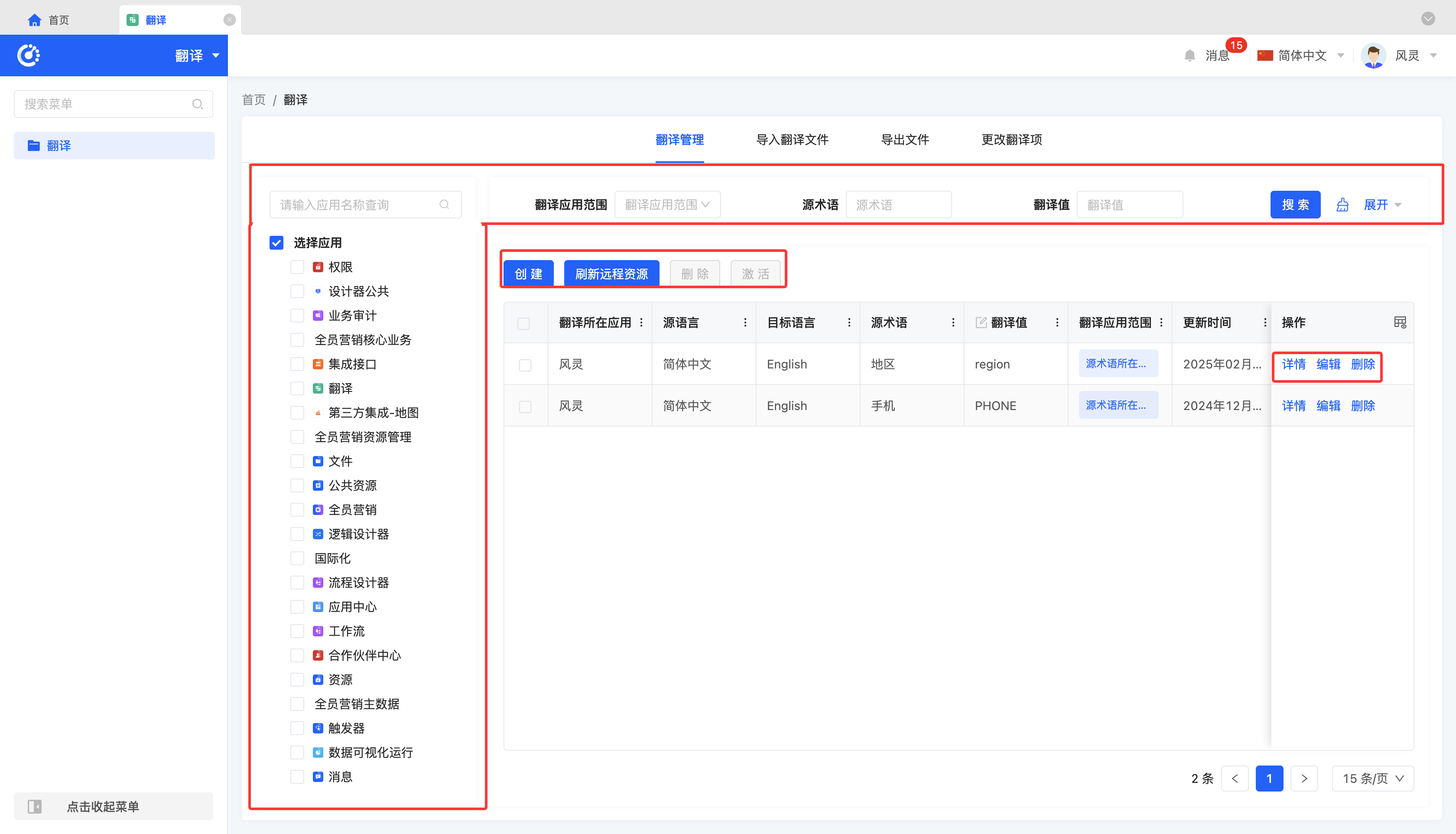
- Filtering: According to the requirements of the actual scenario, input or select the corresponding filtering conditions to filter the translation items.
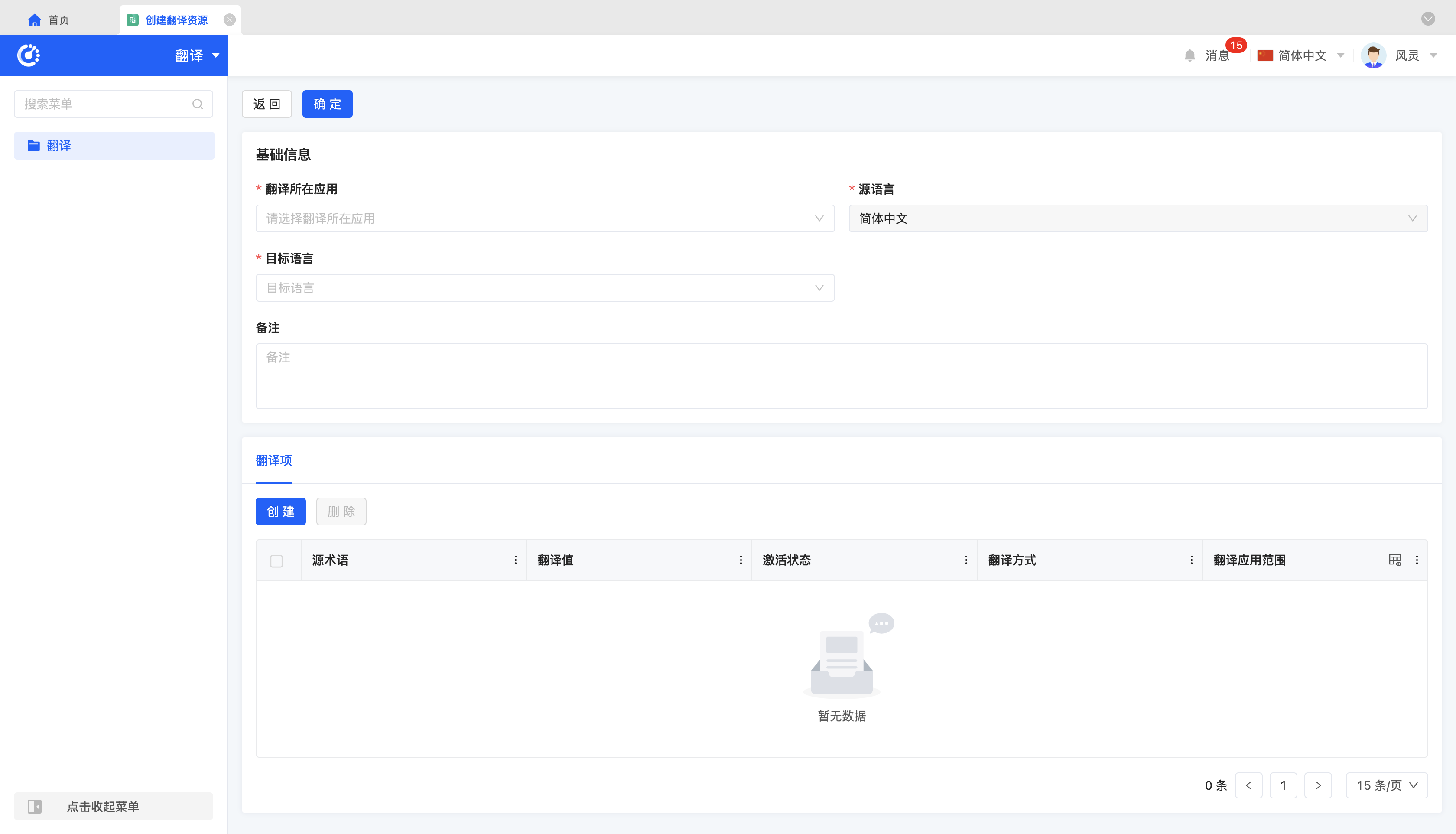
- Creation: Click "Create", input the required configuration information and relevant information of the translation item, and a new translation item can be successfully created.
- Editing: Click "Edit" to update or modify the relevant information of the translation item.
Note
The application scope of translation refers to the scope that can be covered after the translation takes effect, including the application where the source term is located and the global scope:
- If "The application where the source term is located" is selected, this rule only applies to the "application where the translation is located" that has been set.
- If "Global" is selected, this rule can be used throughout the entire system.
- Refresh Remote Resources: After adding or editing a translation item, click "Refresh Remote Resources" to ensure that the rule takes effect and is applied to the resources.
Note
If the remote resources are not refreshed, the translation item will not take effect.
- Details: Click "Details" to view the detailed information of the selected translation item.
- Deletion: Select a translation item and click "Delete" to delete the translation item.
- Activation: When the status of a translation item is "Inactive", select the rule and click "Activate" to quickly enable the rule.
Example
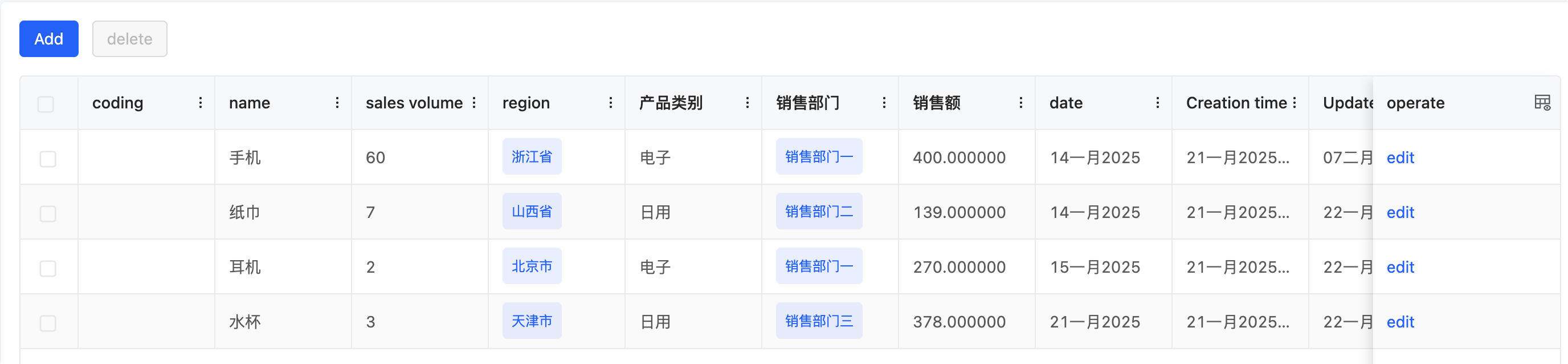
Suppose there is a table in English mode:
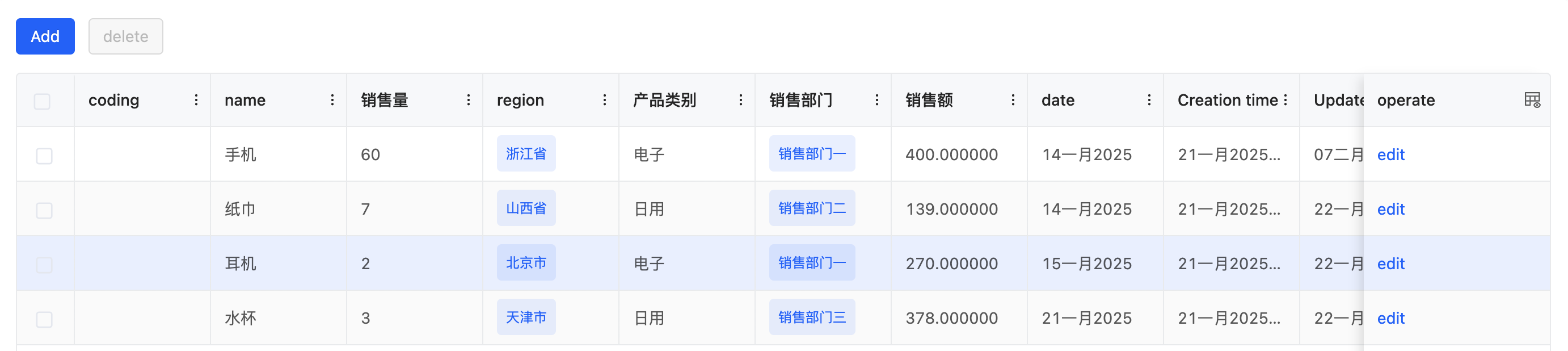
Add a translation item for "Sales Volume".
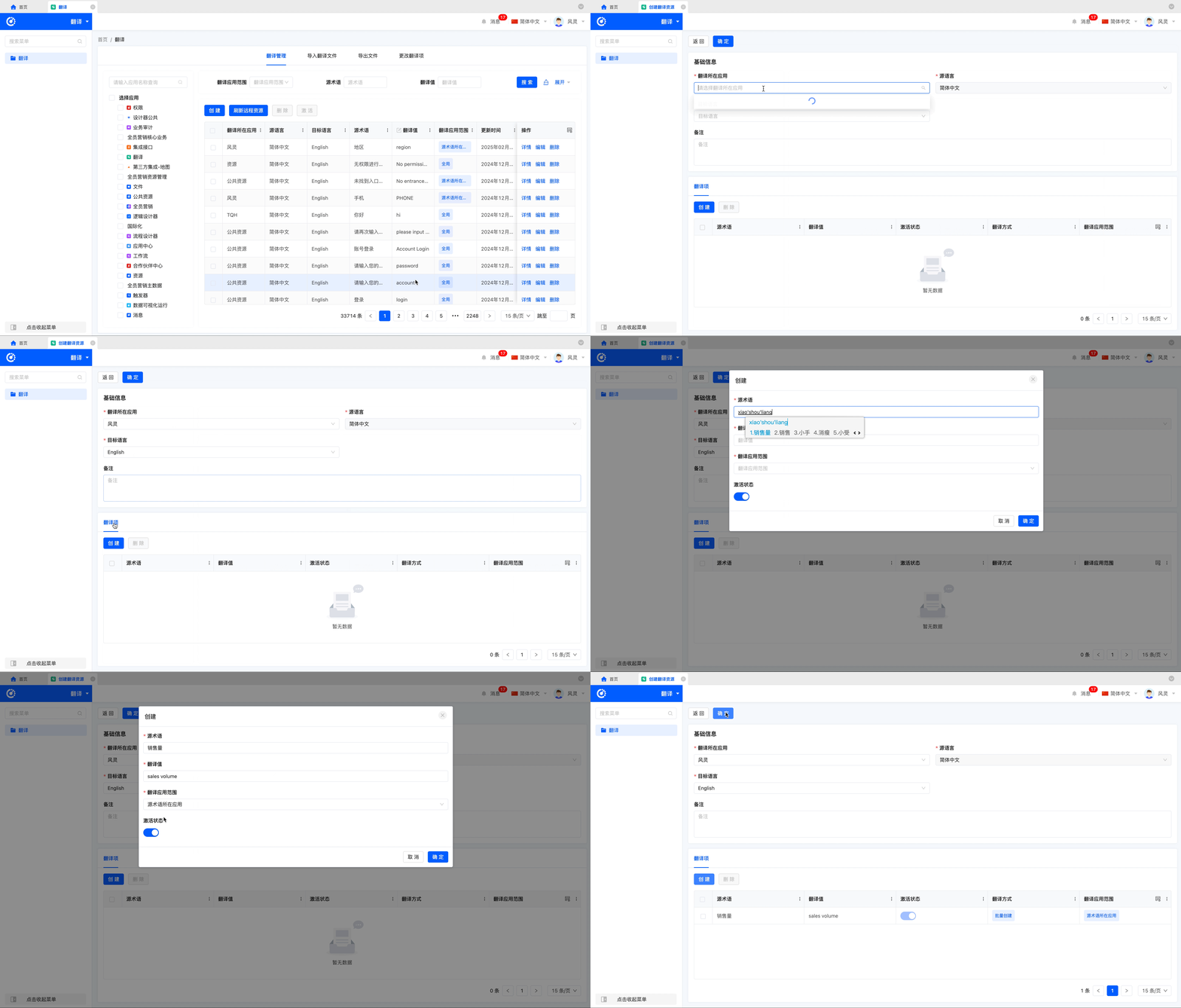
After the creation is completed, click "Refresh Remote Resources". After the refresh is completed, check the effect. The original "Sales Volume" will be changed to "sales volume".
II. Import Translation Files
1. Feature Introduction
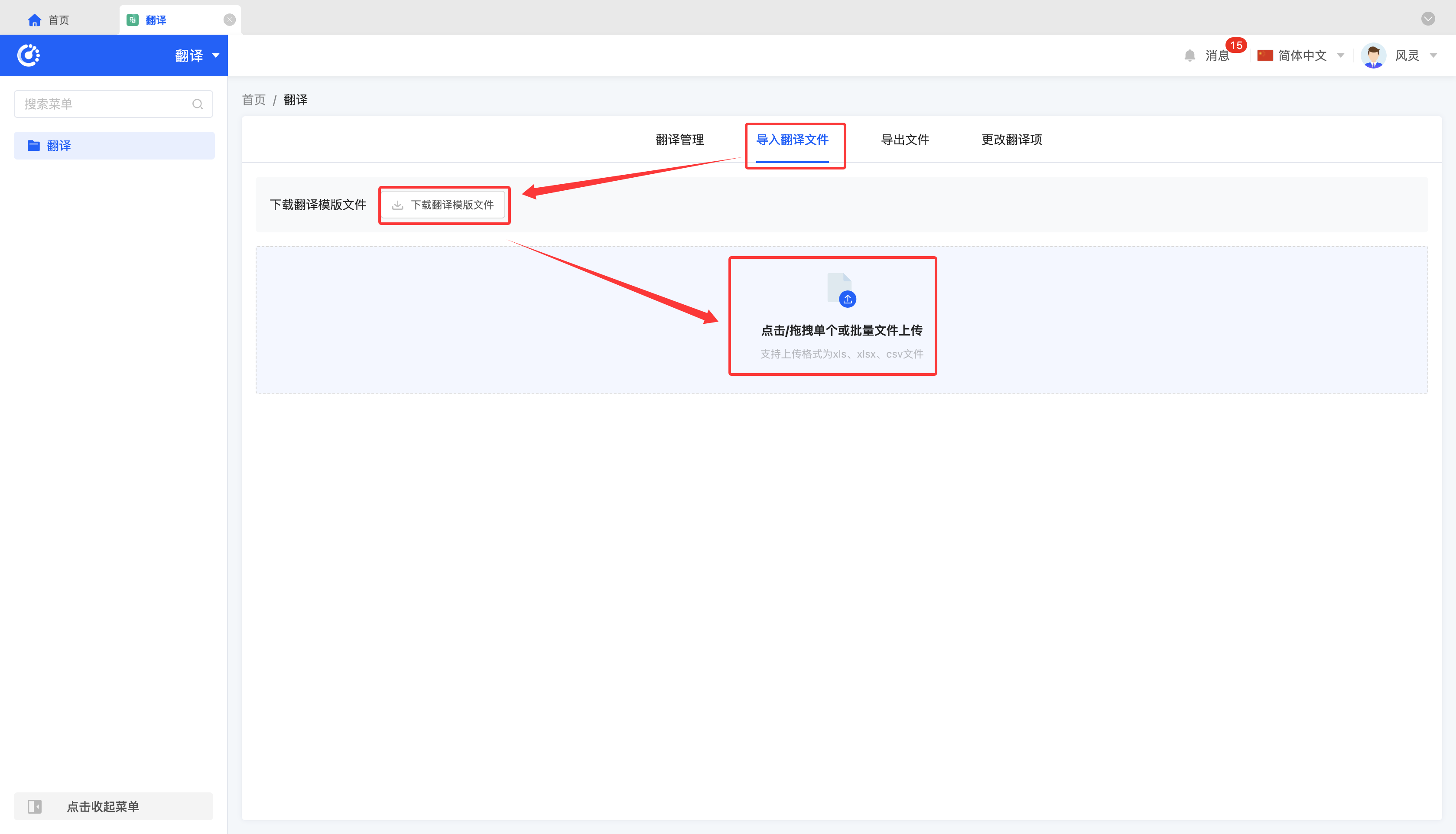
The system supports importing multiple translation items at once through an Excel file, improving the efficiency and convenience of translation item management.
Note
You need to use the translation template file provided by the platform. Fill in the template file and then upload it.
2. Operation Methods
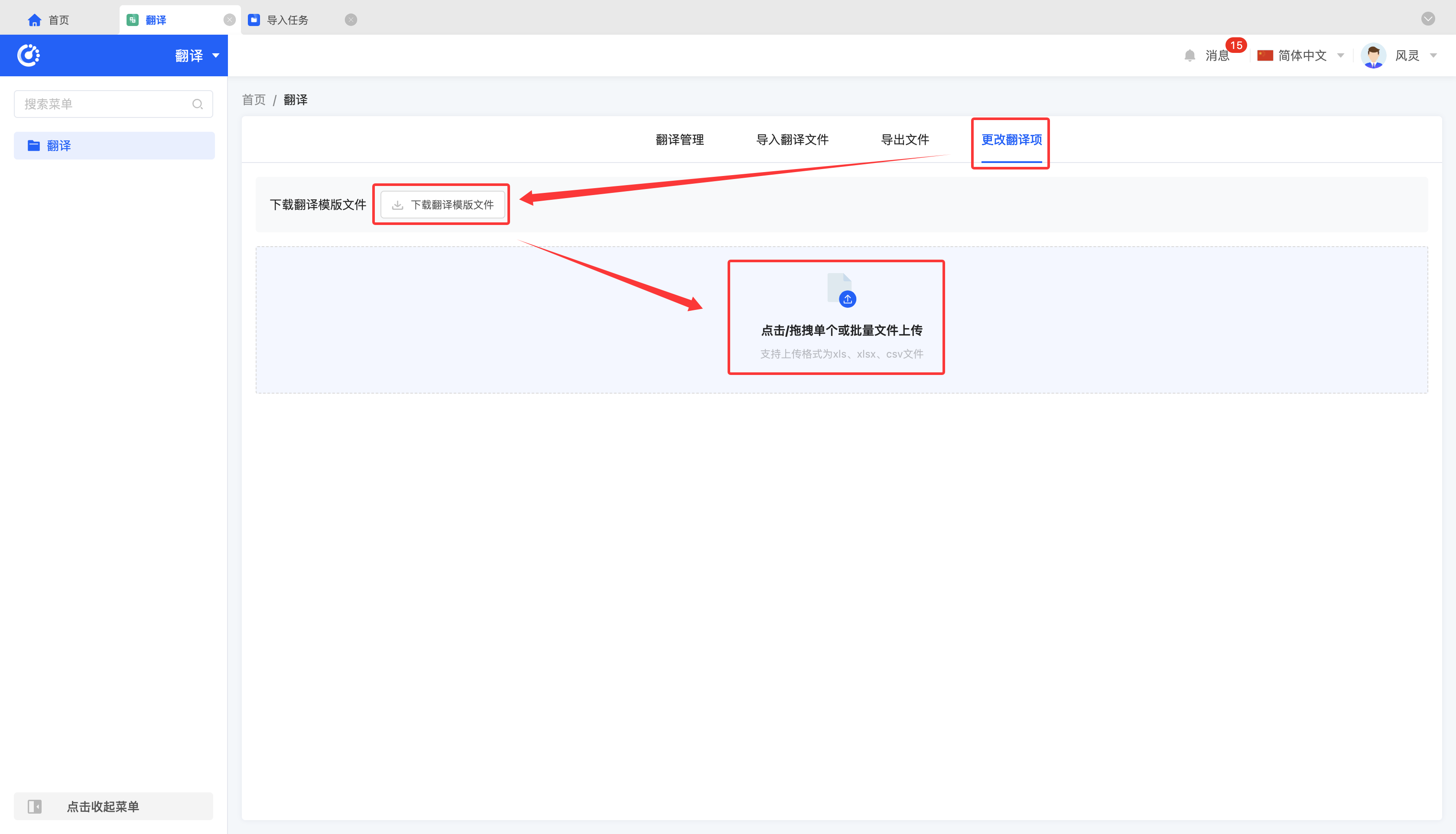
Click "Download Translation Template File", fill it in, and then upload it to successfully import the translation items.
III. Export Files
1. Feature Introduction
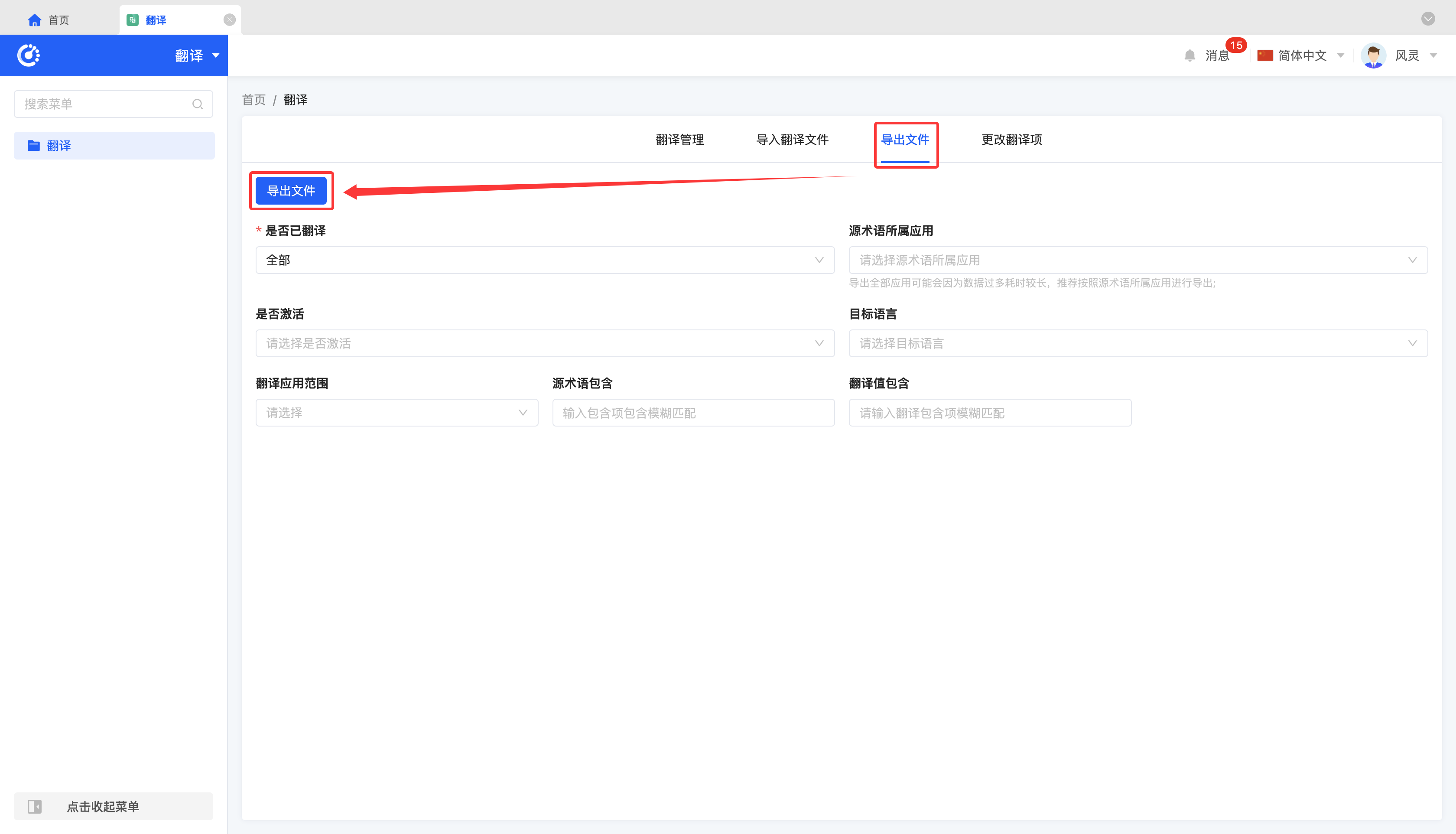
It supports exporting existing translation items, and you can customize the content included in the exported file.
Prompt
Exporting all applications at once may take a long time due to the large amount of data. It is recommended to export according to the application to which the source term belongs.
2. Operation Methods
Fill in the information of the translation items to be exported, and then click "Export File" to successfully export the file.
IV. Change Translation Items
1. Feature Introduction
It supports changing the information of existing translation items.
Note
You need to use the translation template file provided by the platform. Fill in the template file and then upload it.
2. Operation Methods
Click "Download Translation Template File", fill it in, and then upload it to successfully change the translation items.