I. Address Library
Note
You can use the information in the address library in the address field to improve the accuracy and efficiency of data entry.
(Ⅰ) Regions
1. Function Introduction
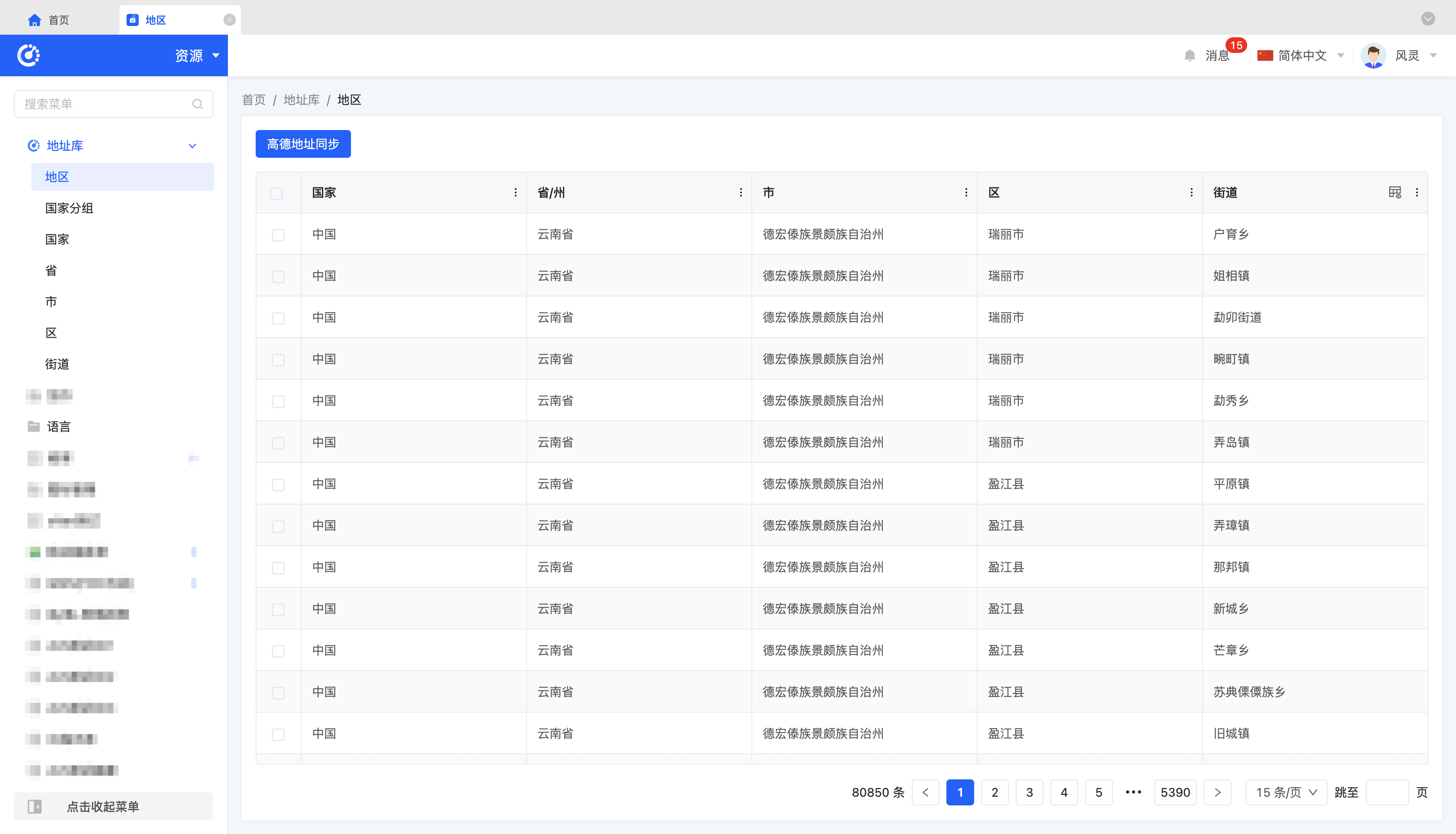
The regions comprehensively and detailedly display the hierarchical relationships among countries, provinces, cities, districts, and streets. When the regional information changes, the system supports synchronization and update through Amap to ensure the accuracy and timeliness of the information.
2. Operation Method
Click "Synchronize Amap Address" to update the current regional information.
(Ⅱ) Country Groups
1. Function Introduction
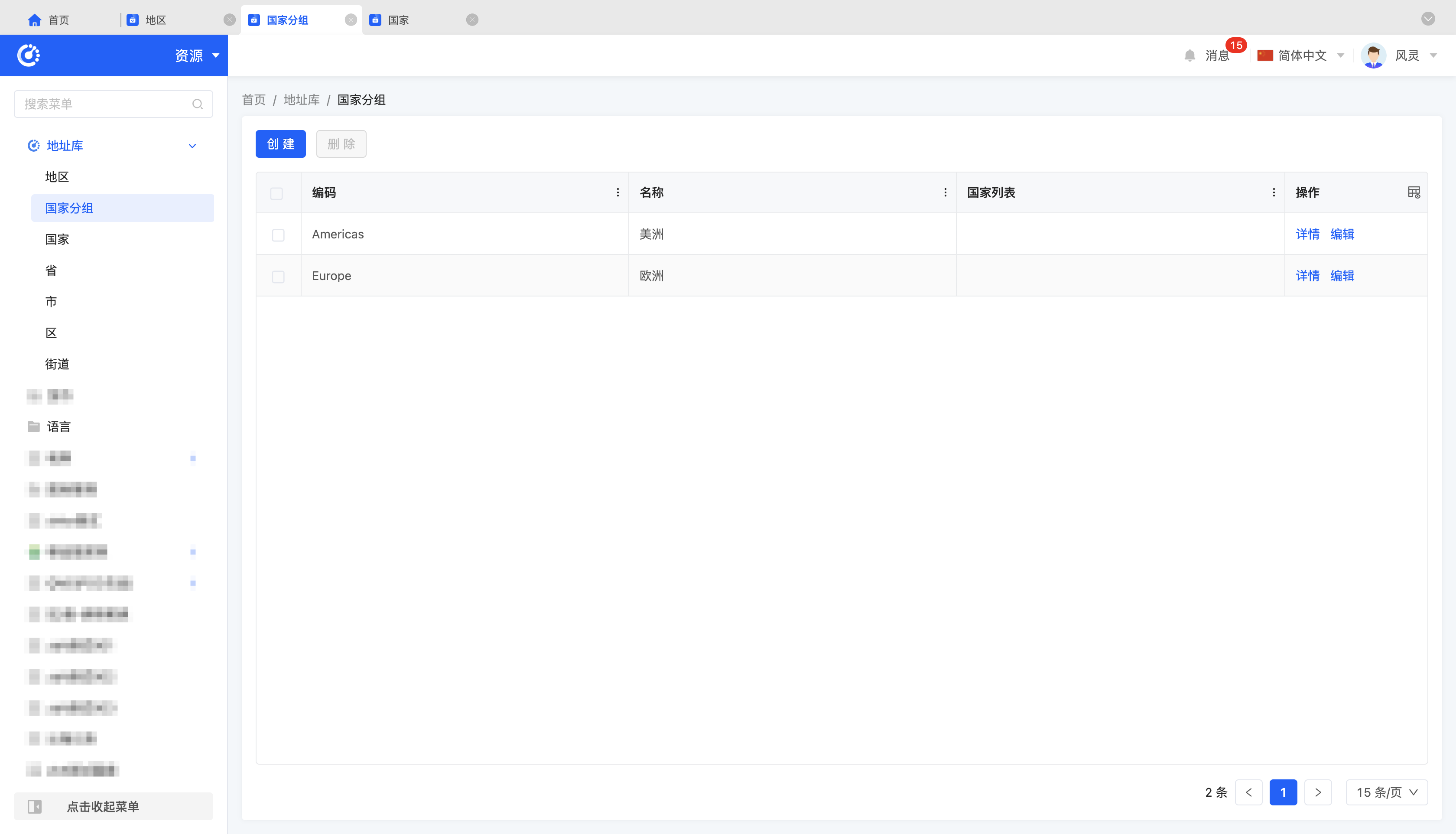
The system supports users to customize country groups and allows adding corresponding country members to the set country groups to meet diverse management needs.
2. Operation Method
- Add: Click "Create", enter the required basic information and country list, and save to successfully create a new country group.
Note
The relevant information of countries needs to be maintained in "Address Library - Countries".
- Edit: Click "Edit" to update or modify the relevant information of the country group.
- Details: Click "Details" to view the detailed information of the selected country group, including basic information and country list.
- Delete: Select a country group and click "Delete" to delete the country group.
(Ⅲ) Countries, Provinces, Cities, Districts, and Streets
1. Function Introduction
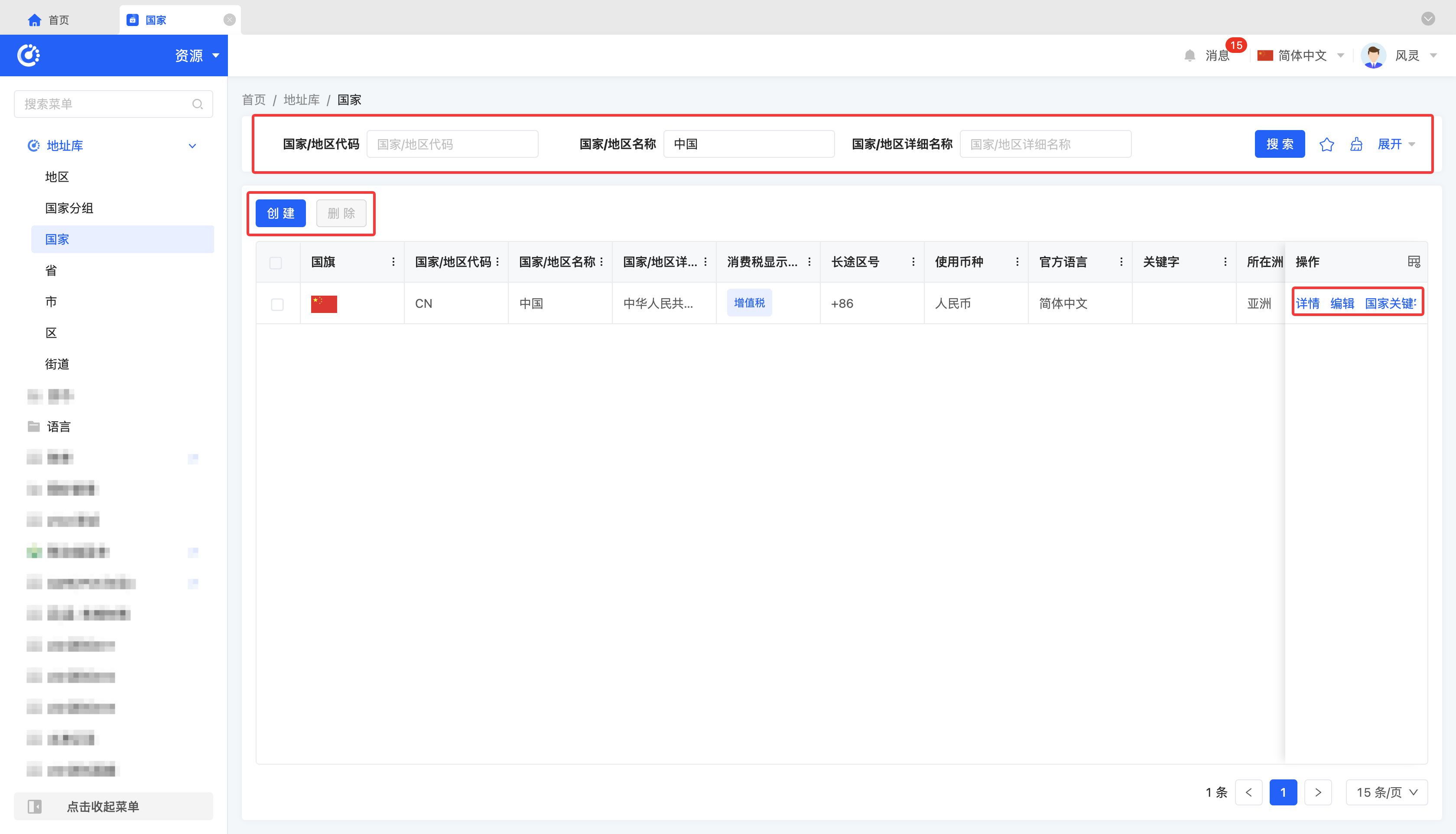
(Taking countries as an example, the other levels are similar) A country is the basic unit in the regional settings. The system provides a comprehensive country information management function, supporting users to view, add, edit, and delete country information.
2. Operation Method
- Filter: Enter or select the corresponding filter conditions according to the actual scenario requirements to filter countries.
- Add: Click "Create", enter the required configuration information, and save to successfully create a new country.
- Edit: Click "Edit" to update or modify the relevant information of the country.
- Details: Click "Details" to view the detailed information of the selected country, including basic information and list of provinces and cities.
- Keyword Settings: Click "Keyword Settings" to add corresponding keywords to the country according to actual needs for more effective management and classification.
- Delete: Select a country and click "Delete" to delete the country.
II. Languages
1. Function Introduction
The system supports multi - language settings to meet users' usage needs in different language environments and enhance the user experience.
Note
The languages set here can be used for the translation function.
2. Operation Method
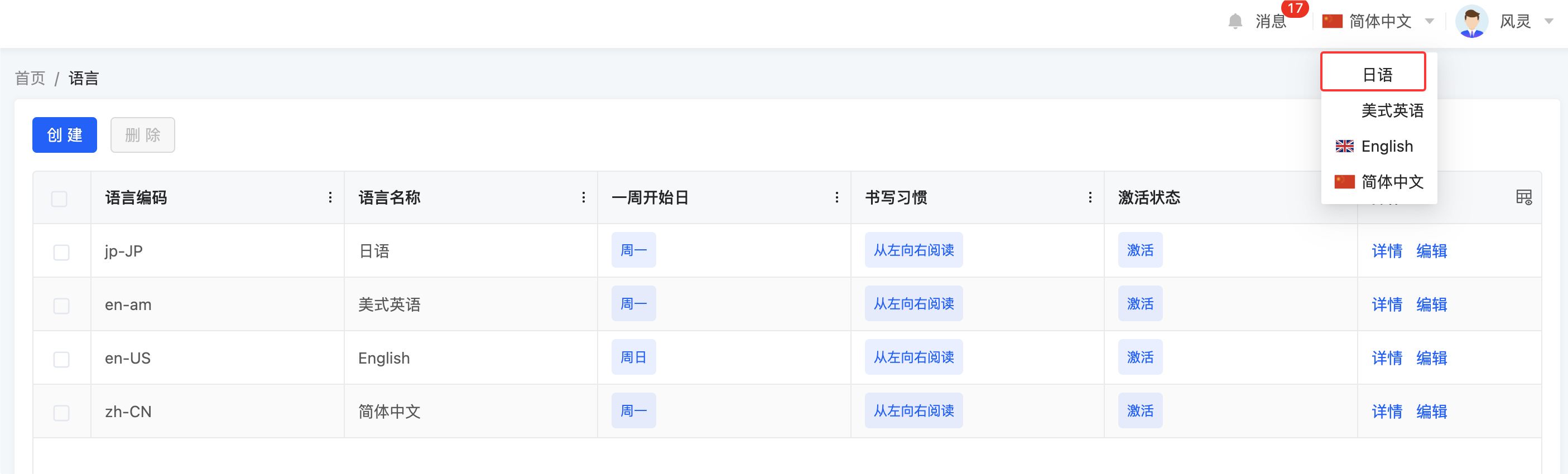
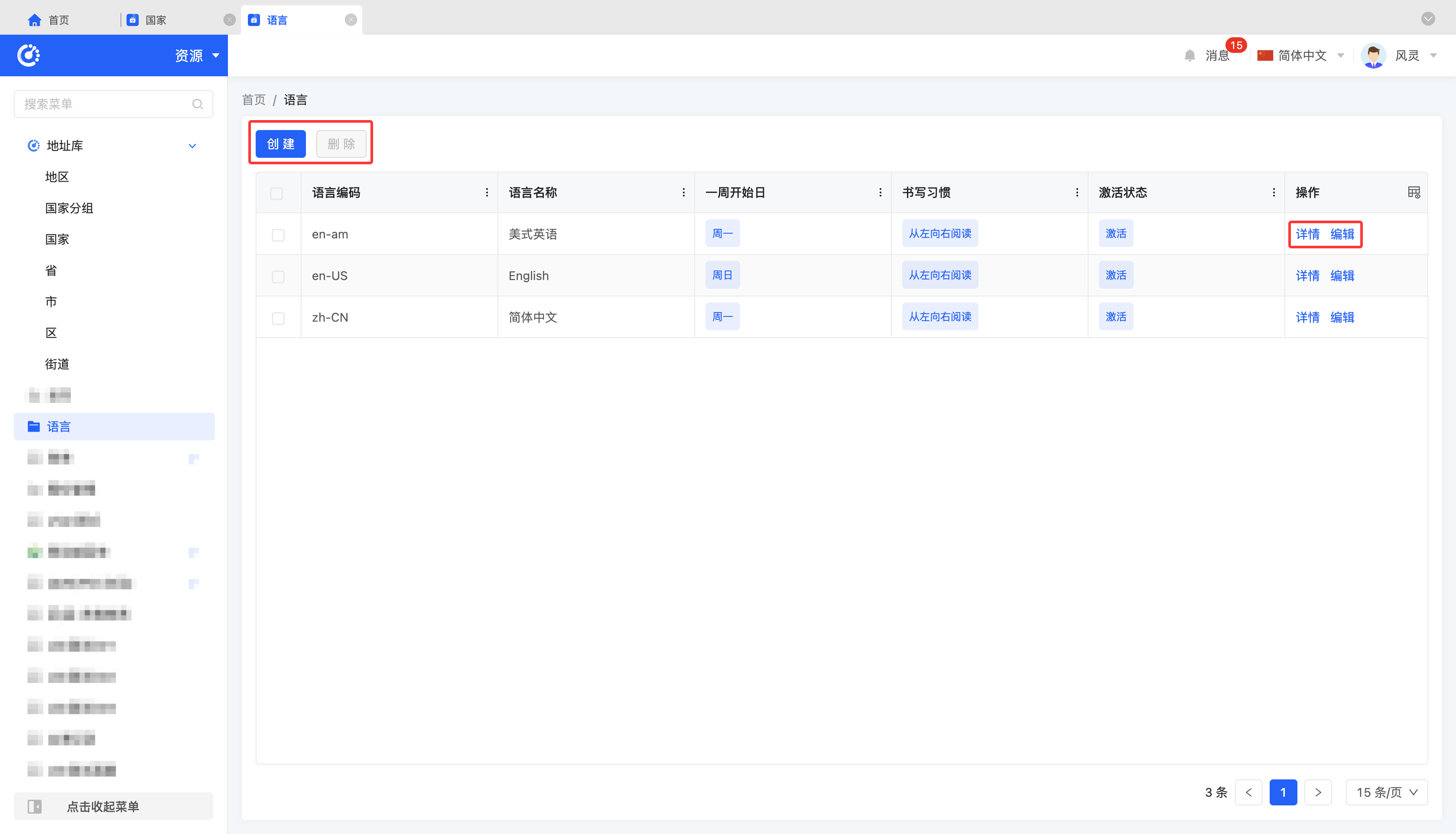
- Add: Click "Create", enter the required configuration information, and save to successfully create a new language.
- Edit: Click "Edit" to update or modify the relevant information of the language.
- Details: Click "Details" to view the detailed information of the selected language.
Attention
- When adding or editing a language, users can customize the display format of dates and times according to the language's customs. Once set, these formats will be globally applied to all parts of the system when switching to the corresponding language, ensuring that the display of dates and times conforms to the users' expected language customs.
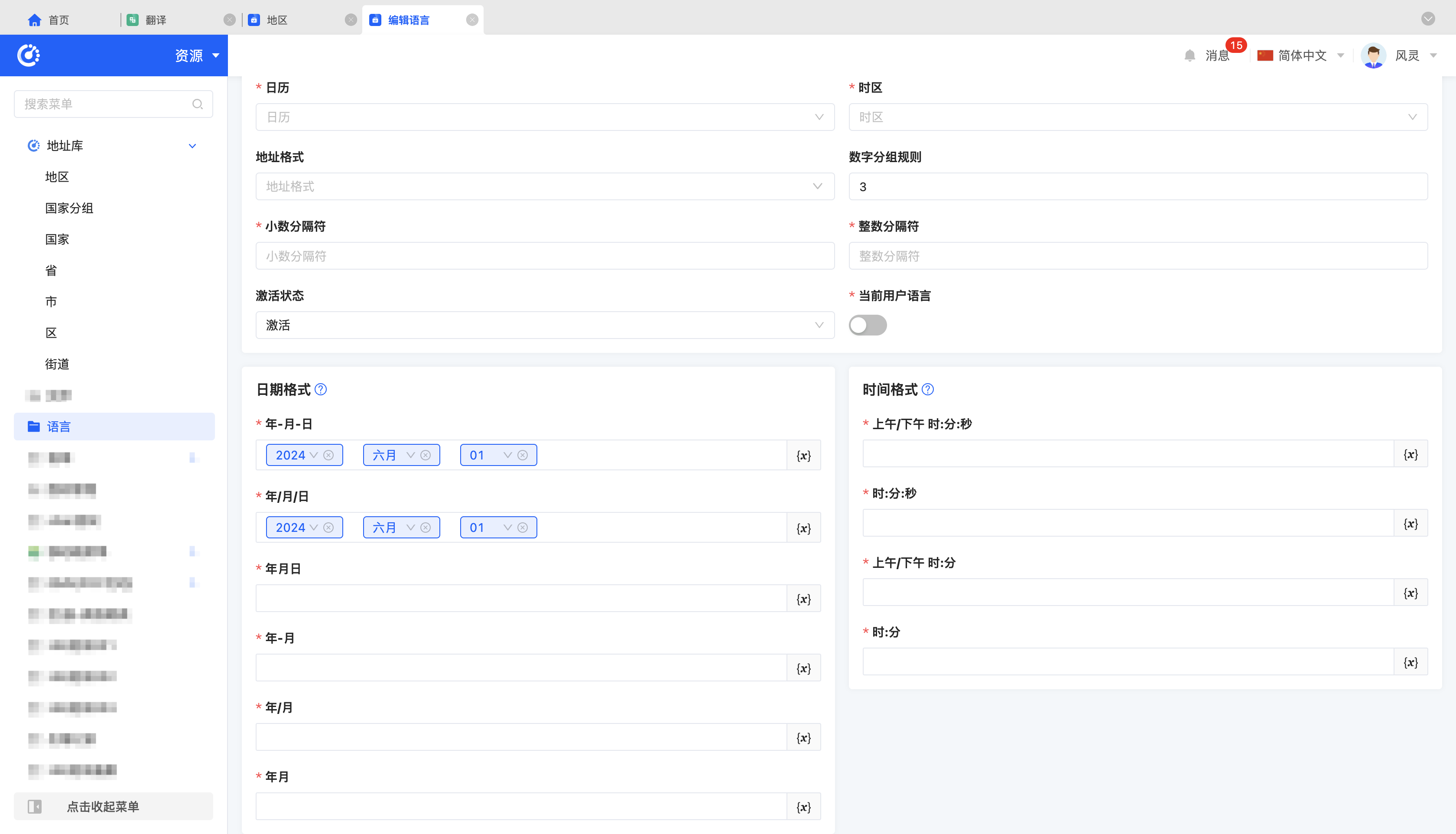
- The date and time components in the interface designer will automatically display the date and time information in the corresponding format according to the language environment set on the current platform.
For example, the date format in the Japanese environment is:
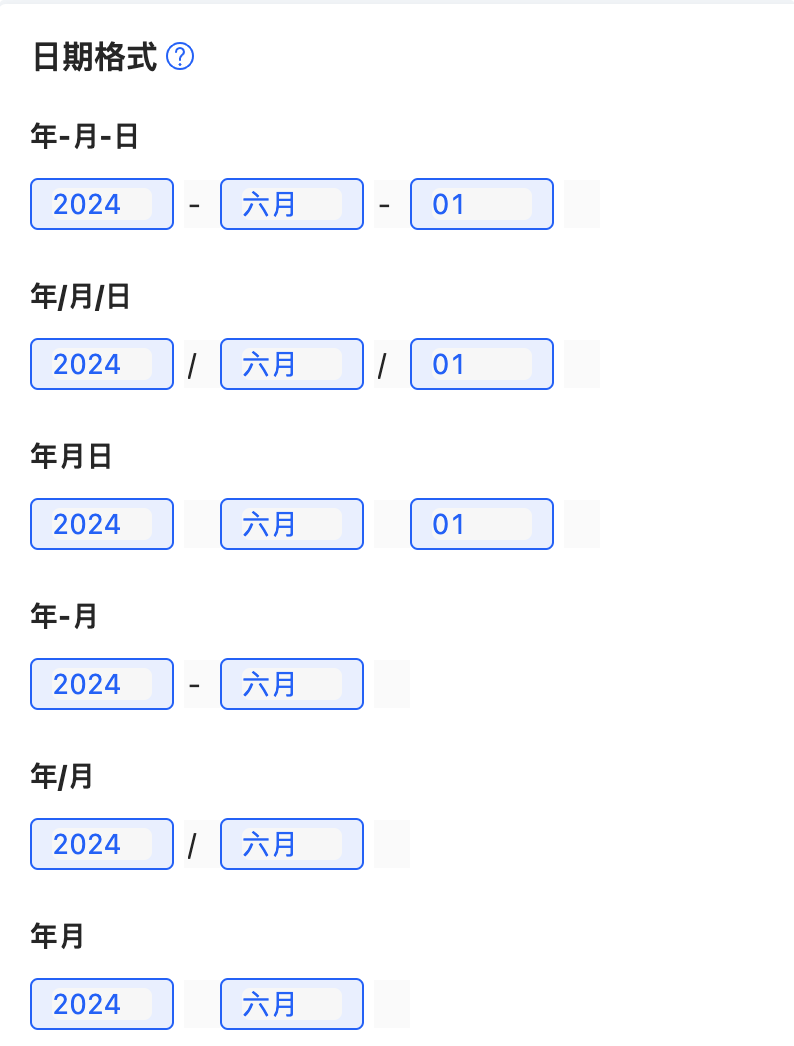
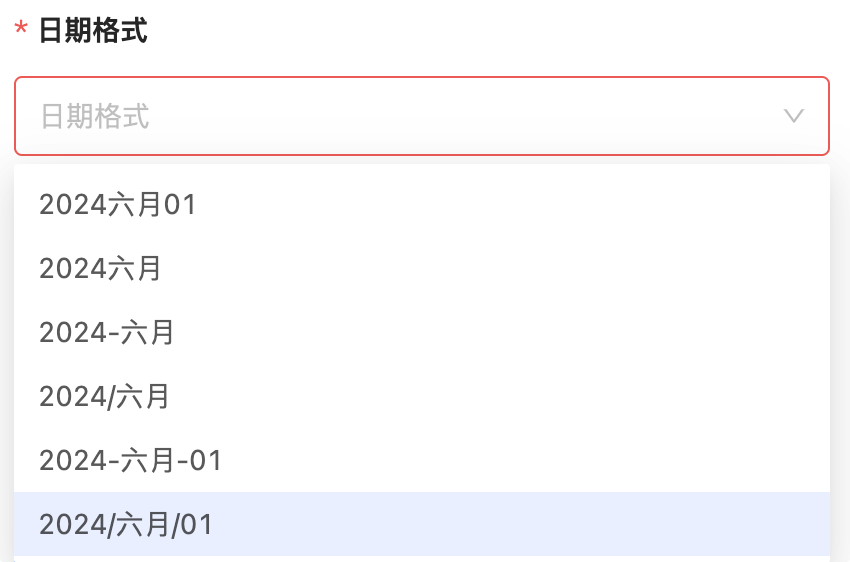
The selectable date formats in the component are:
- Delete: Select a language and click "Delete" to delete the language.
Example
Add "Japanese" to the language resources:
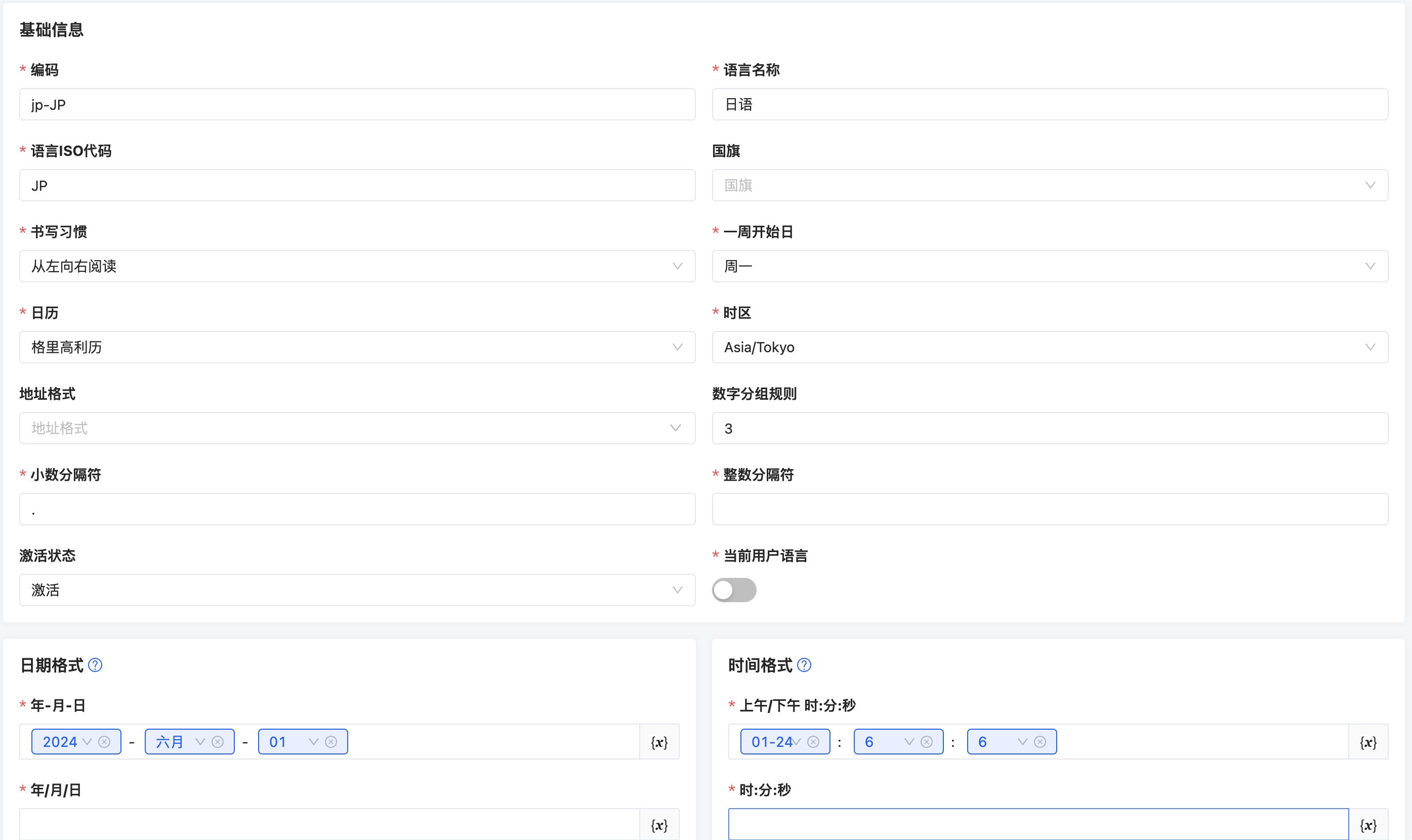
After saving, you can switch the language environment in future use.