Ⅰ. Download the Installer
Tip
You may choose Oracle, OpenJDK, or other JDK distributions. The required version is 1.8_221 or higher. It is recommended to use Oracle or OpenJDK distributions.
Please ensure that the version you download matches your device's CPU architecture (e.g., x64, arm64).
Oracle JDK Download Links:
Tip
Downloading the Oracle JDK may require logging in to an Oracle account.
Note
When configuring environment variables, make sure to update the profile path according to your shell:
- For Zsh, use
${HOME}/.zshrc - For Bash, use
${HOME}/.bashrc
Ⅱ. Installation
(Ⅰ) Install JDK on macOS
1. Configure Environment Variables
- Global installation directory for
.dmg:/Library/Java/JavaVirtualMachines/jdk-1.8.jdk - User-level installation directory for
.dmg:~/Library/Java/JavaVirtualMachines/jdk-1.8.jdk - Custom installation for
.tar.gz: user-defined directory
Set environment variables:
cat >> REPLACE_WITH_SHELL_PROFILE_FILE << EOF
export JAVA_HOME="/Library/Java/JavaVirtualMachines/jdk-1.8.jdk/Contents/Home"
export PATH=\$JAVA_HOME/bin:\$PATH
EOF2. Verify Installation
# Verify Java installation
/usr/libexec/java_home -V# Sample verification output
1.8.0_451 (arm64) "Oracle Corporation" - "Java SE 8" /Library/Java/JavaVirtualMachines/jdk-1.8.jdk/Contents/Home# Verify environment variable setup
java -version# Sample environment variable output
% java -version
java version "1.8.0_451"
Java(TM) SE Runtime Environment (build 1.8.0_451-b10)
Java HotSpot(TM) 64-Bit Server VM (build 25.451-b10, mixed mode)(Ⅱ) Install JDK on Windows
- Default install directory for
.exe:C:\Program Files\Java\jdk-1.8\ - Custom install directory: user-defined
- Extracted from
.zip: user-defined directory
1. Configure Environment Variables
You can choose one of the two methods below (visual or CLI). Only one is needed.
1.1 Visual Method (User-Level Environment Variables)
Press Win + R to open the dialog shown below:
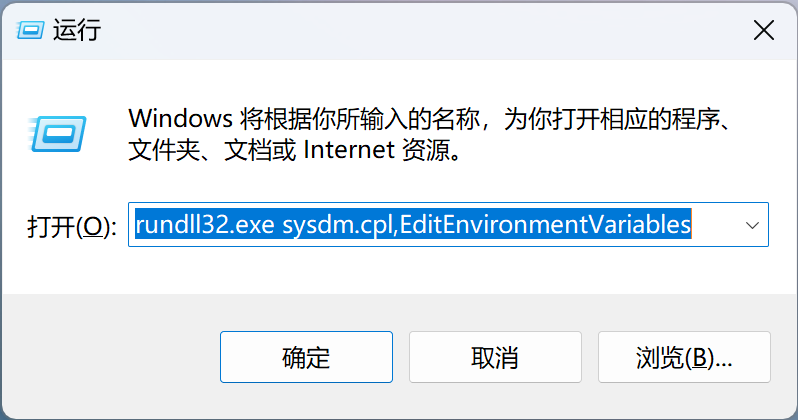
Then enter:
# Open environment variables settings window
rundll32.exe sysdm.cpl,EditEnvironmentVariablesSet JAVA_HOME to:
C:\Program Files\Java\jdk-1.8.png)
Append the following to Path: ;%JAVA_HOME%\bin
.png)
1.2 CLI Method (User-Level Environment Variables)
Open CMD, PowerShell, or Terminal:
# Set JAVA_HOME
setx "JAVA_HOME" "C:\Program Files\Java\jdk-1.8"# Append to PATH
setx "Path" "%Path%;%JAVA_HOME%\bin"2. Verify Installation
Open the terminal and run:
# Verify environment variable setup
java -version# Sample output
java version "1.8.0_441"
Java(TM) SE Runtime Environment (build 1.8.0_441-b07)
Java HotSpot(TM) 64-Bit Server VM (build 25.441-b07, mixed mode)If the output is similar, the JDK is installed successfully.
(Ⅲ) Install JDK on Linux
Oracle provides .rpm and .tar.gz formats for Linux.
1. Install via RPM (Red Hat Package Manager)
# RPM package installation
rpm -ivh jdk-8u441-linux-aarch64.rpm # Actual filename may vary2. Install via tar.gz
# Extract tar.gz to target directory
tar zxvf jdk-8u441-linux-aarch64.tar.gz -C "target-install-dir"3. Configure Environment Variables
# Set JAVA_HOME and update PATH
cat >> REPLACE_WITH_SHELL_PROFILE_FILE << EOF
export JAVA_HOME="ACTUAL_JDK_INSTALL_DIR"
export PATH=\$JAVA_HOME/bin:\$PATH
EOF4. Verify Installation
Note
After modifying the environment variable configuration, you need to open a new terminal session for the new environment variables to take effect.
Open the command line and enter the following code
# Check Java version
java -version# Sample output
java version "1.8.0_441"
Java(TM) SE Runtime Environment (build 1.8.0_441-b07)
Java HotSpot(TM) 64-Bit Server VM (build 25.441-b07, mixed mode)If the output is similar, the JDK has been successfully installed.