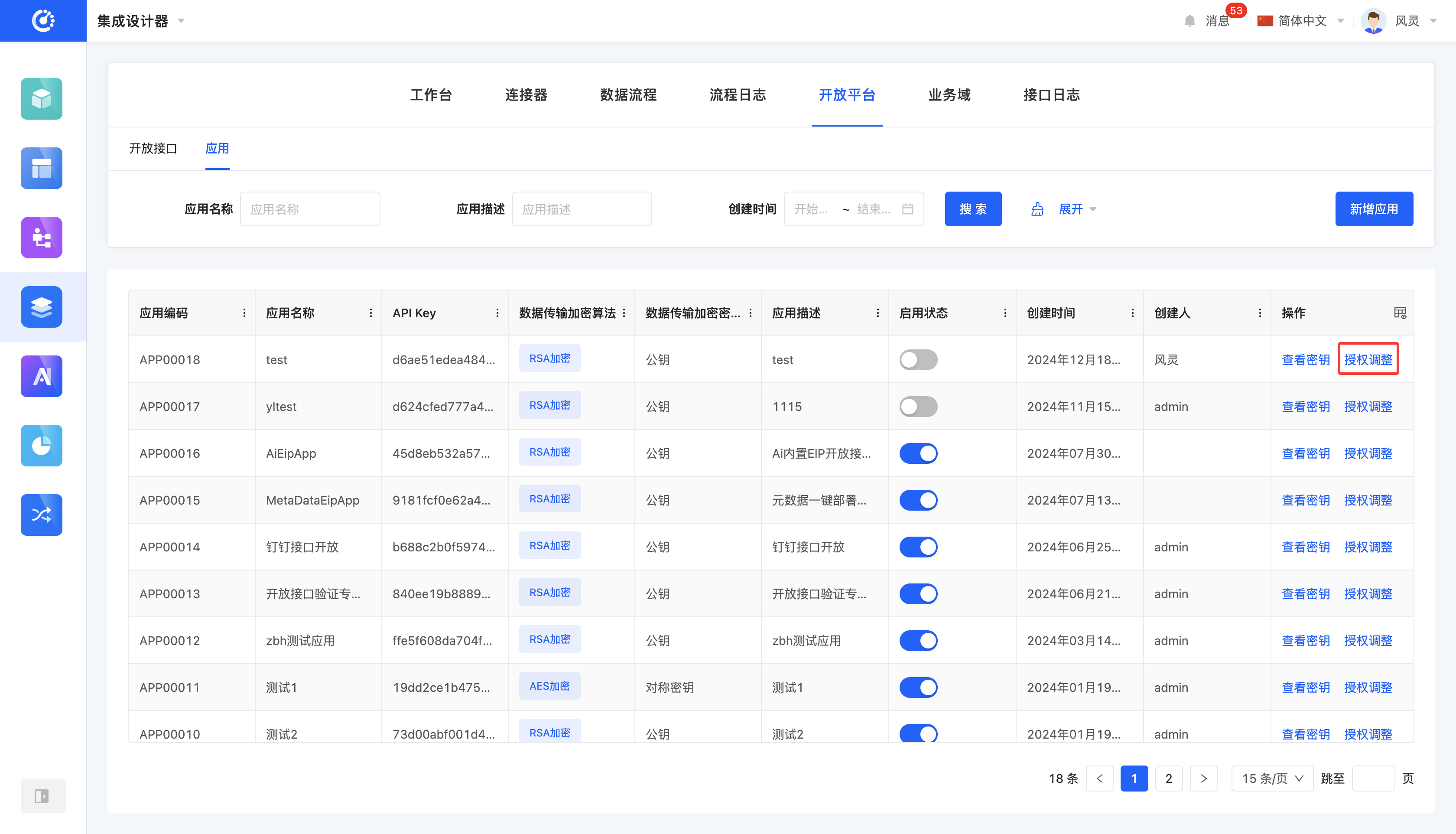
The open platform supports opening up the capabilities of the Oinone system externally. Specifically, it includes but is not limited to key business interfaces such as the product information query interface and the shipping note query interface. This platform not only enables unified management and maintenance of open interfaces but also supports integrating multiple interfaces into an application for external access, providing users with a convenient and efficient way to open up services.
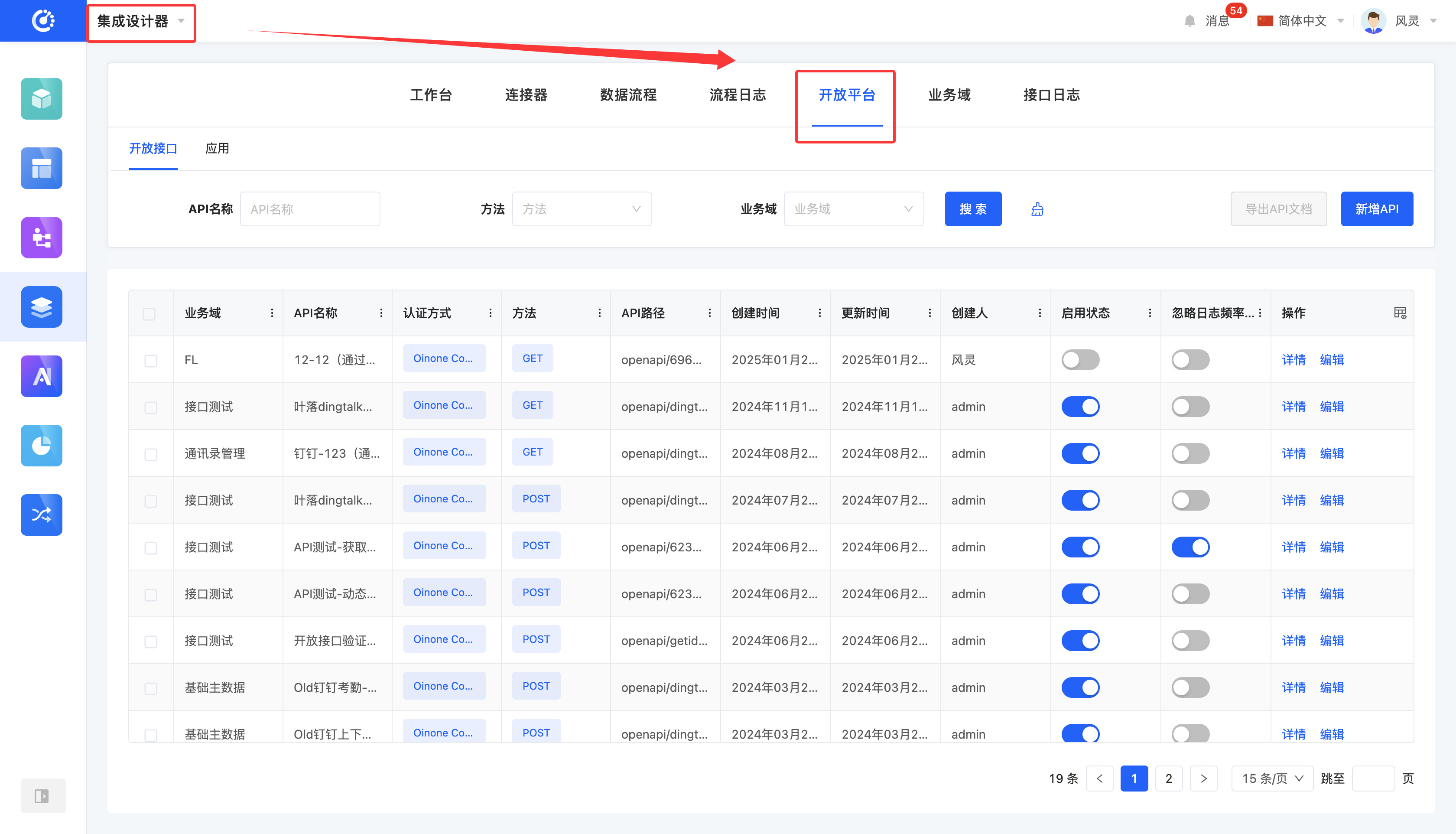
I. Open Interfaces
(I) Filtering
1. Function Introduction
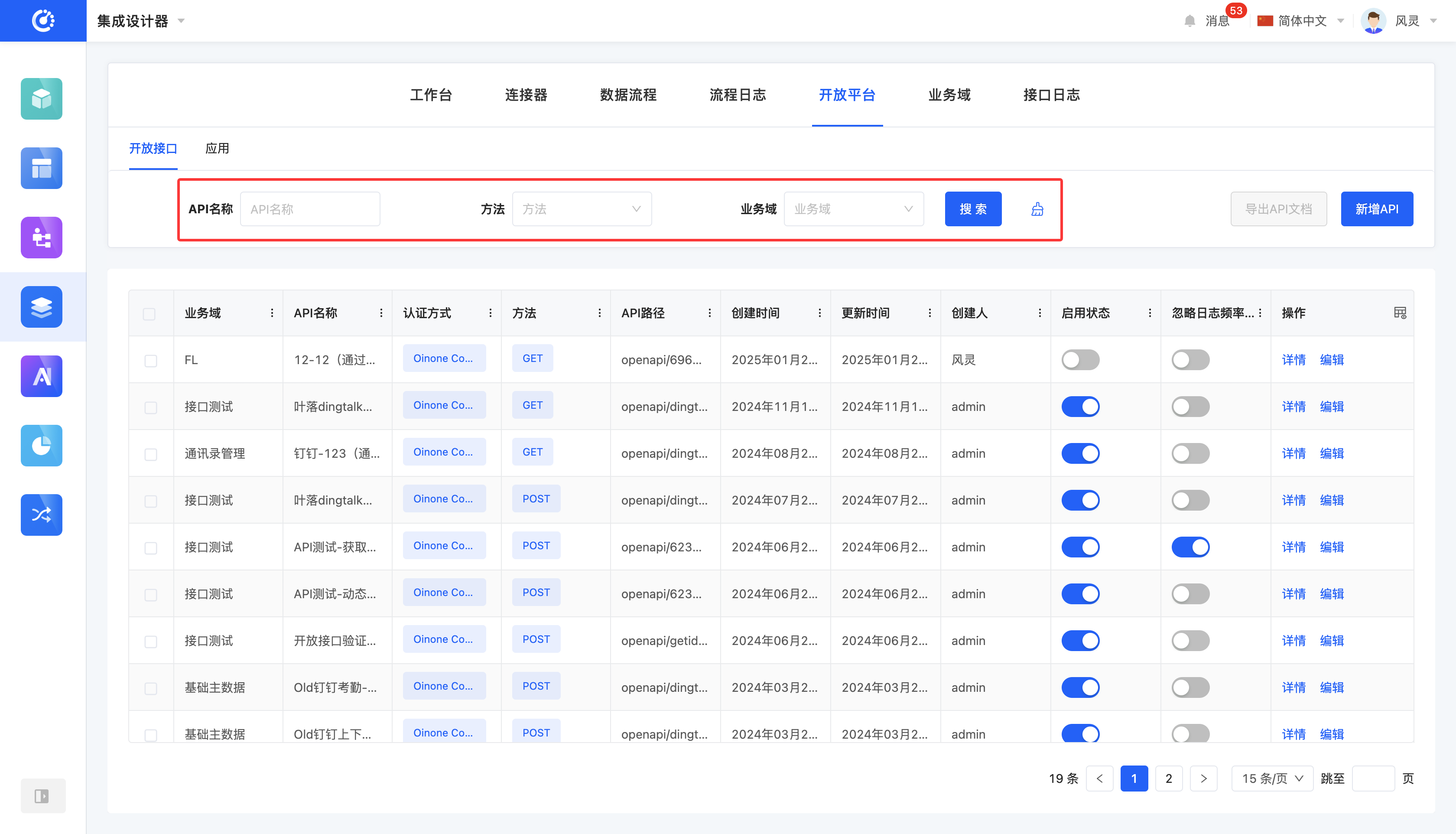
You can customize the filtering conditions for open interfaces according to actual business requirements. Under the current filtering conditions, the corresponding list of open interfaces will be displayed, facilitating the viewing and editing of different open interfaces.
2. Operation Method
- Filtering: Enter the conditions in the filtering area and click the "Search" button to filter the open interfaces.
- One-click Clear: Click the "Clear" icon to clear all the conditions in the current filtering area with one click.
(II) Add a New API
1. Function Introduction
You can add a new API according to business requirements. You can set the basic information of the API, request parameters, and response results.
- Supported request methods: GET, POST, PUT, DELETE
Note
If the "Ignore log frequency configuration" switch is not enabled, the system will only record part of the log content. Under normal operation, you can turn off this configuration to save resources. If problems occur during operation, you can turn on this configuration, and the system will fully record the detailed information of requests and responses in the interface logs, facilitating troubleshooting and viewing.
2. Operation Method
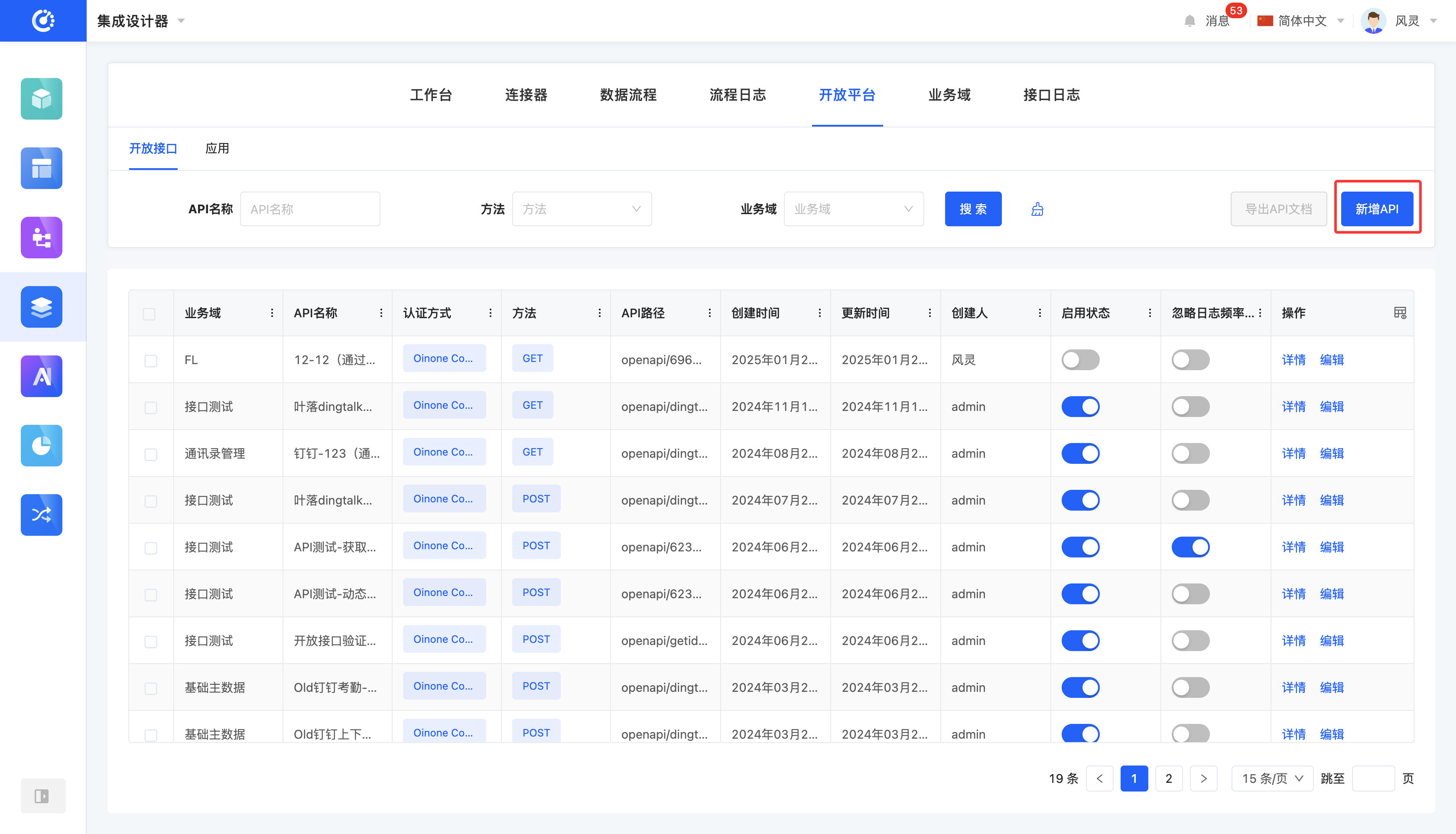
Click the "Add a New API" button, fill in the information on the pop-up page, and then save it to successfully add a new API.
After successful creation, the API will be automatically enabled. The enabled API can be referenced.
(III) Edit an API
1. Function Introduction
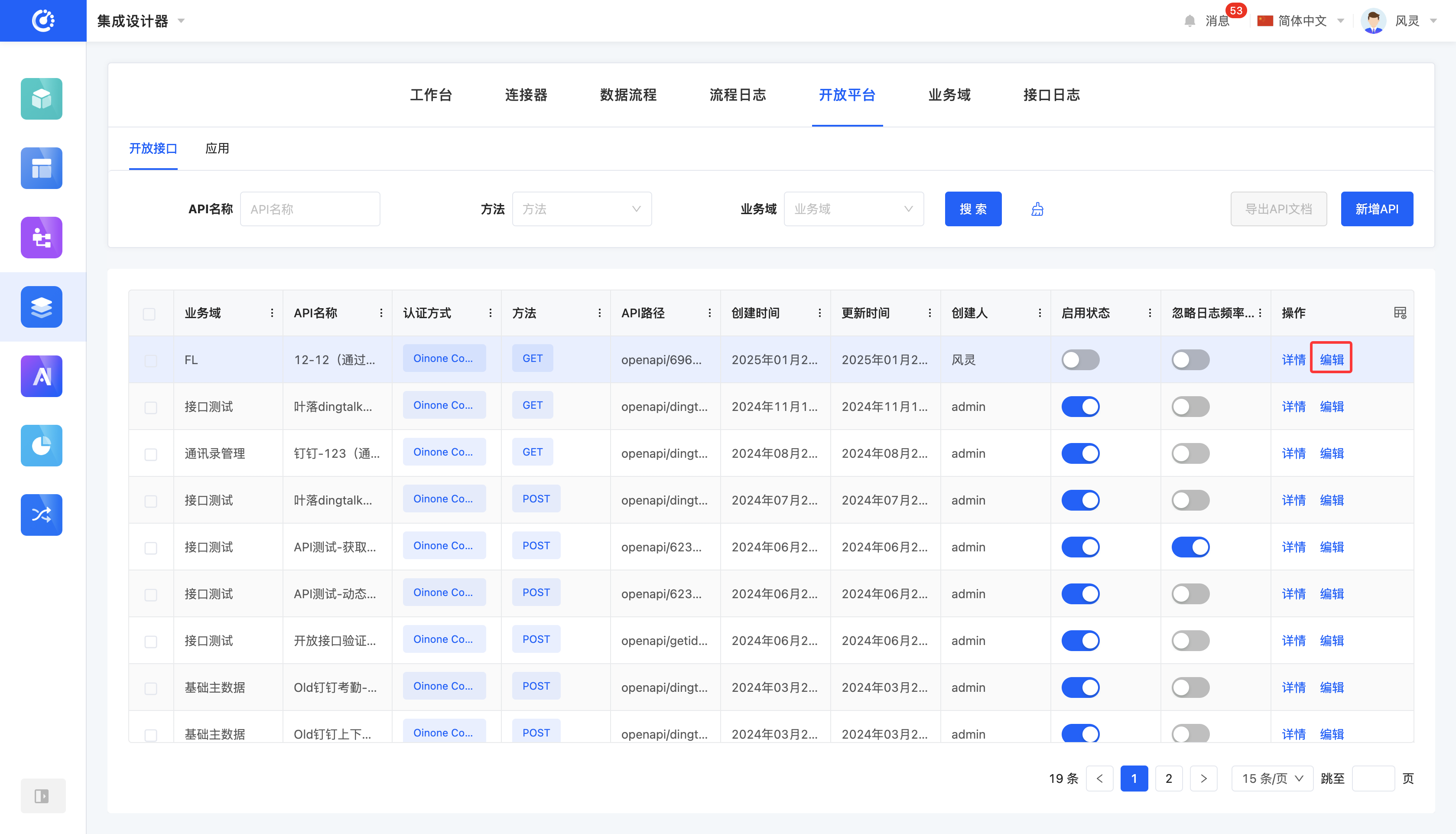
You can edit an API that has been successfully created.
2. Operation Method
Click the "Edit" button to edit the API on the pop-up editing page.
(IV) View Details
1. Function Introduction
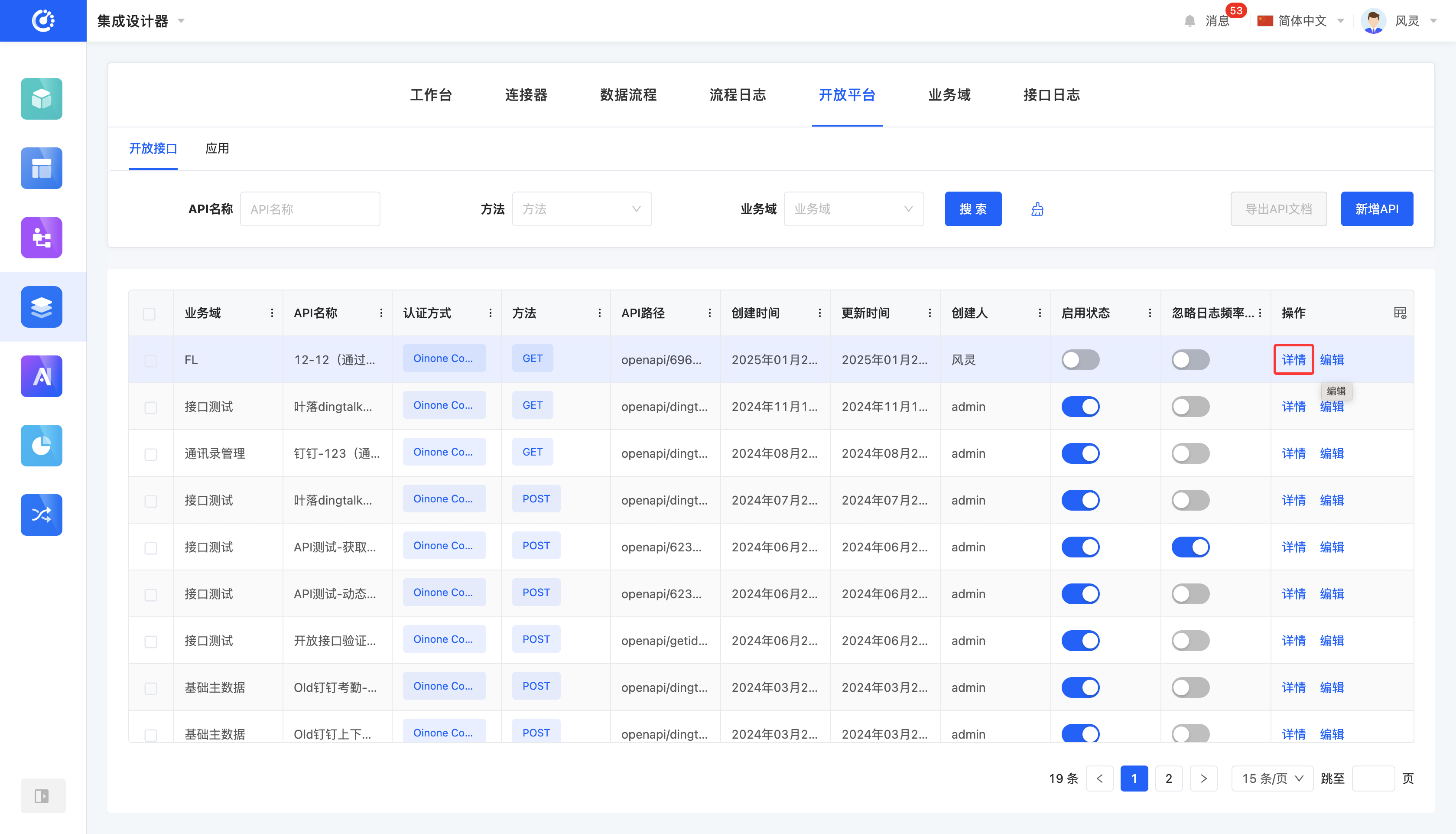
You can view the detailed information of an API.
2. Operation Method
Click the "Details" button to view the detailed information of the selected API.
(V) Export API Documentation
1. Function Introduction
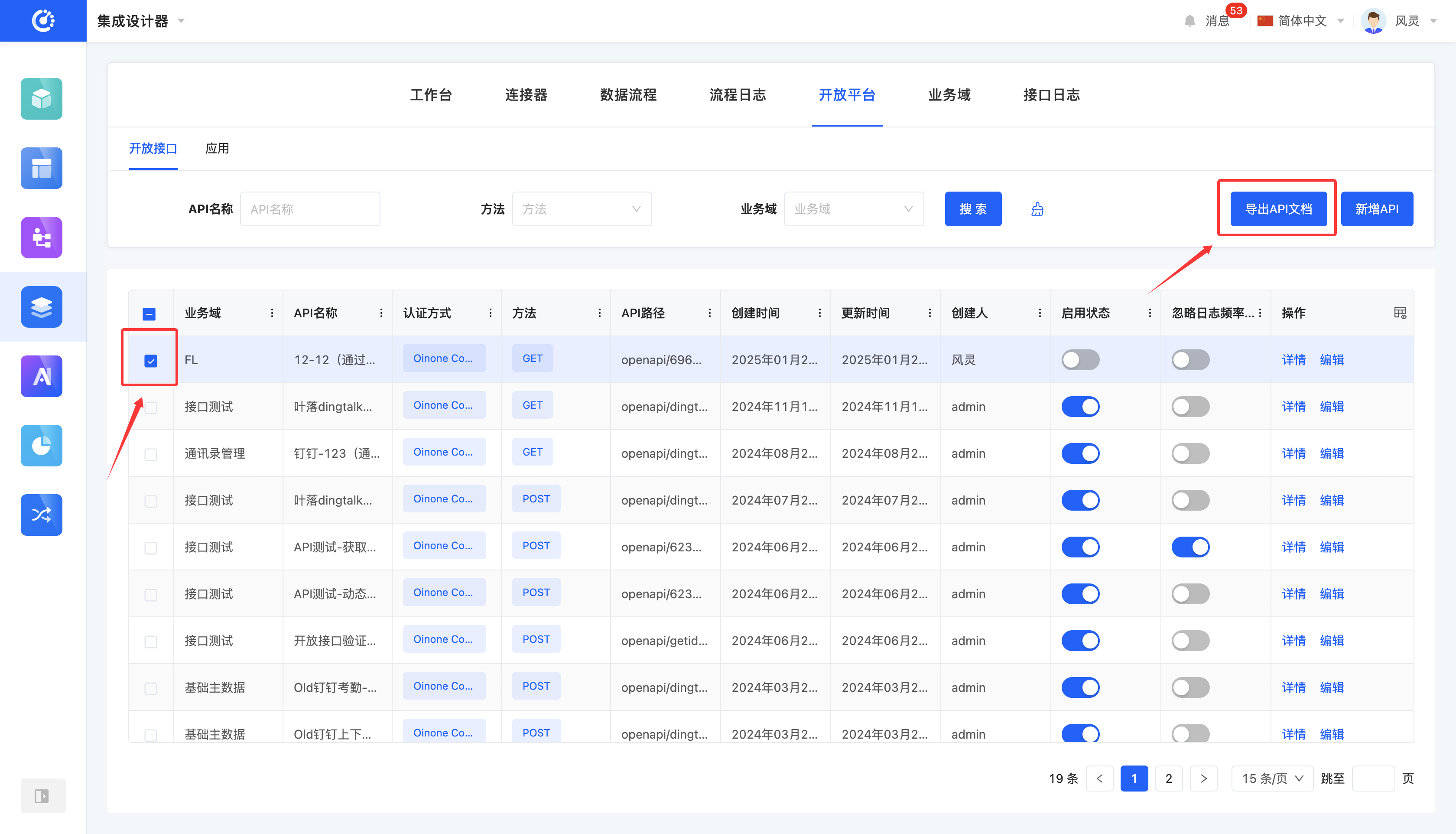
It supports exporting the information of open interfaces into document format. The document adopts a uniform structure, and different types display different information according to their own characteristics, which is used to describe the configured interface capabilities under an application, including interface purpose, call mode, parameter description and return data structure
2. Operation Method
Select an API and click the "Export API Documentation" button to successfully export the documentation.
Prompt
You can go to "Files" - "Export Tasks" to download the successfully exported documentation.
II. Applications
(I) Filtering
1. Function Introduction
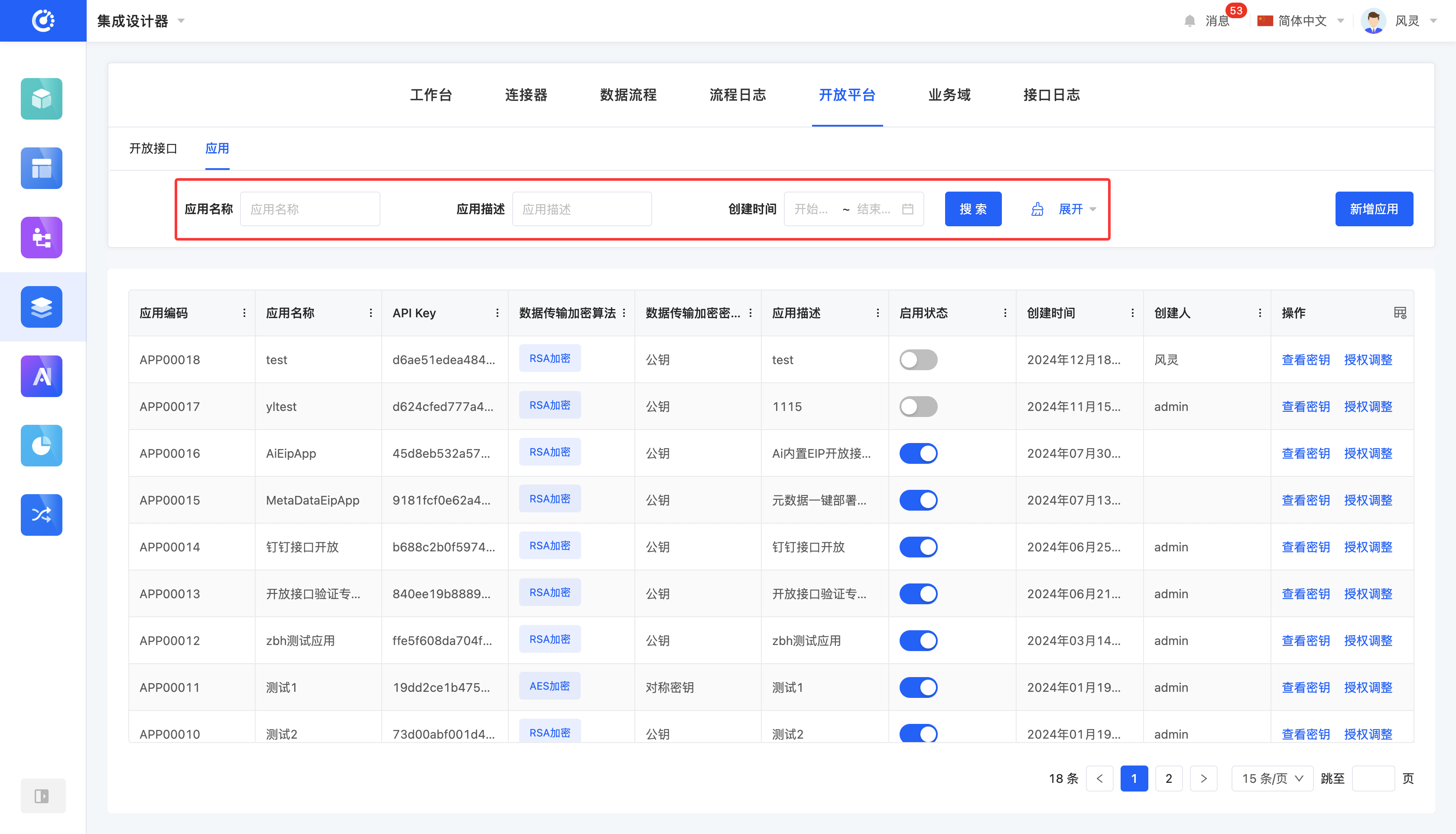
You can customize the filtering conditions for applications according to actual business requirements. Under the current filtering conditions, the corresponding list of applications will be displayed, facilitating the viewing and editing of different applications.
2. Operation Method
- Filtering: Enter the conditions in the filtering area and click the "Search" button to filter the applications.
- One-click Clear: Click the "Clear" icon to clear all the conditions in the current filtering area with one click.
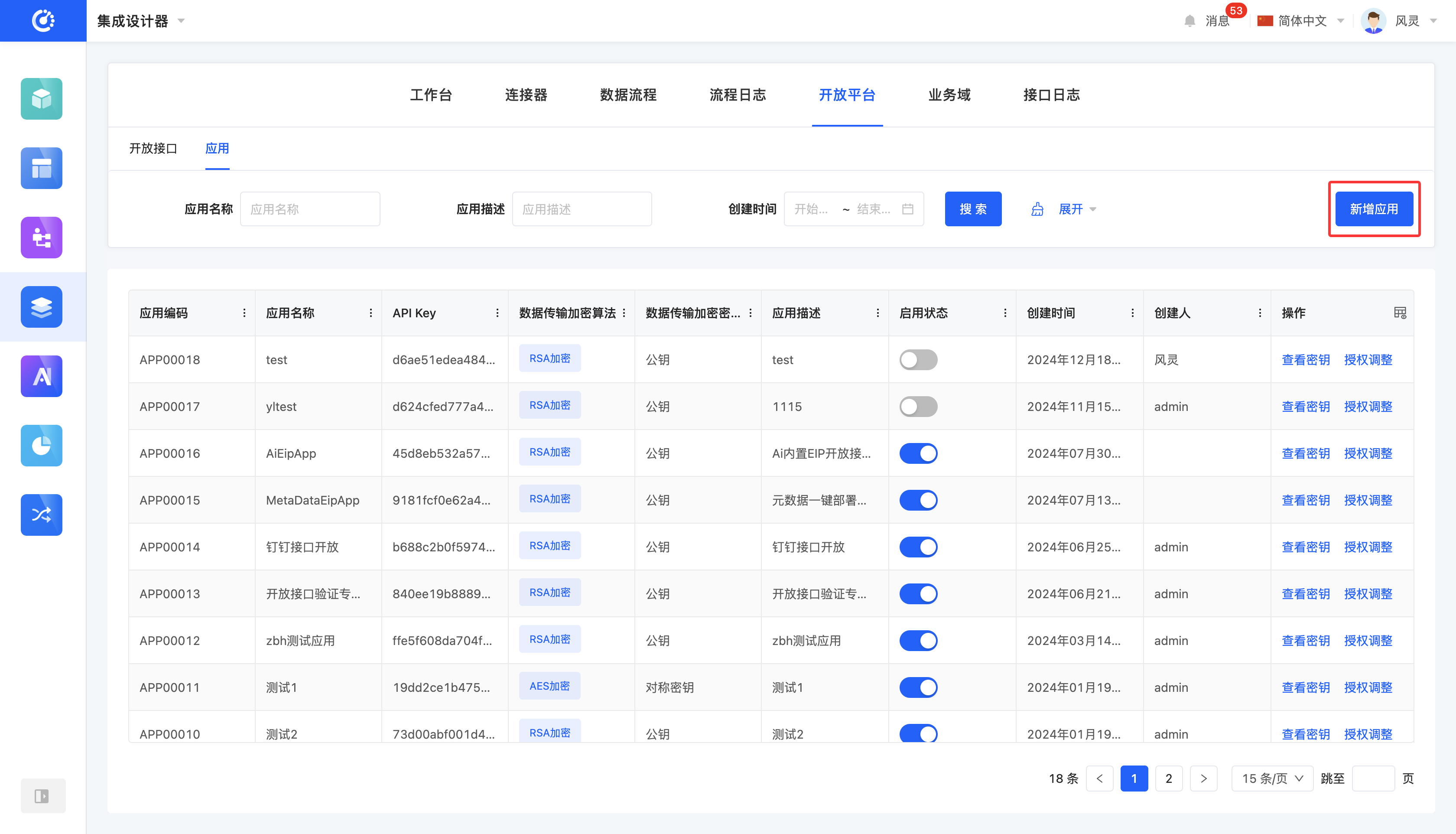
(II) Add a New Application
1. Function Introduction
You can add a new application according to business requirements. You can set the basic information of the application and the scope of authorized APIs.
Note
- The scope of authorized APIs includes business domains with open interfaces. You can choose to authorize an entire business domain or only specific open interfaces within it according to actual needs.
- The IP whitelist configuration can limit the allowed access addresses. If not set (or set to 0.0.0.0/0), it means all addresses are allowed; otherwise, only the added addresses can access.
2. Operation Method
Click the "Add a New Application" button, fill in the information on the pop-up page, and then save it to successfully add a new application.
(III) View Keys
1. Function Introduction
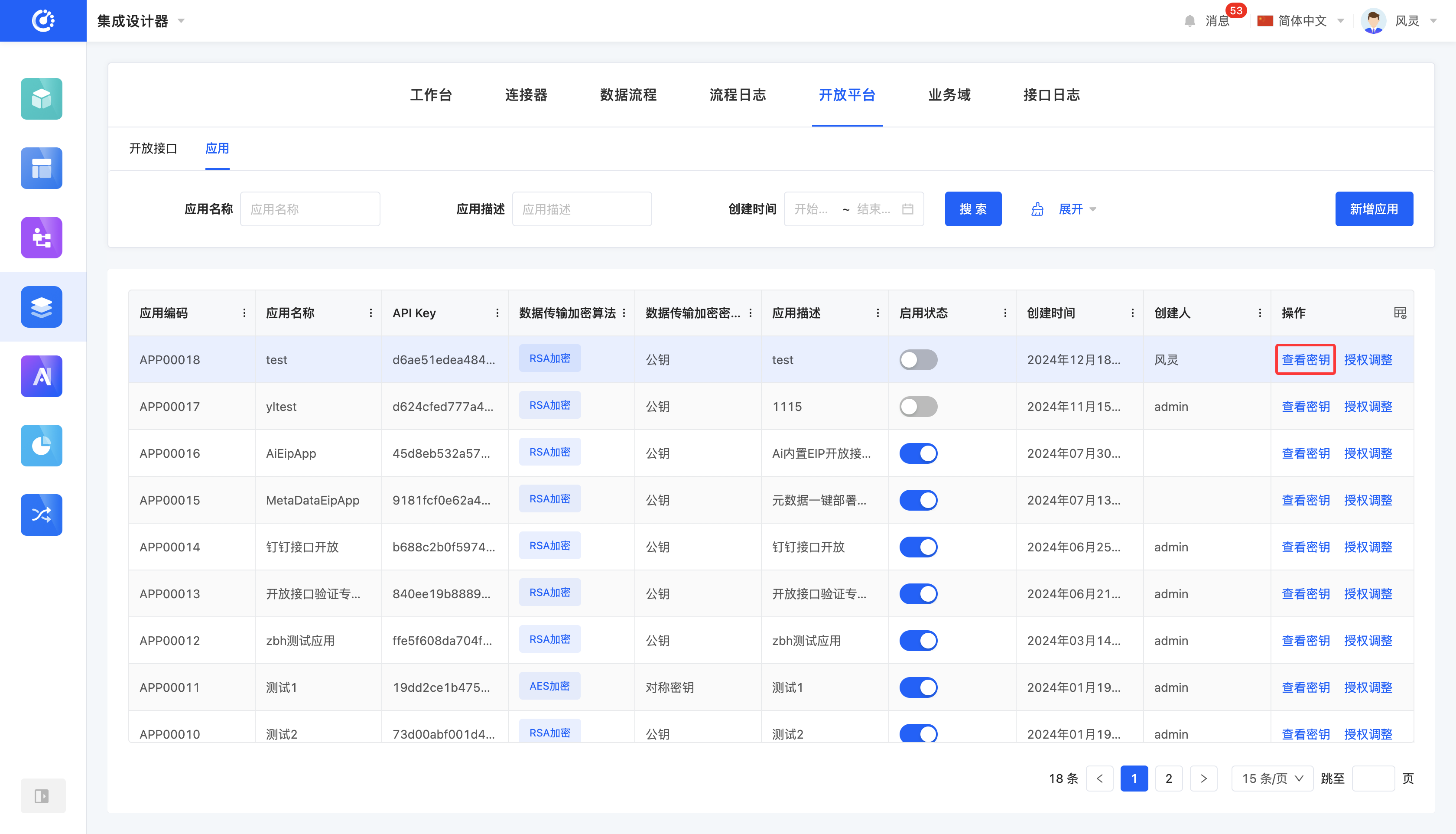
You can view the keys of a created application. The keys are generated based on the data transmission encryption algorithm set when creating the application and include the API Key, API Secret, and data transmission encryption key.
2. Operation Method
Click the "View Keys" button to view the keys on the pop-up page.
(IV) Adjust Authorization
1. Function Introduction
You can modify the scope of authorized APIs for a created application.
2. Operation Method
Click the "Adjust Authorization" button to modify the authorization scope for the application on the pop-up page.