视图:实现多个视图切换
在日常项目开发中,我们可能会遇到当前视图是个表格,通过某个操作按钮将它变成卡片的形式. 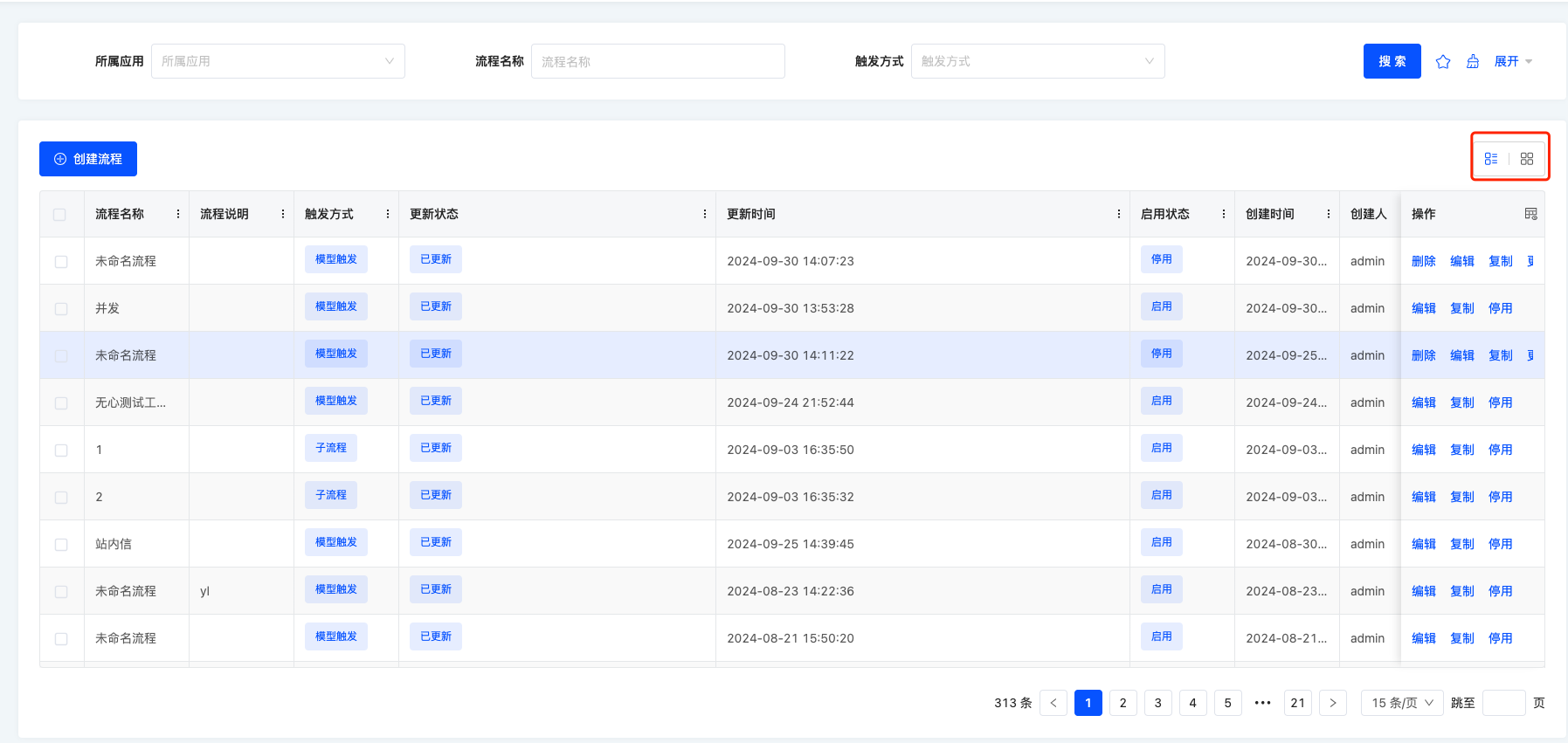

本文将引领大家实现该项功能。从上述两张图片不难看出,无论是表格还是卡片,均处于当前视图范围之内。因此,我们需要一个视图容器来对表格与卡片进行封装。鉴于表格可采用平台默认的表格渲染方式,我们仅需针对卡片进行自定义设置。 我们以资源模块下的国家菜单为例来实现此功能,对应的 URL 如下:
http://localhost:8080/page;module=resource;viewType=TABLE;model=resource.ResourceCountry;action=resource%23%E5%9B%BD%E5%AE%B6;scene=resource%23%E5%9B%BD%E5%AE%B6;target=OPEN_WINDOW;menu=%7B%22selectedKeys%22:%5B%22%E5%9B%BD%E5%AE%B6%22%5D,%22openKeys%22:%5B%22%E5%9C%B0%E5%9D%80%E5%BA%93%22,%22%E5%9C%B0%E5%8C%BA%22%5D%7D一、源码下载
二、创建外层的视图容器
刚刚我们讲过,不管是表格还是卡片,它都在当前的视图里面,所以我们需要写一个视图容器来包裹它们,并且对应的容器里面允许拆入表格跟卡片,我们先创建TableWithCardViewWidget.ts
// TableWithCardViewWidget.ts
import { BaseElementWidget, SPI, Widget } from '@oinone/kunlun-dependencies';
import TableWithCardView from './TableWithCardView.vue';

enum ListViewType {
  TABLE = 'table',
  CARD = 'card'
}

@SPI.ClassFactory(
  BaseElementWidget.Token({
    widget: 'TableWithCardViewWidget'
  })
)
  export class TableWithCardViewWidget extends BaseElementWidget {
    @Widget.Reactive()
    private listViewType: ListViewType = ListViewType.TABLE; // 当前视图展示的类型,是展示卡片还是表格

    public initialize(props) {
      if (!props.slotNames) {
        props.slotNames = ['tableWidget', 'cardWidget'];
      }
      super.initialize(props);
      this.setComponent(TableWithCardView);

      return this;
    }
}在TableWithCardViewWidget中的initialize函数中,我们定义了两个插槽: tableWidget、cardWidget,所以需要在对应的 vue 文件里面里接收这两个插槽
<template>
  <div class="list-view-wrapper">
    <!-- 表格插槽 -->
    <div style="height: 100%" v-if="listViewType === 'table'">
      <slot name="tableWidget" />
    </div>
    <!-- 卡片插槽 -->
    <div v-if="listViewType === 'card'">
      <slot name="cardWidget"></slot>
    </div>
  </div>
</template>
<script lang="ts">
  import { defineComponent } from 'vue';

  export default defineComponent({
    props: ['listViewType', 'onChangeViewType'],
    inheritAttrs: false,
    setup(props, context) {
      const onChangeViewType = (listViewType) => {
        props.onChangeViewType(listViewType);
      };
    }
  });
</script>
这样一来,我们就定义好了视图容器,接下来就是通过自定义 layout 的方式注册该容器
三、layout注册
import { registerLayout, ViewType } from '@oinone/kunlun-dependencies';

registerLayout(
  `<view type="TABLE">
    <pack widget="group">
        <view type="SEARCH">
            <element widget="search" cols="4" slot="search"/>
        </view>
    </pack>
    <pack widget="group" slot="tableGroup" style="position: relative">
      <element widget="actionBar" slot="actionBar" slotSupport="action">
        <xslot name="actions" slotSupport="action" />
      </element>
      <element widget="TableWithCardViewWidget">
        <template slot="tableWidget">
          <element widget="table" slot="table" datasource-provider="true">
            <element widget="expandColumn" slot="expandRow" />
            <xslot name="fields" />
            <element widget="rowActions" slot="rowActions" />
          </element>
        </template>
        <template slot="cardWidget">
          <element widget="CardListViewWidget" datasource-provider="true" />
        </template>
      </element>
    </pack>
  </view>
`,
  {
    moduleName: 'resource.ResourceCountry',
    actionName: 'resource#国家',
    viewType: ViewType.Table
  }
);
这个 layout 是基于平台默认的 table layout 改造的,大家可以看到
<element widget="TableWithCardViewWidget">
  <template slot="tableWidget">
    ...
  </template>
  <template slot="cardWidget">
    ...
  </template>
</element>这段模版是将自定义的视图容器TableWithCardViewWidget注册进去,并且有两个 template, 每个template 里面的 slot 属性其实就是在TableWithCardViewWidget中的initialize函数定义的两个插槽: tableWidget、cardWidget,这两个名字要对应上。
<template slot="tableWidget">
  <element widget="table" slot="table" datasource-provider="true">
    <element widget="expandColumn" slot="expandRow" />
    <xslot name="fields" />
    <element widget="rowActions" slot="rowActions" />
  </element>
</template>
第一个 slot 是 tableWidget,内部是默认的表格 layout,所以在运行时的时候,会渲染平台默认的表格组件
<template slot="cardWidget">
  <element widget="CardListViewWidget" datasource-provider="true" />
</template>
第二个 slot 是 cardWidget,里面渲染的是 CardListViewWidget, 所以这个时候我们需要按照自定义视图的方式自定义CardListViewWidget即可。
四、自定义卡片
// CardListViewWidget.ts

import {
  ActiveRecord,
  BaseElementListViewWidget,
  BaseElementWidget,
  Condition,
  DEFAULT_TRUE_CONDITION,
  ISort,
  Pagination,
  QueryContext,
  queryPage,
  QueryVariables,
  SPI,
  Widget
} from '@oinone/kunlun-dependencies';
import cardList from './card-list.vue';

@SPI.ClassFactory(
  BaseElementWidget.Token({
    widget: 'CardListViewWidget'
  })
)
  export class CardListWidget extends BaseElementListViewWidget {
    public initialize(props) {
      super.initialize(props);
      this.setComponent(cardList);
      this.viewModel = props.model as string;
      return this;
    }

    @Widget.Reactive()
    public viewModel: string = '';

    @Widget.Reactive()
    public condition: string = '';

    @Widget.Reactive()
    public setCondition() {
      this.condition === '1==1' ? (this.condition = '2==2') : (this.condition = '1==1');
    }

    public async queryPage<T = ActiveRecord>(
      condition: Condition,
      pagination: Pagination,
      sort: ISort[],
      variables: QueryVariables,
      context: QueryContext
    ): Promise<any> {
      const model = this.metadataRuntimeContext.model;
      this.loading = true;
      const result = await queryPage(
        model.model,
        {
          currentPage: pagination.current,
          pageSize: this.showPagination ? pagination.pageSize : -1,
          sort,
          condition: condition.toString() === DEFAULT_TRUE_CONDITION ? '' : condition
        },
        undefined,
        variables,
        {
          maxDepth: 0
        }
      );
      this.loading = false;
      return result;
    }
}<template>
<div v-if="showDataSource && showDataSource.length">
<div v-for="data in showDataSource" :key="data.id">
{{ data.id }}
</div>
</div>
<div v-else>暂无数据</div>
</template>
<script lang="ts">
import { defineComponent, onMounted, ref, watch } from 'vue';
export default defineComponent({
mixins: [ManualWidget],
props: {
viewModel: {
type: String,
default: ''
},
loading: {
type: Boolean,
default: false
},
pagination: {
type: Object
},
showDataSource: {
type: Array
},
refreshProcess: {
type: Function
},
onPaginationChange: {
type: Function
}
},
components: { OioPagination, OioSpin },
setup(props) {
return {};
}
});
</script>当卡片对应的 widget 写完后,我们还需要一个切换卡片跟表格的功能。
五、视图类型切换
我们只需要在TableWithCardViewWidget对应的 vue 里面添加切换视图类型的功能就行了。
<template>
  <div class="list-view-wrapper">
    <!-- 切换视图类型 -->
    <button @click="onChangeViewType(listViewType === 'table' ? 'card' : 'table')">
      {{ listViewType === 'table' ? '切换成卡片' : '切换成表格' }}
    </button>
    <!-- 表格插槽 -->
    <div style="height: 100%" v-if="listViewType === 'table'">
      <slot name="tableWidget" />
    </div>
    <!-- 卡片插槽 -->
    <div v-if="listViewType === 'card'">
      <slot name="cardWidget"></slot>
    </div>
  </div>
</template>
<script lang="ts">
  import { defineComponent } from 'vue';

  export default defineComponent({
    props: ['listViewType', 'onChangeViewType'],
    inheritAttrs: false,
    setup(props, context) {
      const onChangeViewType = (listViewType) => {
        props.onChangeViewType(listViewType);
      };
    }
  });
</script>最后在TableWithCardViewWidget.ts里面写对应的onChangeViewType方法即可。
public resetSearch() {
    getRouterInstance()!.push({
      segments: [
        {
          path: 'page',
          parameters: {
            searchBody: undefined,
            currentPage: undefined
          },
          extra: { preserveParameter: true }
        }
      ]
    });
  }

  @Widget.Method()
  public onChangeViewType(viewType: ListViewType, init: boolean): void {
    this.listViewType = viewType;
    this.reloadDataSource(undefined);
    this.reloadActiveRecords(undefined);
    // 重置搜索,如果有需要就放开
    // this.resetSearch();
    if (!init) {
      const tableWidget = this.dslSlots?.tableWidget?.widgets?.[0];
      if (tableWidget && tableWidget.automatic == null) {
        tableWidget.automatic = false;
      }
      const cardWidget = this.dslSlots?.cardWidget?.widgets?.[0];
      if (cardWidget && cardWidget.automatic == null) {
        cardWidget.automatic = false;
      }
    }
  }
这样一来,我们就完成了所有的功能。