Oinone
Products
Oinone
Oinone Framework
Enterprise Low-code Framework
Aino
Aino
Intelligent AI Platform
Use CasesPricingBlogCommunity
Resources
📖
Documentation
Guides and API References
💬
Support
Get Technical Support
📄
Changelog
Latest Release Notes
🏡
About
Our Team and Vision
Search K
v6.xv7.x
简体中文English
Installation and Upgrade
Community Edition
Enterprise Edition
Transition from Community Edition to Enterprise Edition
Oinone Designer Configuration Guide
Version Upgrade
Version List
FAQ
Dev Manual
Tutorials
Dev ENV
Git Setup
JDK Setup
Maven Setup
Node.js Setup
Setup Guide
Back-end Framework
Chapter 1:Architecture Overview
Chapter 2:A New Application
Chapter 3:Models And Basic Fields
Chapter 4:A Brief Introduction To Security
Chapter 5:Finally, Some UI To Play With
Chapter 6:Basic Views
Chapter 7:Relations Between Models
Chapter 8:Field Interlinkage
Chapter 9:Ready For Some Action
Chapter 10:Constraints
Chapter 11:Add The Sprinkles
Chapter 12:Inheritance
Chapter 13:Interact With Other Modules
Chapter 14:Customized Features
Discover the Front-end Framework
Chapter 1:Widget
Chapter 2:Build a Dashboard
Master the Front-End Framework
Chapter 1:Front-End Overview
Chapter 2:Create a Gantt View
Chapter 3:Customize a Gallery View
Init Module Data
Restrict Access to Data
Export and Import
Debug Tools
Operation Guide
Customize a Field Widget
Customize a action widget
Customize a view widget
Customize GraphQL Requests
Customize Themes
Default Themes
Dark Themes
Combination Of Customized Widget And Designer
Reference Guide
Back-End framework
Module API
ORM API
Functions API
Actions API
UX API
Security in Oinone
Advance API
Protocol API
Request Context API
Meta Directive API
Hint API
Message Hub API
FileClient API
MQ API
Redis API
ES API
Tools API
Front-End framework
Framework Overview
Environment
Context
Widget
Component Lifecycle
Basic
Mask
Layout
DSL
View
Element
Pack
Action
Field
Table Field
Search Field
Form Field
Detail Field
Gallery Field
Router
Oio Components
Vue UI Antd
Vue UI El
Vue UI
Services
Metadata Service
SPI Service
Router Service
GraphQL Service
HttpClient Service
RSQL Service
Message Hub Service
Event Bus Service
Stream Service (peer to peer)
Expression Service
Translate Service
User interface
View architectures
Table
Form
Detail
Gallery
Tree
UI icons
Standard Modules
User & Business API
Message API
Workflow
Import and Export
Resources API
EIP API
Common Extension Points And SPI List
Error Codes
R&D Paradigm
R&D Paradigm:R&D Process
R&D Paradigm:Modular Design
R&D Paradigm:Model Design
Software Companies:The Paradigm of Standardization and Customization Symbiosis
Common Solutions
Frontend
Global Layout:Custom Tree Component with Default First Value Selection
Release:Frontend Release Process
Field:How to Automatically Refresh Views When Switching Between Multi-Tabs
Field:Data Pop-Back from Popup Operations to Fields
Application:Embedding as Iframe into Existing Systems
Application:Introducing Qiankun Micro-Frontend
Button:How to Display Workflow Approval Buttons in Business Model Lists
Button:Passing Extra Parameters Across Pages
Network Requests:Detailed Explanation of OioProvider (Custom Request Error Interception)
Network Requests:Request Encryption
Views:Implementing Multiple View Switching
Views:Table Column Merging
Views:Table Column Footer Statistics
Views:Table Row Copy Functionality
Route Extension:Adding New Routes, such as Overriding the Default Login Page
Backend
Dependency Configuration:How to Add Data Visualization Runtime Dependencies
Feature Introduction:Data Visualization - How to Reference Charts, Reports, and Dashboards in Projects
Visual Construction:Low-Code and No-Code Integration for Charts in Data Visualization
Visual Query:Data Visualization - How to Customize Query Data Methods
Scenario Application:Excel Watermark Addition Functionality
Scenario Application:Asynchronous Execution of Functions
Scenario Application:Dynamic Forms (Same Button Jumps to Different Pages)
External Integration:Enterprise WeChat OAuth2.0 Integration
External Integration:DingTalk Integration with OAuth2.0
Sequence Acquisition:How to Manually Obtain Sequences in Projects
Development Mode:Collaborative Development (Revised)
Development Specifications:Function and Action Function Usage Specifications
Development Aid:Configuration Issues and Troubleshooting Paths for O2M, M2O, and M2M Relationship Fields
Development Assistance:Oinone Platform Visual Debugging Tool
Development Aid:Implementing Page Data Linkage in Low-Code
Development Aid:Implement Duplication Creation in Low-code Manner
Development Aid:Generating API Documentation with GraphQL
Development Aid:Automatic Form Filling with User-related Information
Release Process:Back-end release process
Development practice:Business implementation of a multi-tenant solution
Open Interface:EIP Open Interface Request with MD5 Signature
Search Enhancement:Oinone Introduces Search Engine (Enhanced Model)
Data Operation:DsHint(Specify Data Source) and BatchSizeHint(Specify Batch Quantity)
Search Enhancement:Common Problem Solutions for Introducing Search Enhancement Model Channel
Data Operation:Excel Import/Export Template Translation
Data Operation:Batch Excel Import
Data Operation:Usage of IWrapper, QueryWrapper, and LambdaQueryWrapper
Data Operation:Oinone External Data Source Connection Solution
Data Operation:Database and Table Sharding with Custom Sharding Rules
Data Operation:Complex Excel Template Definition
Data Operations:Import and Export of Complex Field Types
Data Operation:Multi-Sheet Import and Export Example
Data Operation:Multi-table Join Query Solutions
Data Operation:How to Use Bitwise Operation Data Dictionary
Data Operation:How to Customize Excel Import and Export Functions
Data Operation:Custom Sort Fields and Sorting Rules During Query
Data Operations:Custom RSQL Placeholders and Their Usage in Permissions
Data Operations:Custom SQL (Mapper) Statements
Data Operation:Unstored Field Search
Data Dialect:[DM] Backend Deployment with Dameng Database
Data Dialect:【KDB】Using Kingbase Database (Renmin Kingbase/KE Kingbase) for Backend Deployment
Data Dialect:[MSSQL] Backend Deployment with MSSQL Database (SQL Server)
Data Dialect:【OpenGauss】Using OpenGauss Database for Backend Deployment
Data Dialect:[PostgreSQL] Backend Deployment with PostgreSQL Database
File Storage:OSS Configuration for MINIO Without Public Network Access
File Storage:OSS (CDN) Configuration and File System Operations
Permission Extension:How to Skip Permission Interception for Functions
Permission Extension:How to Delete the Default Homepage Node in System Permissions
Permission Extension:How to Extend Action Permissions
Permission Extension:How to Add Menu Permissions to Roles
Permission Extension:How to Skip Fixed Path Permissions
Tree-Table Configuration:How to Configure Tree-Tables
Validation Customization:How to Implement Special Requirements with Custom Expressions? Extending Built-in Function Expressions
Process Extension:How to Add Workflow Runtime Dependencies
Process Extension:Workflow Audit Withdrawal, Rollback, and Rejection Hook Usage
Process expansion:Operate the workflow through business data (such as urging, canceling, etc.)
Process Extension:Summary of Custom Function Example Codes for Workflow Extension
Process Configuration:Workflow Introduction and Process Triggering in Projects
Message Customization:How to Push Custom Messages
Source Code Configuration:How to Configure Expressions Using Source Code
Environmental Protection:Oinone Environmental Protection (above v5.2.3)
Environment Upgrade:Cache Connection Switched from Jedis to Lettuce
Environment Deployment:Deploying Oinone Projects on TongWeb and Tomcat
Environment Deployment:Deploy Designer on NeoKylin (mips64 Architecture)
Environment Deployment:Backend No-Code Designer Jar Package Startup Method
Login Extension:Oinone Login Extension:Docking with SSO
Development Framework:Framework MessageHub(Information Prompt)
Network Request:Forced Password Change on First Login
Auto-increment ID:How to Use Auto-increment IDs in Projects
Authentication Integration:Single Sign-On (SSO)
Configuration Instructions:Detailed Dubbo Configuration (Revised)
Configuration Guide:Function Trigger and Scheduling Configuration with Examples
Page Design:Configuration Methods for Global Home and Application Home Pages (homepage)
Page Design:How to Achieve Page Navigation
Page Design:Customizing User Center Menu
Project Integration:Nacos as a Registration Center:How to Invoke SpringCloud Services of Other Systems?
Project Integration:How Oinone Supports Building Distributed Projects
Project Integration:Introducing Nacos as the Registration Center in Oinone Projects
Project Deployment:Common Issues in Docker Deployment
Project Deployment:Oinone Offline Deployment of Designer JAR Package
Project Deployment:Oinone Offline Deployment of Designer Image
Project Deployment:Oinone Designer Deployment Parameter Instructions
Project Deployment:Import and Export of Data Visualization
Project Deployment:Import and Export of Workflow Designer
Project Deployment:Import and Export of UI Designer
FAQ
Startup:Common Issues with Oinone License Usage
Startup:Issues with Startup Dependency Errors
Startup:Scheduling Server Unassigned Task Queue Keeps Logging Continuously
Startup:Common Issues with Backend Startup
How to Configure Multi-value Fields and Field Default Values During Development
How to Obtain the Requested Model During Development
Under Development:Model Copy Tool Class
How to Create Indexes, Unique Indexes, and Composite Indexes During Development
How to Obtain Current Logged-in User Information During Development
Environment Preparation:npm Installation Dependencies on Windows Environment Prompt Insufficient Permissions
Environment Migration:Dubbo Timeout Causes Import Failure When Importing Design Data
Operation and Maintenance Related:Does the Platform Have a Health Check Interface?
Runtime:Dubbo Service Not Found
Runtime:SQL Execution Error When Saving Multivalue Fields
Runtime:How to Properly Initiate Requests Using GQL Tools
Runtime:How to Implement Synchronous Excel Download
Runtime:Export Task Stuck in "Processing" State
Runtime:Field Not Found - Unknown field ‘xx’
Runtime:Permission Configuration Not Taking Effect
Runtime:Unable to Select Models in Interface Designer
Runtime:Troubleshooting "No Permission" Errors in Navigation Actions
Runtime:Context Parameters Configured but Values Not Passed to Redirected Page
AI Coding Practical Combat
Best Practices of AI Coding When Oinone Meets Trae (Backend)
Best Practices of AI Coding When Oinone Meets Qoder (Backend)
User Manual
Designer
Model Designer
Model
Data Dictionary
Data Coding
UI Designer
View Management
View Type
View Design
Widgets And Model Overview
Components
Layout
Fields
Media
Actions
Customized Components
Customized Component Management
Meta of Customized Component
Design of Customized Component Meta
Application Menu
Print Template Management
Print Template Design
Workflow Designer
Workflow Management
Workflow Design
Node Actions
Data Visualization
Chart Management
Chart Types
Chart Design
Reports
Data Dashboard Management
Data Dashboard Design
Chart Template
Integrated Designer
Workbench
Connector
Data Workflow
Workflow Logs
Open Platform
MCP
Business Domain
Api Logs
Microflow Designer
Microflow Management
Microflow Design
AI Integrated Designer
Connector
AI Workflow
Api Logs
Expressions Guide
Standard Modules
Workbench
Profile
Preferences
Administration Center
Users
Partners
Organization
Role and Permission
Workflow
Workflow
Workflow Management
Message
Business Audit
Files
Resources
Translation
Integration App
Apps Hub
Apps ENV
Low-Code No-Code Integration
Contribution Manual
CLA
R&D Contribution
Git Guidelines
Coding Guidelines
Documentation Contribution
Content Guidelines
Third-Party Open-Source Software and License Notice
Software Licenses and Agreements
  1. Home/
  2. Dev Manual/
  3. Tutorials/
  4. Master the Front-End Framework/
  5. Chapter 3:Customize a Gallery View
On this page

In Oinone, a gallery view is a type of view that displays data in card form. While the card content can be designed through the UI Designer or backend DSL, this sometimes fails to meet our business scenarios—after all, not all cards are designed uniformly. Therefore, customizing the cards in a gallery view is often necessary.

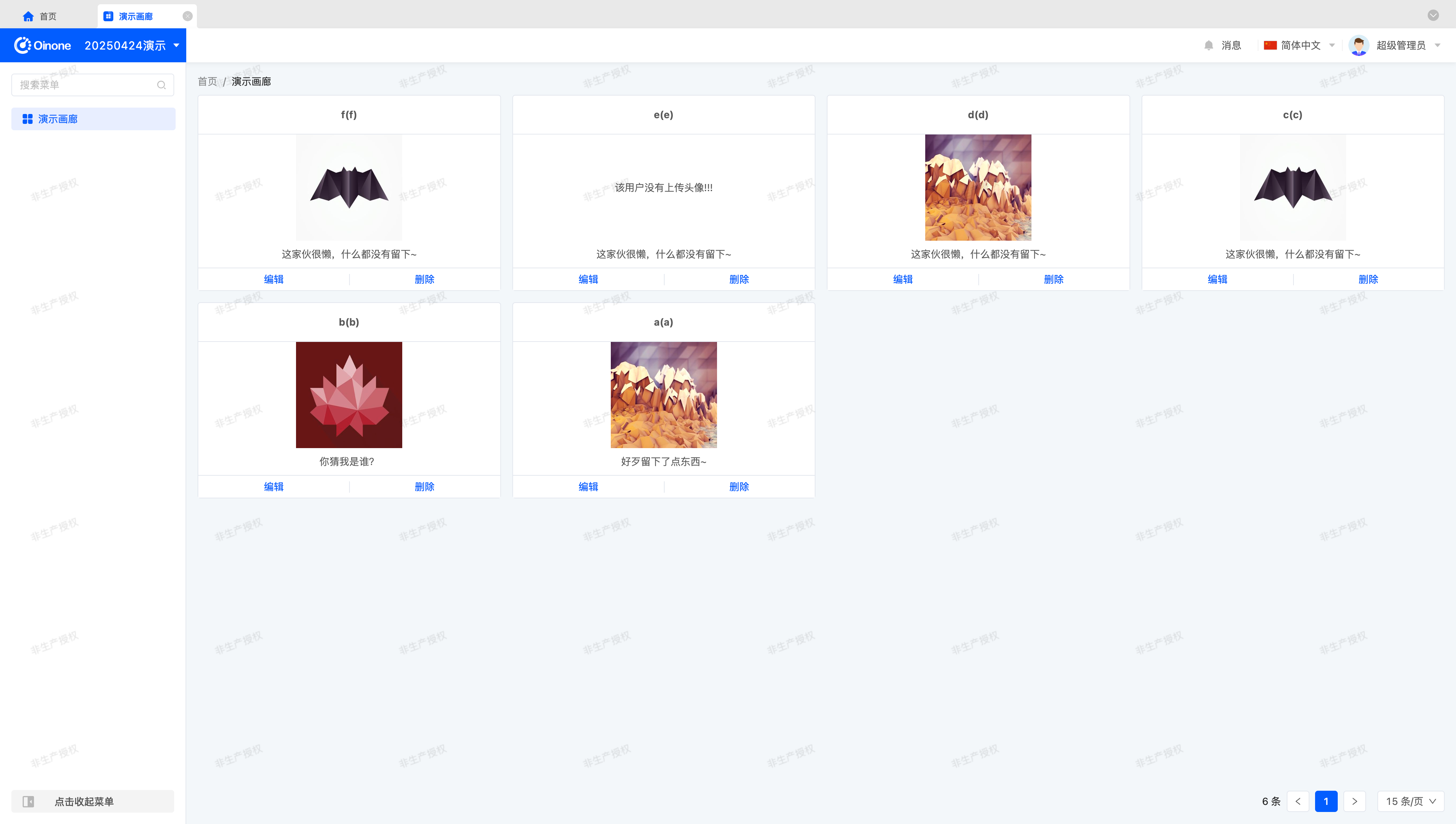
Let's first take a look at the final effect of this exercise.
I. Preparation ​

In Oinone, all metadata revolves around models. Therefore, we need to prepare a simple model, some views, and create a menu to display the model's views on the page.

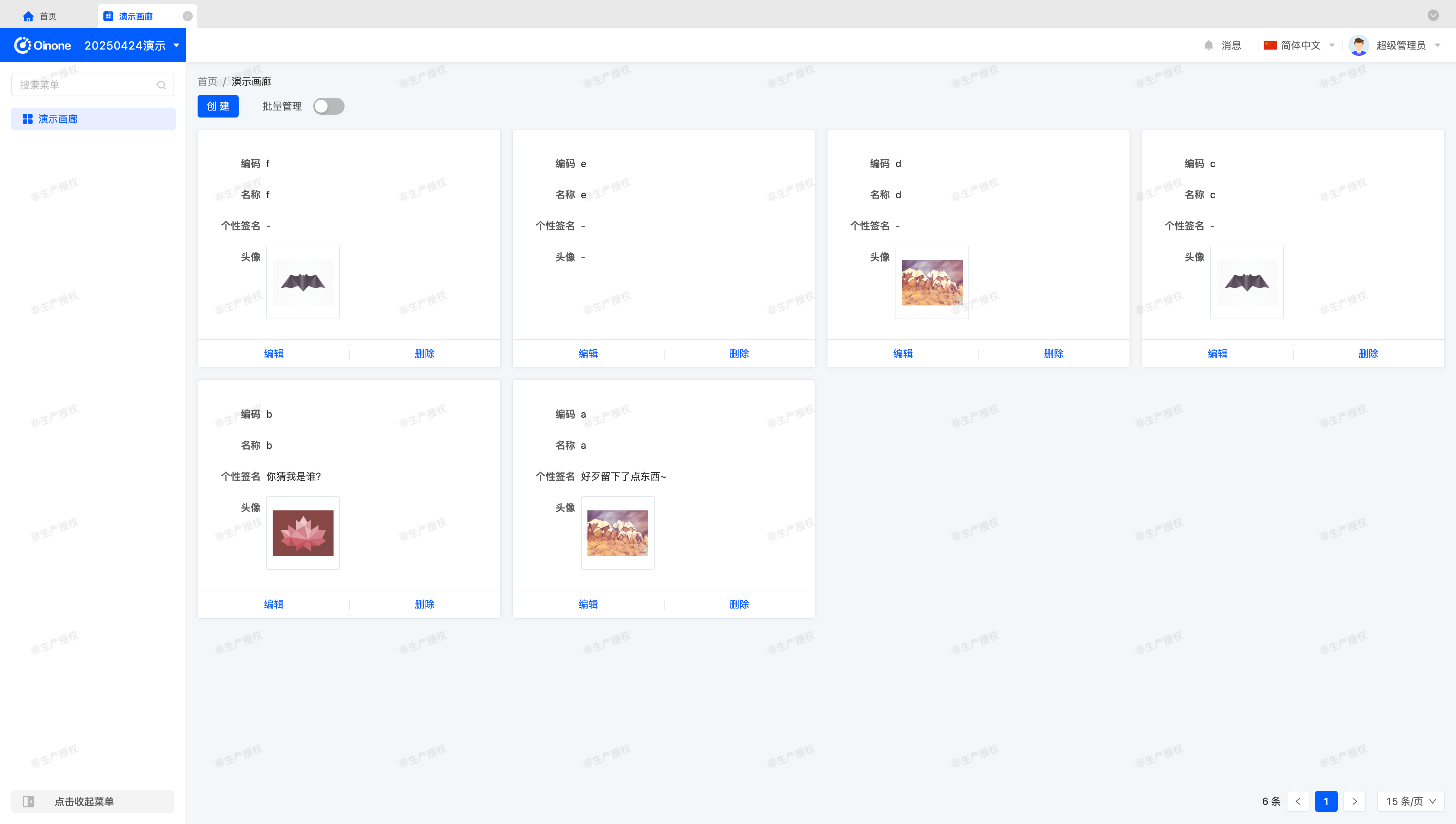
Let's start by building the original page.
Tip

This preparation is not the focus of this exercise. If you are unfamiliar with these concepts, here are some learning resources:

Model Designer User Manual

UI Designer User Manual

Back-End Framework

(I) Prepare the Model (GalleryDemoModel) ​

You can create a model using the Model Designer or through the backend.

This model contains four fields: code, name, personal signature, and avatar.

The field information for the model (GalleryDemoModel) used in this exercise is listed below:

NameAPI NameField TypeMulti-valueLength (Single Value)
编码codeText (String)No128
名称nameText (String)No128
个性签名descriptionMulti-line TextNo-
头像avatarText (String)No512

Tip

Note that when using a text type for the avatar field, the field length must be specified as 512 or larger; otherwise, image uploads may fail due to insufficient field length.

(II) Prepare Views ​

In addition to the model, we need views and navigation actions to link them. You can complete these operations using the UI Designer or through the backend.

First, we need a gallery view to showcase the exercise results.

Second, we need a form view to create test data.

Finally, bind the gallery view to a menu so we can access it by clicking the menu.

II. Switch to a Custom Component ​

(I) Switch via registerLayout ​

As we practiced in the "Explore Frontend Framework" chapter, we can switch components by registering a layout. Change widget="card" to widget="GalleryCustomCard" to complete the component switch:

xml
<view type="gallery">
    <view type="search">
        <element slot="search" widget="search" />
    </view>
    <element widget="actionBar" slot="actionBar" />
    <element widget="gallery" slot="gallery">
        <element widget="GalleryCustomCard" slot="card">
            <template slot="title" />
            <template slot="content" />
            <template slot="rowActions" />
        </element>
    </element>
</view>
1
2
3
4
5
6
7
8
9
10
11
12
13

(II) Switch via Backend DSL ​

Add the widget="GalleryCustomCard" attribute to <template slot="card">. A possible DSL template is as follows:

xml
<view model="demo.GalleryDemoModel" type="gallery">
    <template slot="actionBar">
        <action name="redirectCreatePage" label="创建" />
    </template>
    <template slot="gallery">
        <template slot="card" widget="GalleryCustomCard">
            <template slot="content">
                <field data="id" invisible="true" />

                <field data="code" label="编码" />
                <field data="name" label="名称" />
                <field data="description" label="个性签名" />
                <field data="avatar" label="头像" widget="UploadImg" />
            </template>
            <template slot="rowActions">
                <action name="redirectUpdatePage" label="编辑" />
                <action label="删除" name="delete" />
            </template>
        </template>
    </template>
</view>
1
2
3
4
5
6
7
8
9
10
11
12
13
14
15
16
17
18
19
20
21

III. Create the GalleryCustomCard Component ​

Similar to components we've encountered before, a card is an element component that reuses built-in component functionality. Define it as follows:

typescript
import GalleryCustomCard from './GalleryCustomCard.vue';

@SPI.ClassFactory(
  BaseElementWidget.Token({
    viewType: ViewType.Gallery,
    widget: 'GalleryCustomCard'
  })
)
export class GalleryCustomCardWidget extends CardWidget {
  public initialize(props) {
    super.initialize(props);
    this.setComponent(GalleryCustomCard);
    return this;
  }
}
1
2
3
4
5
6
7
8
9
10
11
12
13
14
15

Next, we need a Vue component template to display the required information. Start with a simple display:

vue
<template>
  <div class="gallery-custom-card-demo">
    <b>{{ formData.name }}({{ formData.code }})</b>
  </div>
</template>
1
2
3
4
5

The built-in component provides a formData property to access current card data. Declare its data type for maintainability:

typescript
interface DemoData {
  code?: string;
  name?: string;
  description?: string;
  avatar?: string;
}

props: {
  formData: {
    type: Object as PropType<DemoData>
  }
}
1
2
3
4
5
6
7
8
9
10
11
12

Enhance the page appearance with CSS styling:

css
.gallery-custom-card-demo {
  background-color: #ffffff;
  border: 1px solid #e3e7ee;
  border-radius: 4px;
  padding: 16px;
}
1
2
3
4
5
6

This gives us a custom simple card.

Tip

For more on card component APIs, refer to: Element

IV. Render the Bottom Action Area with ActionBar ​

The rowActions inline action area defined in the UI Designer or backend DSL can be rendered using the ActionBar component.

Use it in the Vue component template as follows:

vue
<div class="default-card-row-actions">
  <action-bar widget="CardRowActions" inline :active-records="formData" :row-index="rowIndex">
    <slot name="rowActions" />
  </action-bar>
</div>
1
2
3
4
5

Declare the component in Vue:

typescript
import { ActionBar } from '@oinone/kunlun-dependencies';

components: {
  ActionBar
}
1
2
3
4
5

Tip

CardRowActions is a built-in component for rendering actions.

In addition to the formData property, rowIndex is used here—simply define it in props. Both are declared in the CardWidget component.

Wrap the component in a div with the class default-card-row-actions to ensure complete styling, consistent with the original page.

V. Enhance the GalleryCustomCard Component ​

Next, refine the card component styling. There's no标准答案 (standard answer) here—use your imagination or the image at the beginning of this chapter to complete the component.

VI. Make the Component Generic via Attributes ​

Component generalization is a philosophy of component abstraction. Good attribute design makes a component adaptable to most scenarios, but this requires long-term practice. Through this section, we hope readers will flexibly use the configurations provided by the Widget framework and gradually appreciate the development experience of component generalization.

(I) Eliminate Model Dependencies ​

To make the card component generic, eliminating model dependencies is essential. In simple terms, the data structure should not restrict component value retrieval. A common approach is to make field references flexible through configuration mapping.

For example, using formData.name is straightforward but sacrifices flexibility. Instead, use formData[nameField] where nameField is a configurable variable. This makes the card component's value retrieval more flexible, though it does shift some development habits—a necessary trade-off.

In the Widget component, define attributes by fetching DSL configurations:

typescript
@Widget.Reactive()
public get title() {
  return `${this.formData[this.nameField]}(${this.formData[this.codeField]})`;
}

@Widget.Reactive()
public get codeField() {
  return this.getDsl().codeField || 'code';
}

@Widget.Reactive()
public get nameField() {
  return this.getDsl().nameField || 'name';
}
1
2
3
4
5
6
7
8
9
10
11
12
13
14

In the Vue component template, use the title property for the title definition. Similarly, semantically define other properties based on their functions—exploration is encouraged.

Tip

If possible, configure the title format via expressions for greater flexibility.

For more on expressions, refer to: Expression Service

(II) A Poor but More Generic Approach ​

When designing attributes requiring complex structure configurations, DSL attributes may be insufficient. We must sometimes prioritize functionality over DSL readability.

Attentive readers may have noticed that whether configuring extension attributes via the UI Designer or backend DSL, XML syntax limitations allow only simple values. For complex structured values, we rely on conventions.

For example, design a contentLayout attribute for the card that accepts a JSON-structured array to layout the middle content area. This can enhance component reuse but increases maintenance and configuration complexity. Poorly designed complex configurations can make components unmaintainable and non-iterative.

Tip

While we mention this "convention over configuration" approach, we hope readers understand that this is a last resort and not recommended for general use.

Pager
Previous pageChapter 2:Create a Gantt View
Next pageInit Module Data
On this page