I. Module Overview
(Ⅰ) Module Introduction
This module is used to enhance the observability and controllability of the process platform. Administrators can monitor the real-time running status of processes, task backlogs, and exceptions, and directly perform operations such as pausing, resuming, terminating, and modifying assignees on process instances.
Module Composition:
| Application Module | Primary Menu | Secondary Menu | Function Description |
|---|---|---|---|
| Workflow | Process Overview | - | Displays the overall running status of processes and key statistical indicators. |
| Workflow | Monitoring Center | Process Monitoring | Displays real-time running indicators, trend charts, and efficiency analysis. |
| Workflow | Monitoring Center | Process Instances | Allows viewing details of all process instances and performing intervention operations. |
| Workflow | Monitoring Center | Statistical Indicators | Provides a statistical data page where users can build custom visualizations. The data for the process overview is sourced from here. |
II. Process Overview
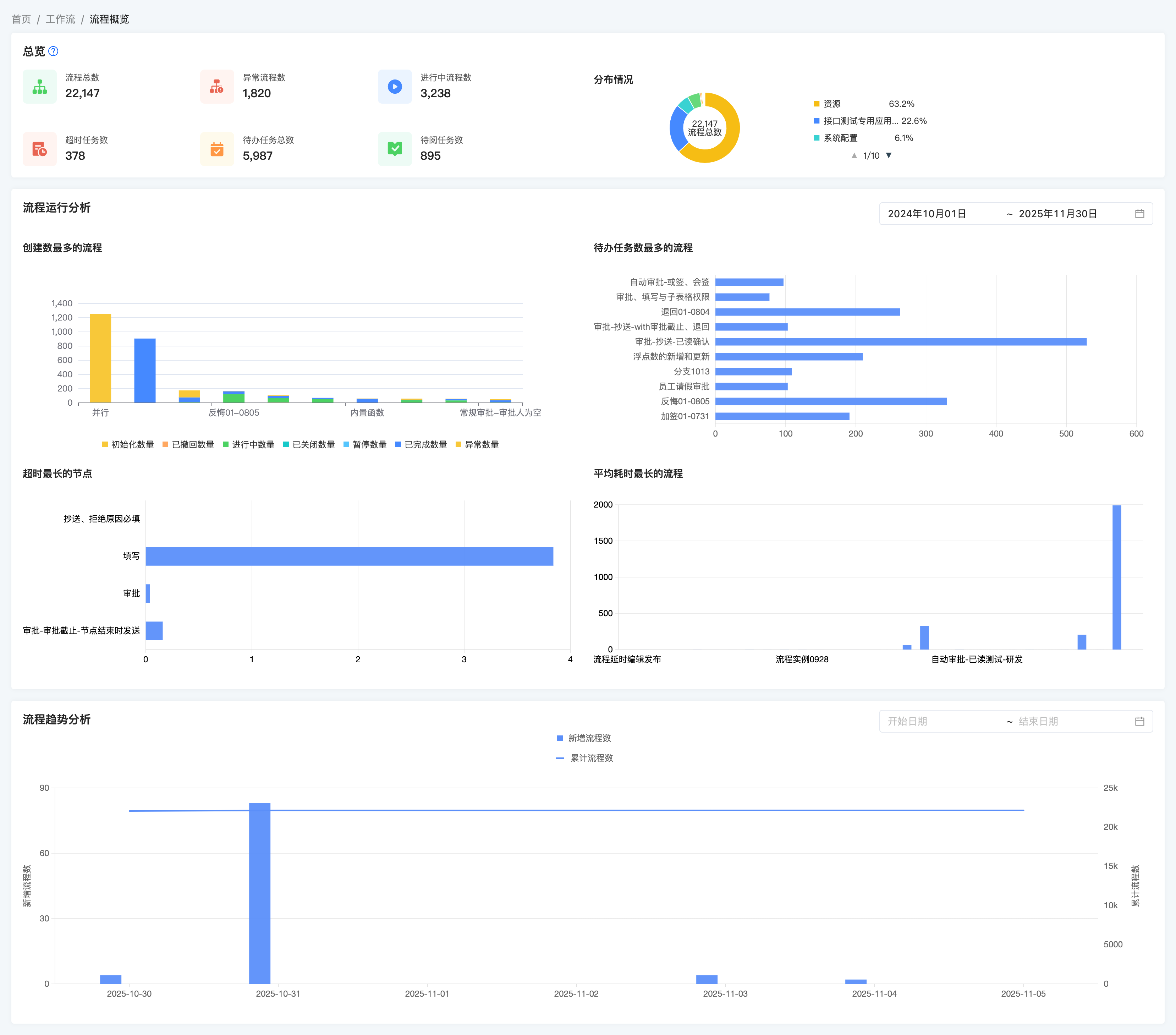
(Ⅰ) Functional Positioning
Provides an overview of process operations and data analysis at the system level, enabling operations personnel to quickly understand the overall health of the current system.
(Ⅱ) Operation Path
[Workflow] → [Process Overview]
(Ⅲ) Functional Areas
① Process Operation Overview
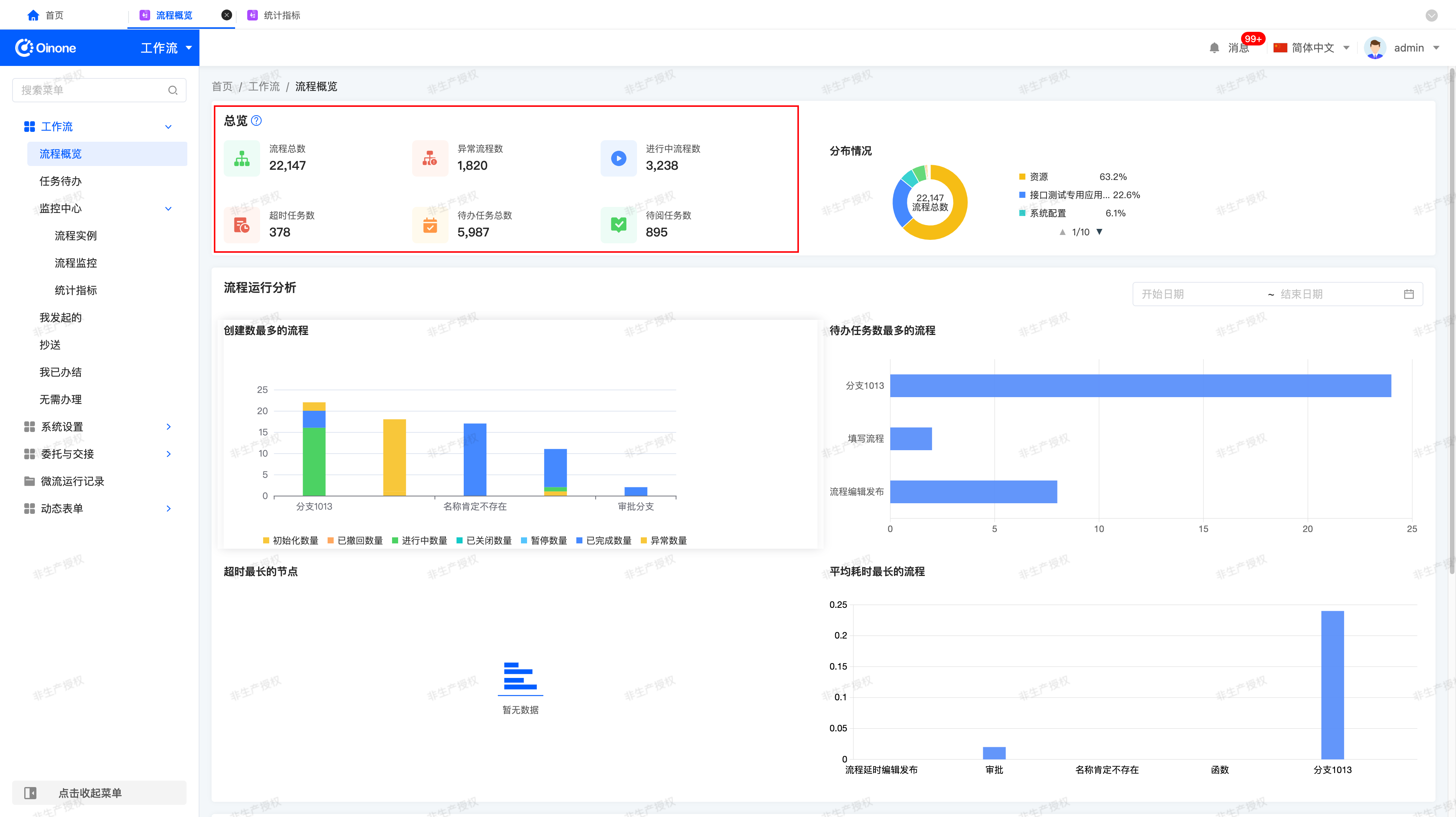
Displayed Indicators:
- Total number of processes
- Number of abnormal processes
- Number of ongoing processes
- Number of overdue tasks
- Total number of pending tasks
- Number of tasks to be read
Click to Jump:
| Indicator | Jump Target |
|---|---|
| Total number of processes | Process Instances → All Processes |
| Number of abnormal processes | Process Instances → Abnormal Processes |
| Number of ongoing processes | Process Instances → Running Processes |
💡 Tip: Data is automatically updated every 10 minutes and is for reference of macro trends only.
② Process Operation Distribution (Pie Chart)

- Dimension: Application name
- Data: Number and proportion of process instances under each application
③ Process Operation Analysis
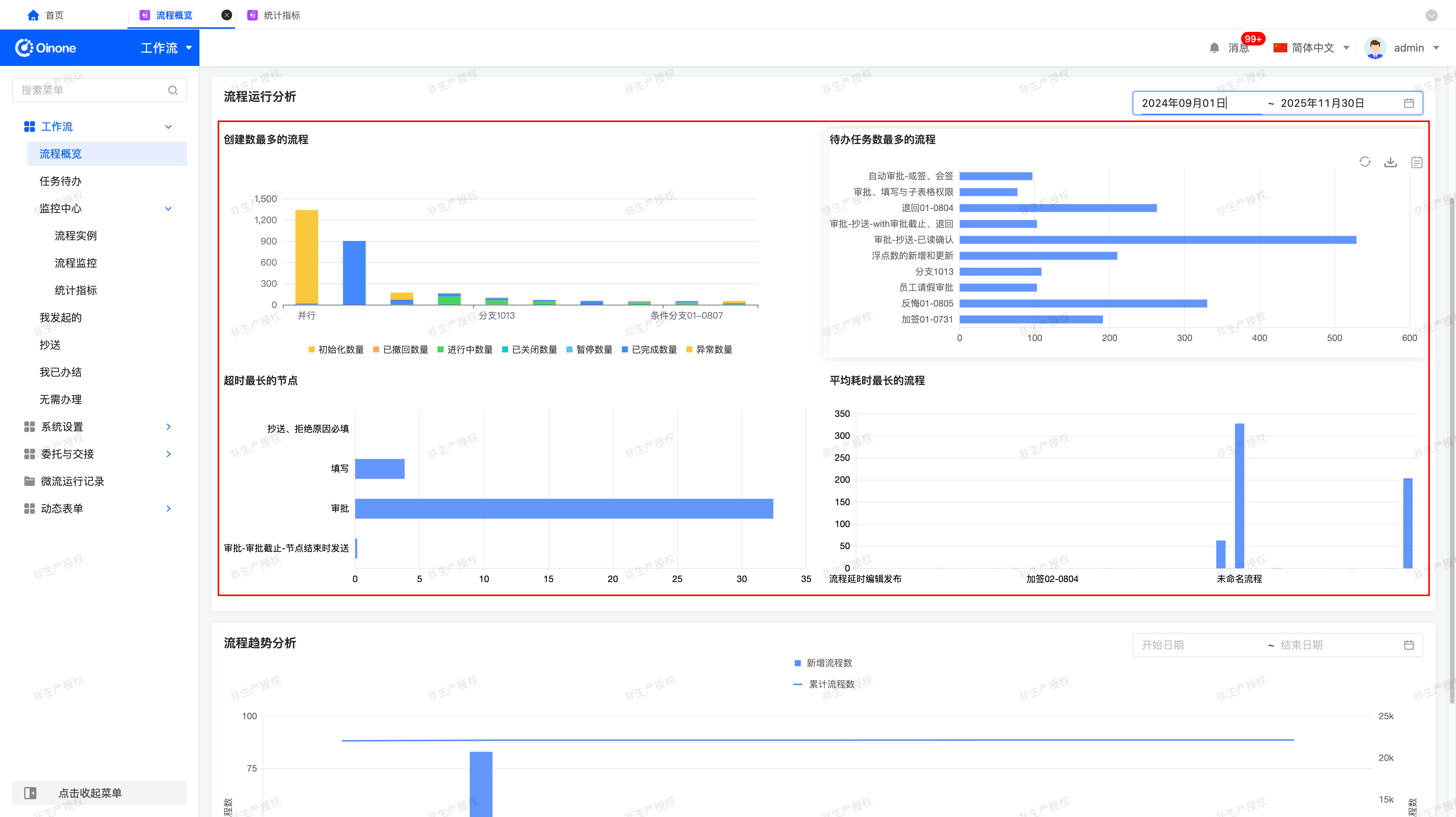
Analyzes process performance at different time intervals to identify high-risk or high-load processes.
Time Filtering: Supports custom ranges. By default, data for the last week (including today and the previous six days) is displayed.
Supported Functions: Data refresh, download PNG images, view the full list and export.
Default Refresh Frequency: Automatically refreshes every 1 hour
Analysis Dimensions:
| Chart Name | Description | Ranking Logic |
|---|---|---|
| Processes with the most creations | Processes initiated most frequently in the last 7 days | Total number from high to low |
| Processes with the most pending tasks | Processes with the most backlogged pending tasks currently | Number of pending tasks from high to low |
| Nodes with the longest overdue time | Nodes with the longest average overdue time | Overdue time from high to low |
| Processes with the longest average duration | Processes with the longest duration from initiation to completion | Average duration from high to low |
④ Process Trend Chart
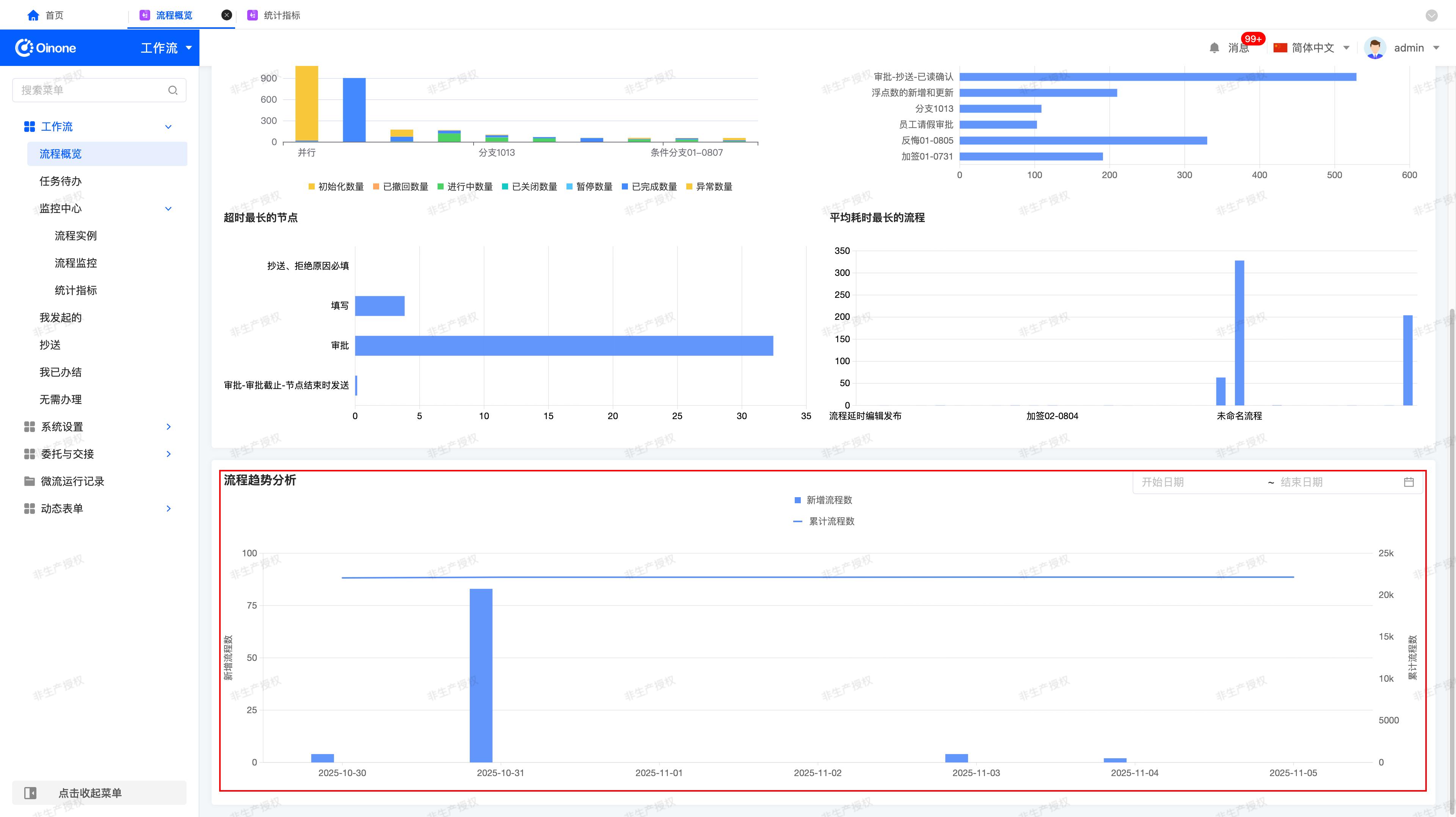
Displays the trends of new and cumulative process growth.
Time Filtering: Supports custom ranges. By default, data for the last week (including today and the previous six days) is displayed.
Chart Types:
- Bar chart of new process numbers: Number of newly created processes per day
- Line chart of cumulative process numbers: Cumulative number of all processes in the system
III. Monitoring Center - Process Monitoring
(Ⅰ) Functional Positioning
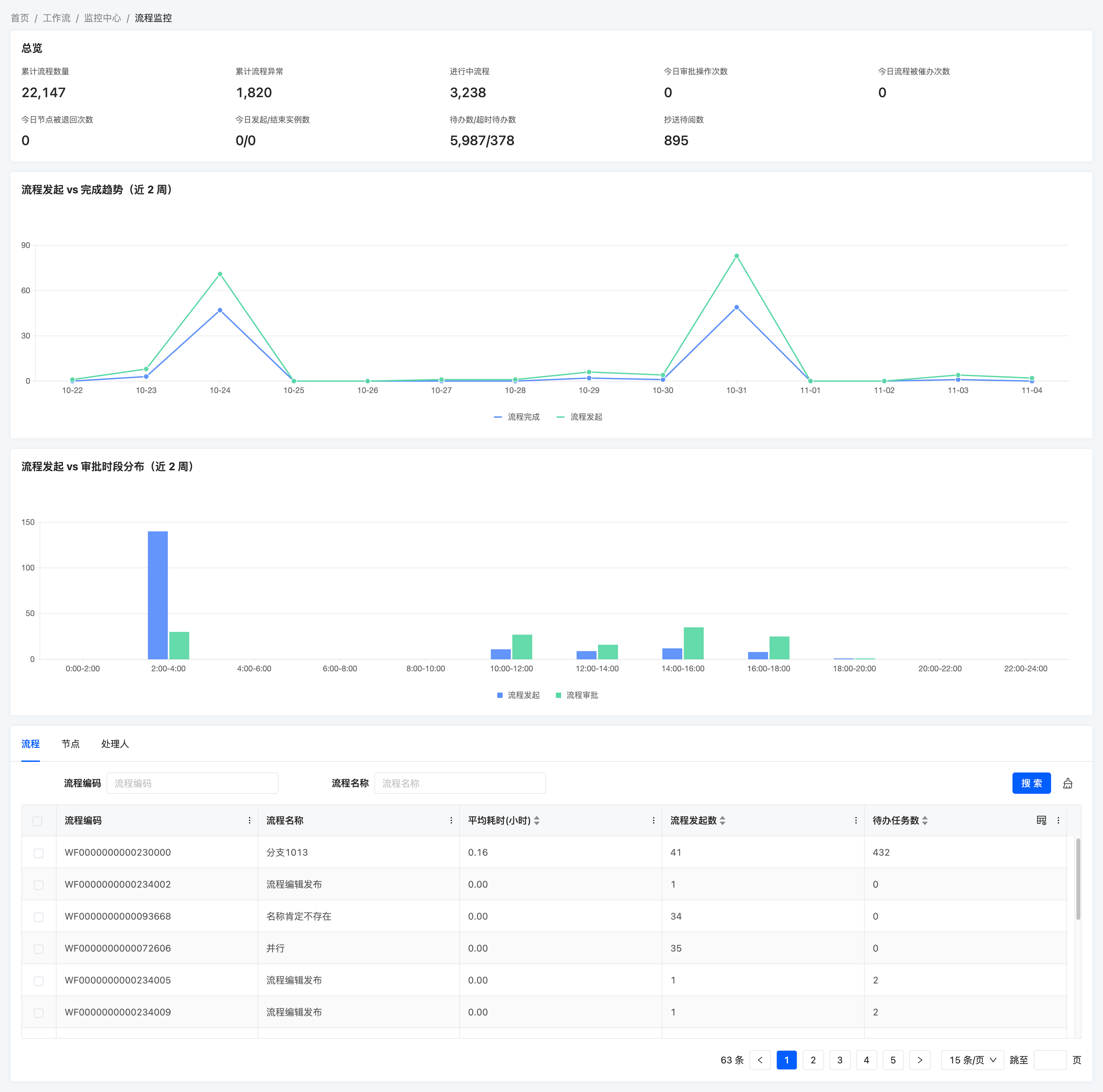
Provides more granular runtime monitoring and trend analysis, serving as the main entry for administrators' daily monitoring.
(Ⅱ) Operation Path
[Monitoring Center] → [Process Monitoring]
(Ⅲ) Indicator Cards
Displays real-time key running indicators of the current system.
| Indicator Name | Description |
|---|---|
| Cumulative number of processes | Total number of all process instances in the system |
| Cumulative number of process exceptions | Number of processes in an abnormal state |
| Ongoing processes | Processes currently running |
| Number of approval operations today | Total number of manual approval operations (approve/reject) completed today |
| Number of process reminders today | Total number of task reminders today |
| Number of node returns today | Total number of process node returns today |
| Number of initiated/ended instances today | Number of newly created processes today/Number of completed or closed processes today |
| Number of pending tasks / Number of overdue pending tasks | Number of all current pending tasks and overdue tasks |
| Number of CC tasks to be read | Number of unread CC tasks |
(Ⅳ) Trends and Distribution Charts (Last 2 Weeks)
| Chart Name | Description |
|---|---|
| Process initiation trend vs. completion trend | Number of processes initiated per day vs. Number of processes completed per day |
| Process initiation time distribution vs. task approval time distribution | Time intervals of process initiation (2-hour granularity) vs. Time intervals of approval operation distribution (manual approval) |
(Ⅴ) Process Operation Analysis
Administrators can view running data by different object dimensions.
① By Process

- Indicators: Process code, process name, average duration (hours), number of process initiations, number of pending tasks.
- Search: Process code, process name.
- Data range: Last two weeks
② By Node
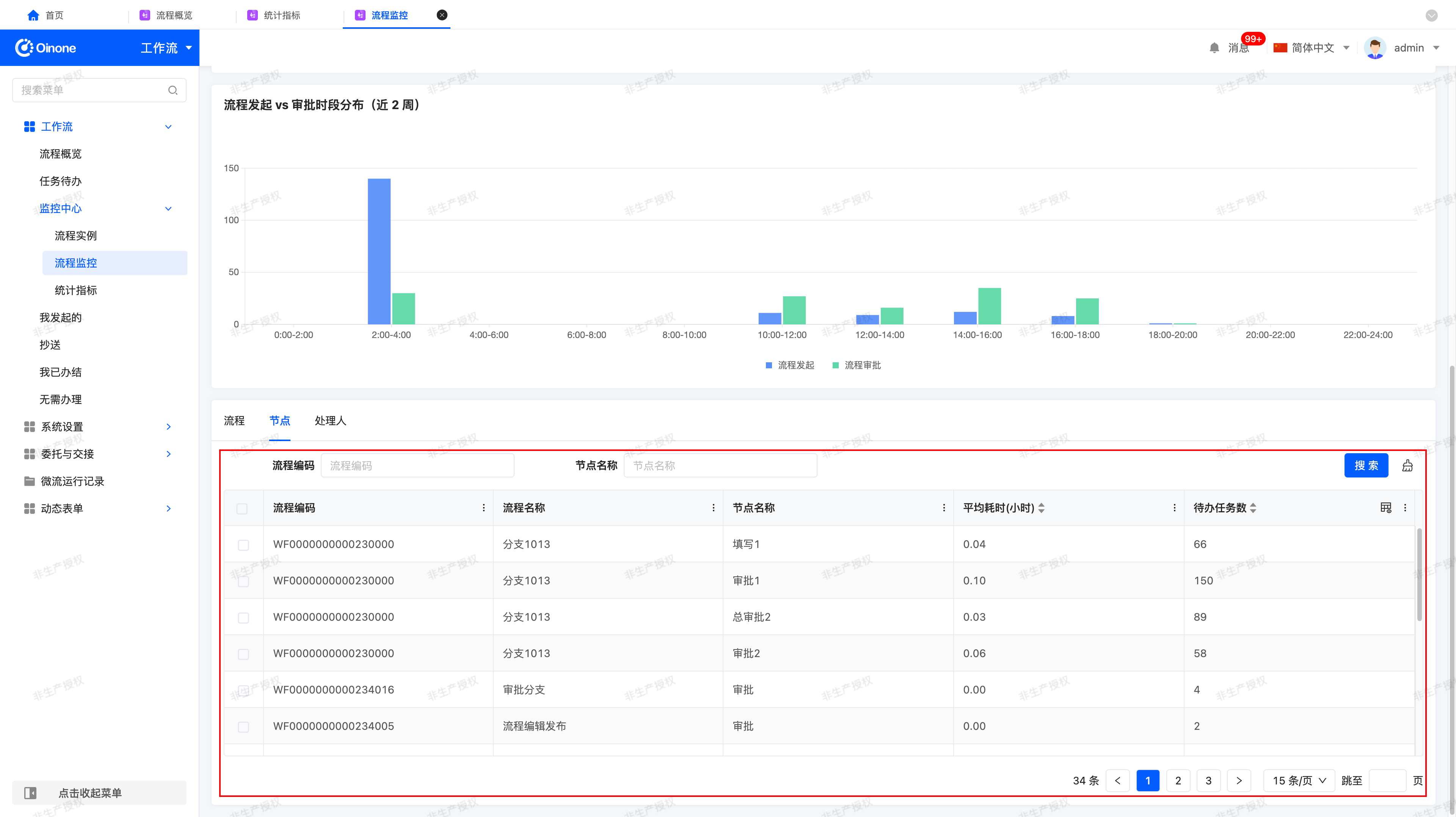
- Indicators: Process code, process name, node name, average duration (hours), number of pending tasks
- Only manual nodes are counted
- Search: Process code, node name
- Data range: Last two weeks
③ By Assignee

- Indicators: Username, login account, number of pending tasks, number of completed tasks, average processing duration, number of reminders, number of overdue times, task stay duration
- Search: User name, login account
- Data range: Last two weeks
IV. Monitoring Center - Process Instances

(Ⅰ) Functional Positioning
Used by administrators to view and manage all process instances, including exception location and process intervention operations.
(Ⅱ) Operation Path
[Monitoring Center] → [Process Instances]
(Ⅲ) Instance List
Supported Lists:
- All processes
- Ongoing processes
- Completed processes
- Abnormal processes
- Paused processes
- Withdrawn processes
- Closed processes
Main Fields:
- Process name
- Process code
- Current node
- Process instance status
- Initiation time
- Initiator
- Initiator's department
Search Support:
Process name, process code, node name, process instance status, initiator, initiating department, time interval.
(Ⅳ) Process Details
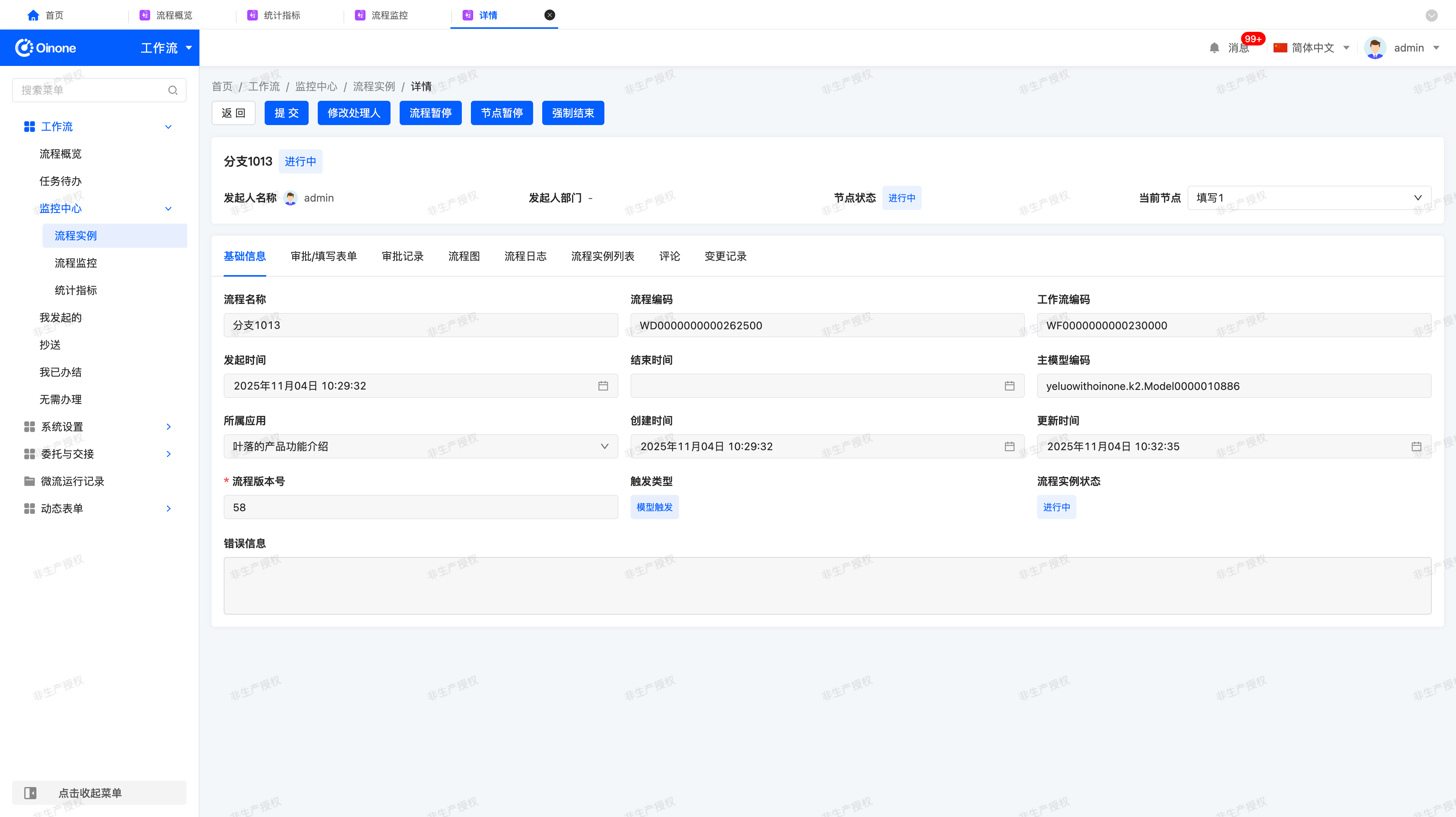
Page Composition:
- Basic Information: Process name, process code, workflow code, initiation time, end time, main model code, affiliated application, creation time, update time, process version number, trigger type, process instance status, error information
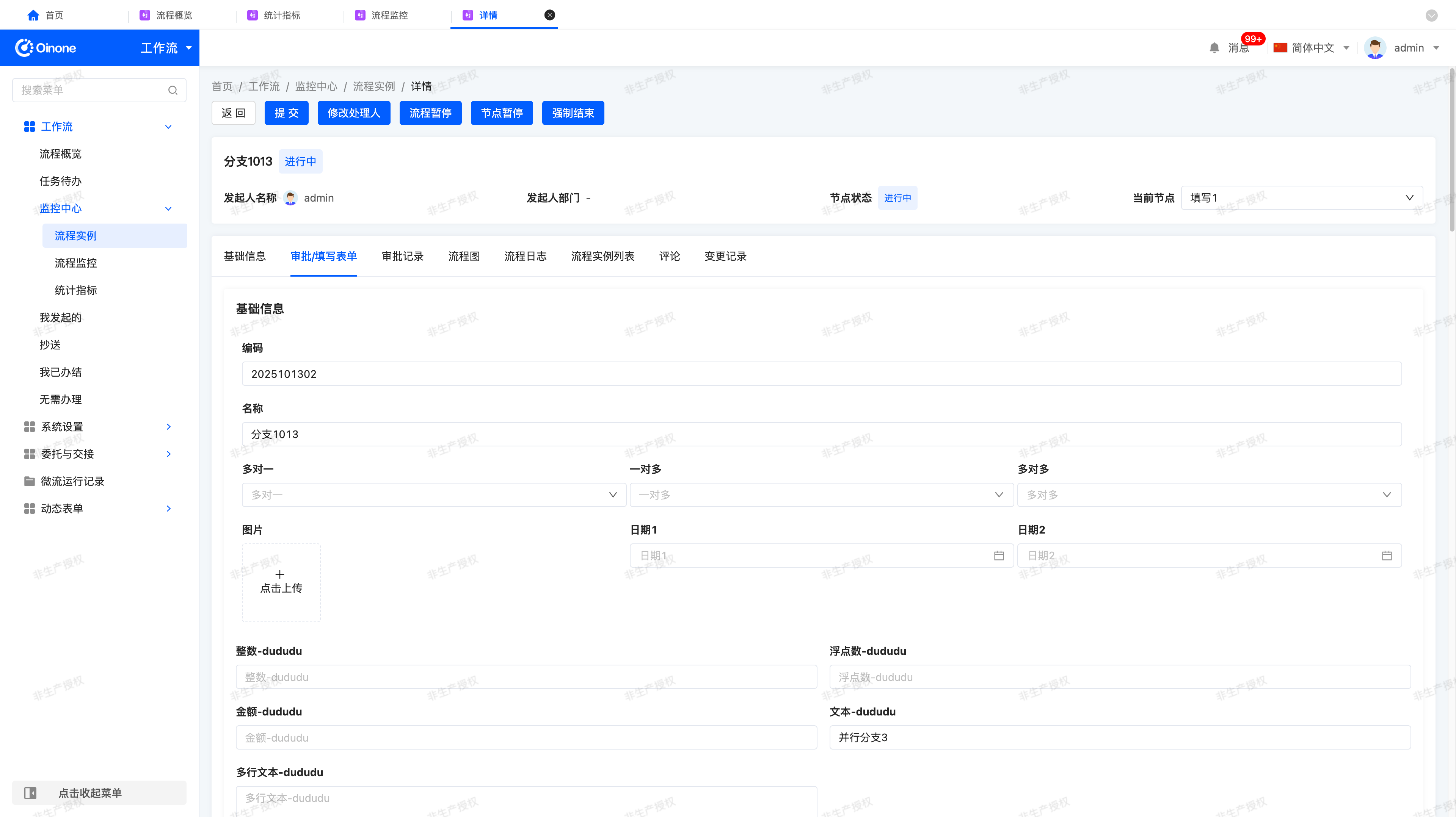
- Approval/Filling Form: Displays the corresponding form according to the node type
- Approval Record: Allows viewing the status, comments, and attachments of each approver; Supports viewing administrator intervention logs
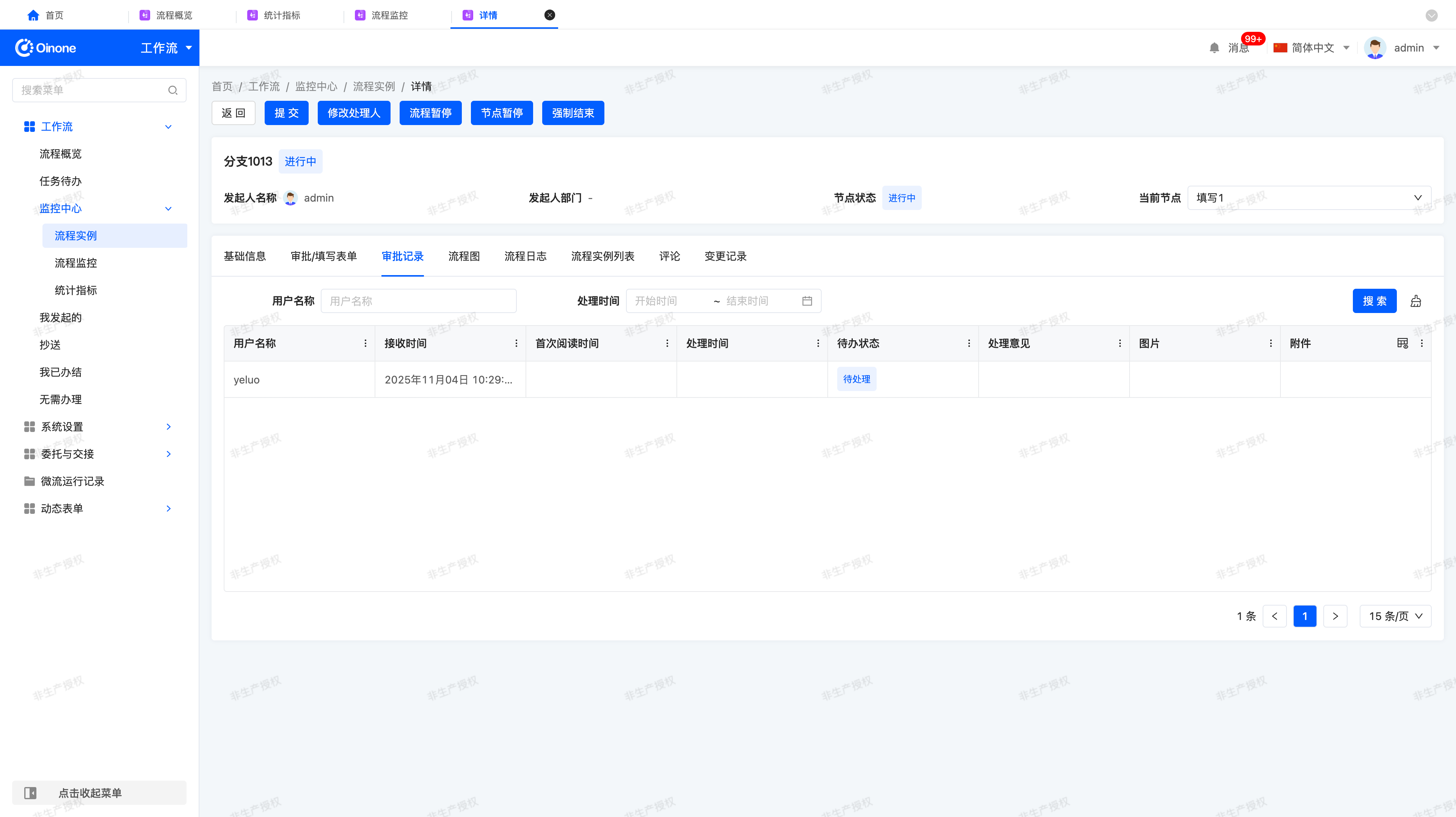
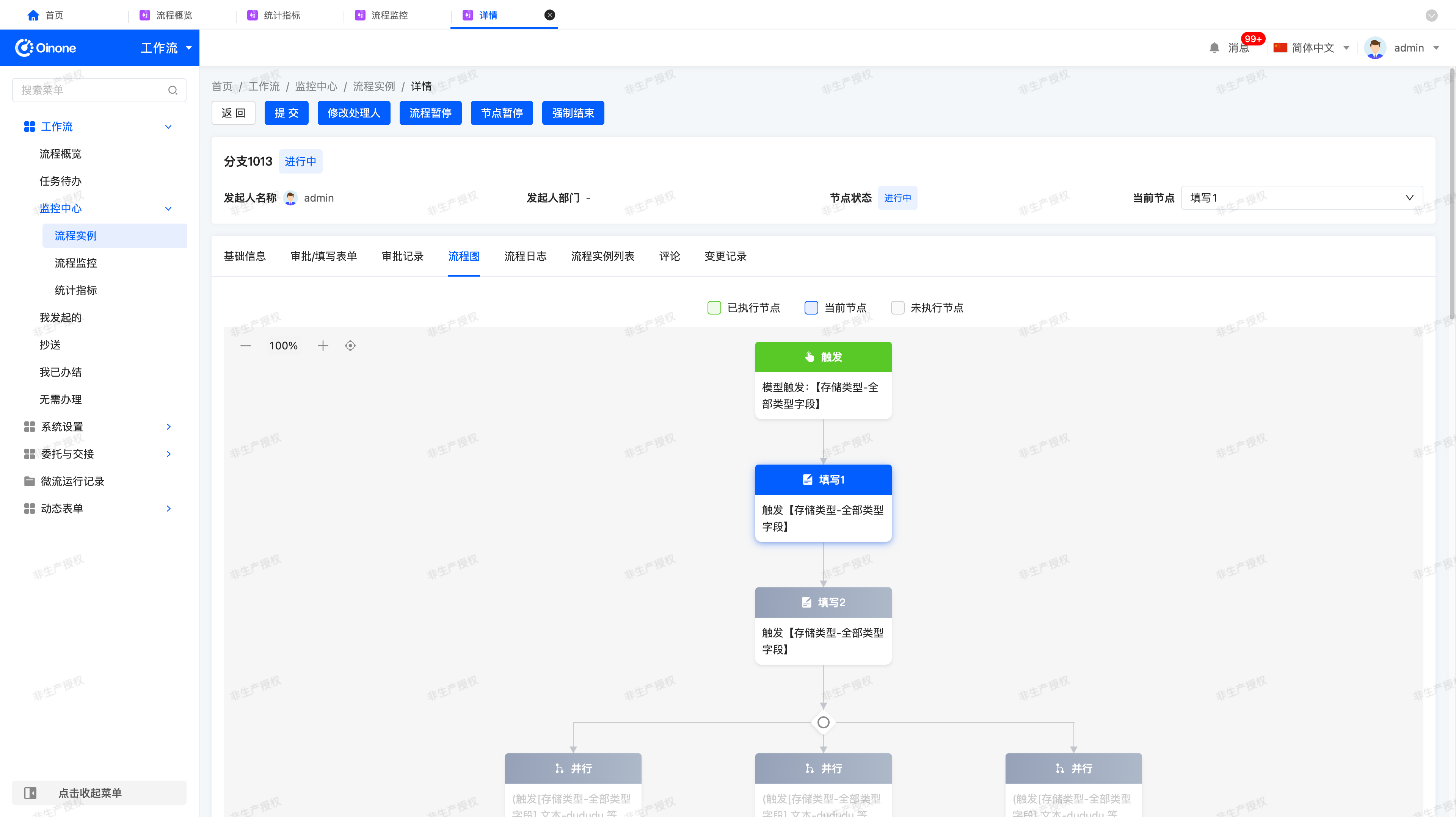
- Process Diagram: Visually displays the status of the current process node
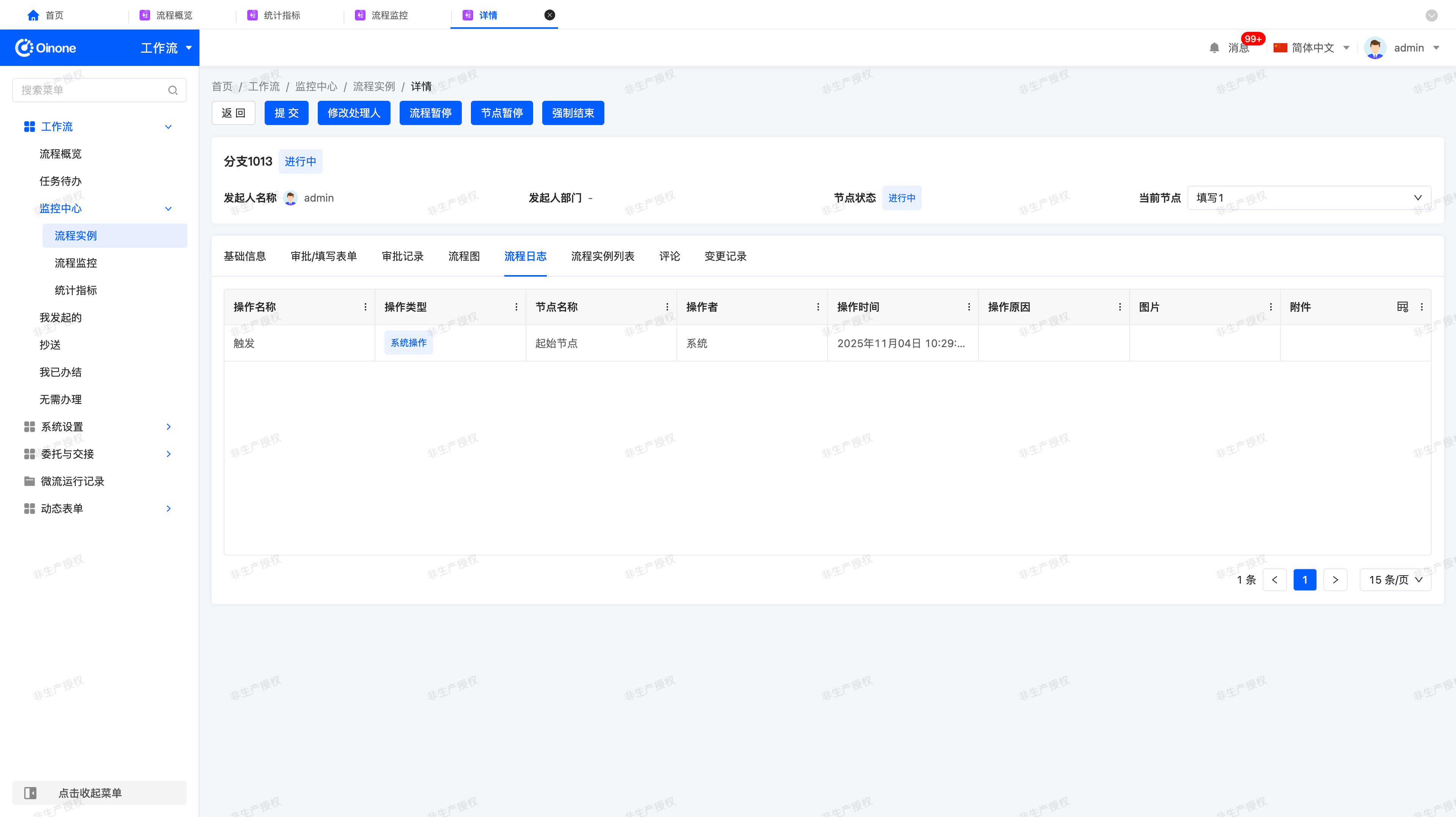
- Process Log: Completely records all user and system operations
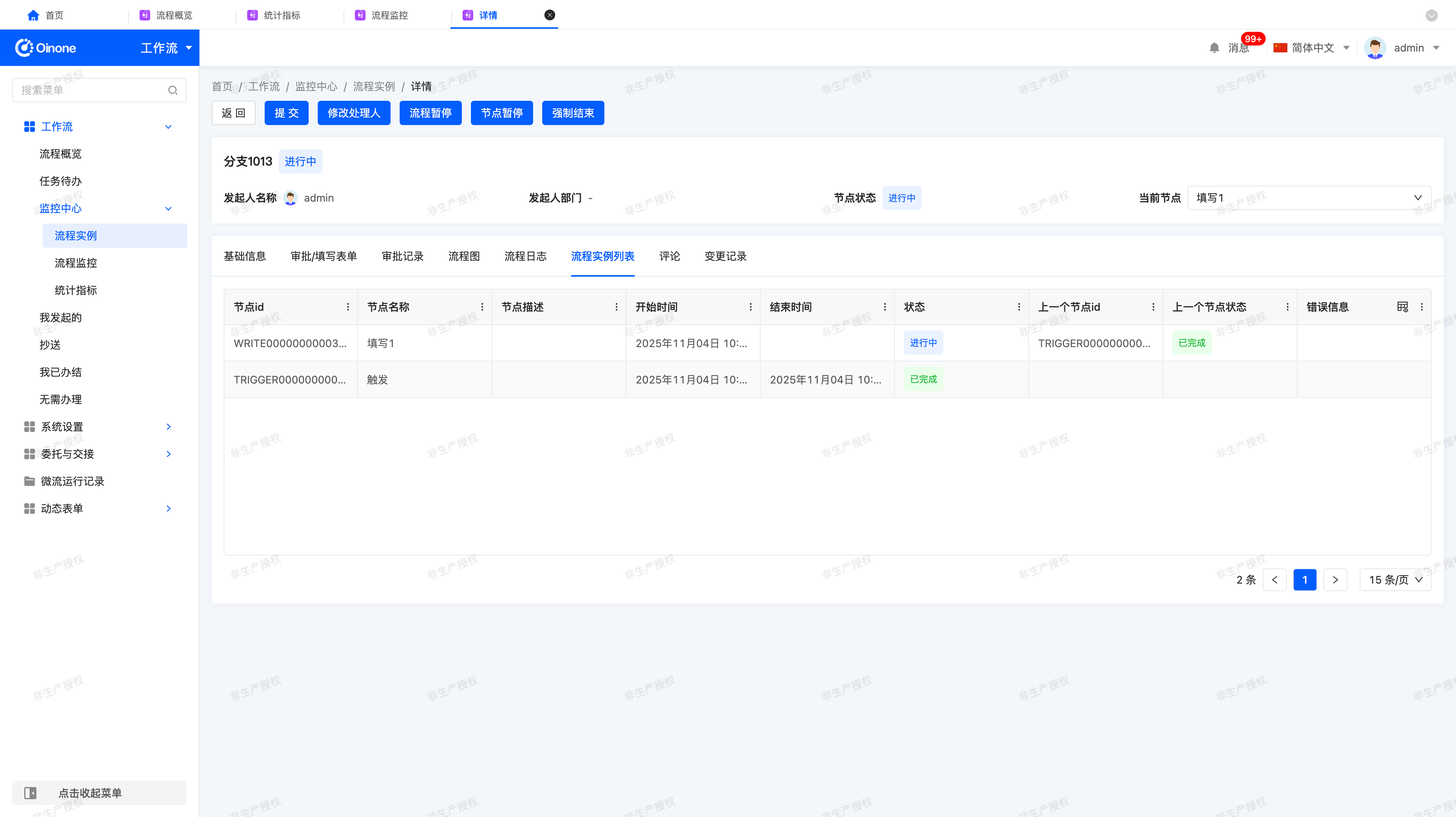
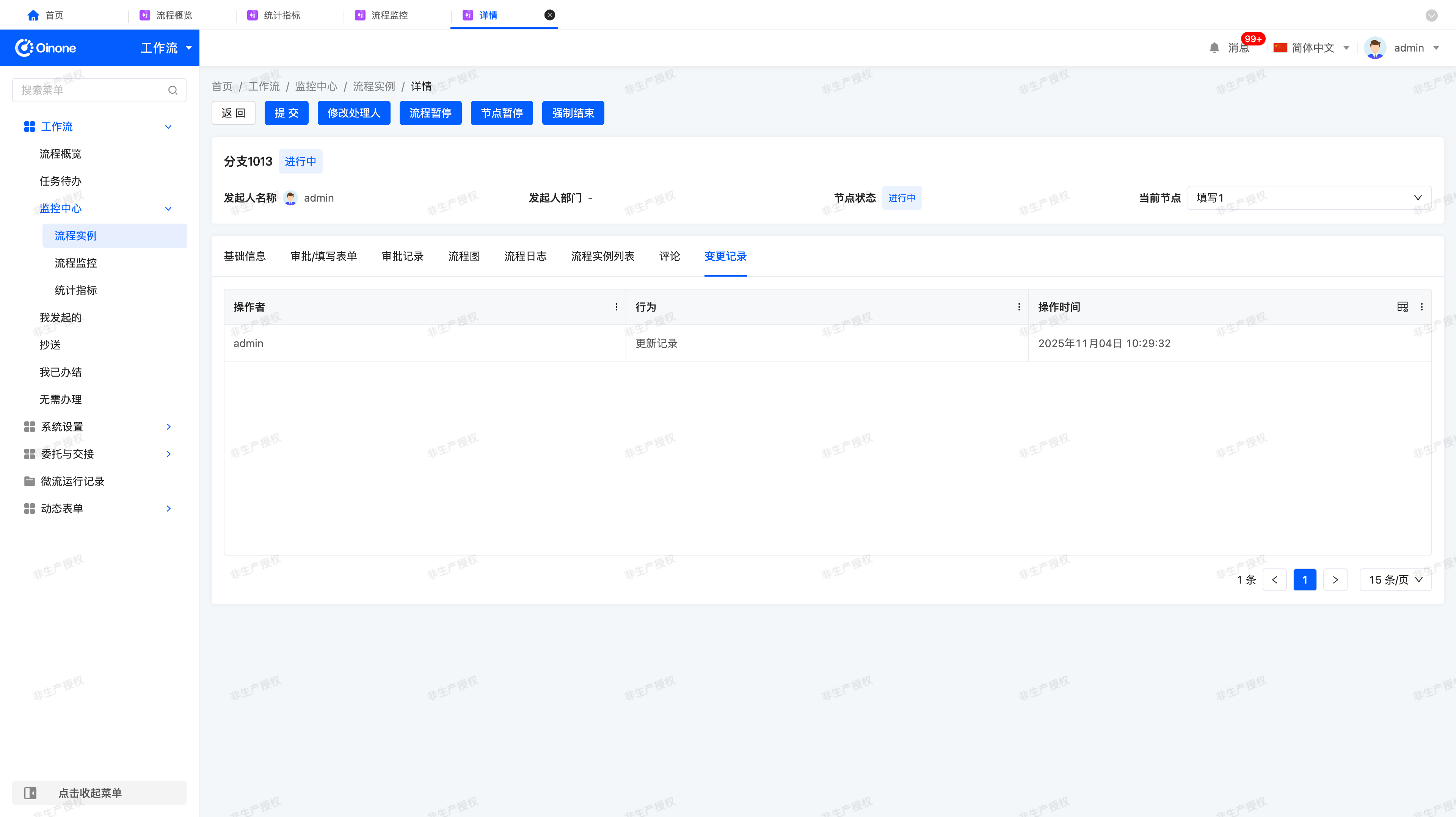
- Process Instance List: Node Id, node name, node description, start time, end time, status, previous node Id, previous node status, error information (the original [Process Operation Record] has been migrated here)
- Comments / Change Records
V. Process Intervention Operations
(Ⅰ) Applicable Objects
Administrators can perform intervention operations on process instances at "manual nodes".
If the current node is a system node, the intervention function is disabled.
(Ⅱ) Operation Entry
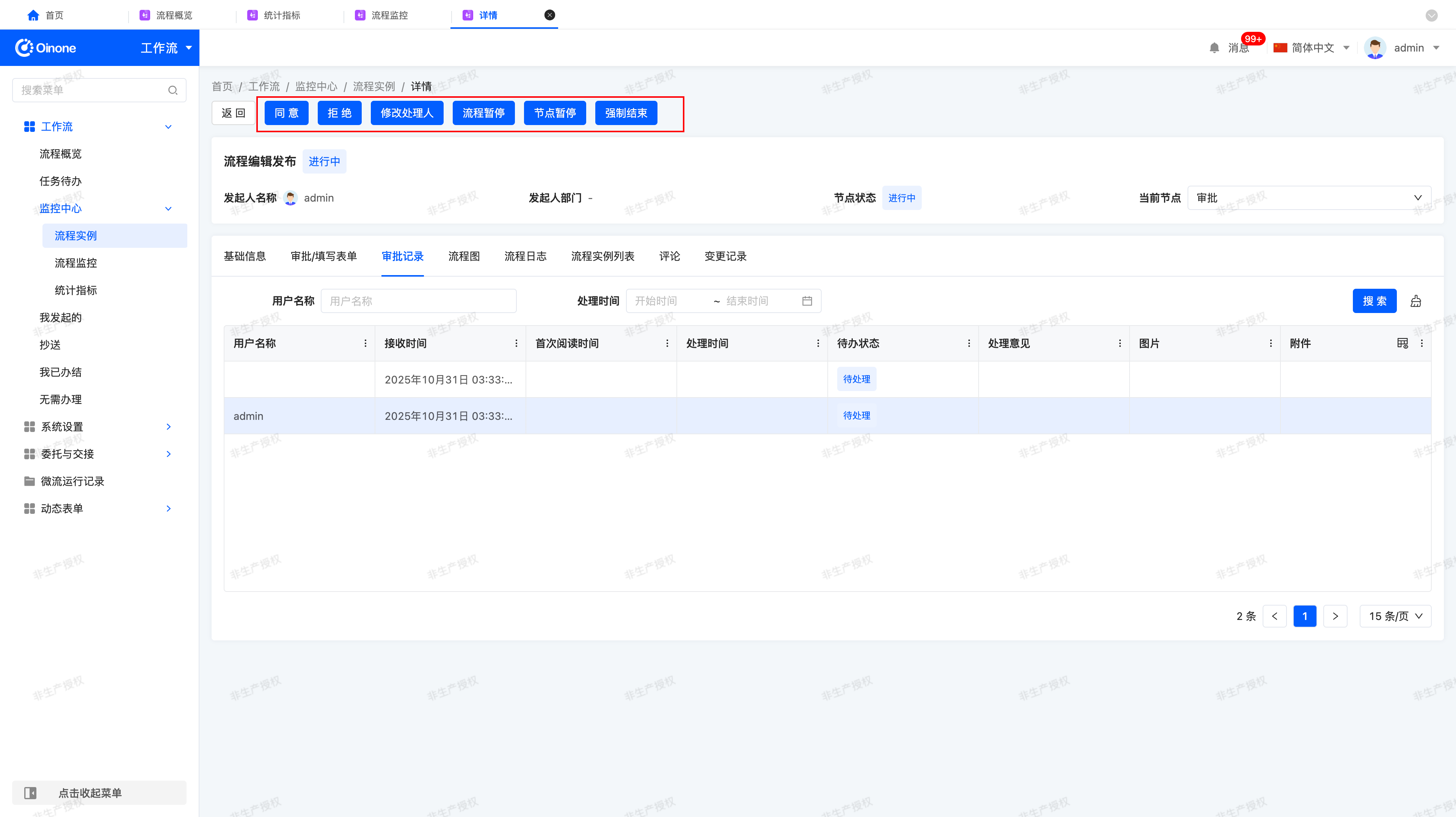
On the [Process Instances → Process Details] page, after selecting the "Current Node", the intervention operation button can be seen.
(Ⅲ) Operation Instructions
Administrators can perform different ranges of operations in different process states.
🟢 1. Ongoing Status
The current process is running normally and is in the approval or filling stage.
| Operation Name | User Execution Instructions | System Effect after Execution |
|---|---|---|
| Approve | When the process is at a manual approval node, the administrator can directly approve the current node as "Agree". | 1. The system immediately sets the processing result of the node to "Agree". 2. The tasks of other approvers under the current node become "No need to process - Invalidated". 3. The process automatically flows to the next node. 4. The system records the complete log and marks it as "Administrator approved" in the approval record. |
| Reject | When the process is at a manual approval node, the administrator can directly approve the current node as "Reject". | 1. The current node is determined as "Rejected". 2. All unprocessed pending tasks are automatically invalidated. 3. The process enters the return or termination state according to the configuration. 4. The system records the operation log and displays "Administrator rejected" in the approval record. |
| Fill and Submit | When the process is at a "Filling Node", the administrator can fill in business data in the form and then submit. | 1. Before submission, the system automatically verifies all required fields and business rules. 2. Submission is allowed only after successful verification. An error prompt will pop up if the verification fails. 3. After submission, the system records the submission time, submitter, and submission content. 4. After the administrator submits, the tasks of others are automatically converted to "No need to process - Abandoned". 5. The process instance automatically flows to the next node according to the preset rules. 6. The system generates a pending task for the next node and pushes it to the corresponding assignee. 7. A "Fill and Submit" operation record is added to the approval record. 8. The node operation in the process diagram is marked as belonging to the "Administrator Group". |
| Modify Assignee | The administrator can adjust the assignee of the pending task at the current node. | 1. The pending tasks of the original assignee that have not been processed are marked as "No need to process". 2. The processed pending tasks are retained as "I have completed". 3. The new assignee immediately receives the pending task. 4. The system automatically records the comparison log before and after the modification. |
| Pause Process | The execution of the entire process can be paused. | 1. The process status changes to [Paused]. 2. All nodes are frozen, and relevant personnel can no longer process pending tasks. 3. The system prompts "The process has been paused. You cannot process the current task." 4. The "Resume Process" button is displayed on the page. |
| Pause Node | The task of the current node can be paused. | 1. The status of the current node is displayed as "Paused". 2. The tasks of the paused node cannot be processed temporarily. 3. Other parallel branches are not affected. 4. The system records the log and displays the pause icon on the process diagram. |
| Force End | The administrator can terminate the current process. | 1. The process status is changed to [Closed]. 2. All unprocessed tasks are automatically invalidated. 3. The termination reason and operation log are recorded. |
| Restart | This operation cannot be executed while the process is ongoing. | - |
| Resume Process | This operation cannot be executed while the process is ongoing. | - |
| Resume Node | This operation cannot be executed while the process and the node are both ongoing. | - |
🔵 2. Completed Status
The process has ended, and all nodes have been processed.
| Operation Name | User Execution Instructions | System Effect after Execution |
|---|---|---|
| Approve / Reject / Modify Assignee / Pause / Pause Node / Force End / Resume Operations | These operations cannot be executed because the process has ended. | - |
| Restart | A new instance can be quickly created based on this process. | 1. The "Restart Process" interface is opened. 2. The latest version of the process is used by default. 3. The administrator fills in the necessary information and submits. 4. The system generates a new process instance and records the log. |
🟠 3. Abnormal Status
A system exception, approval error, or logical interruption occurs during the process execution.
| Operation Name | User Execution Instructions | System Effect after Execution |
|---|---|---|
| Approve / Reject / Modify Assignee / Pause / Pause Node / Resume Operations | These operations cannot be directly executed because the current process is interrupted abnormally. | - |
| Restart | A new instance can be restarted from the abnormal process. | 1. A new process record is generated. 2. The latest version of the process template is used. 3. The system records the source of the exception and the restart time. |
🟡 4. Paused Status
The process is paused by the administrator or the system, and the current node and tasks are all frozen.
| Operation Name | User Execution Instructions | System Effect after Execution |
|---|---|---|
| Approve / Reject / Modify Assignee / Pause / Pause Node / Restart / Resume Node | These operations cannot be executed while the process is paused. | The system prompts: "The process has been paused. Please resume the process before performing this operation." |
| Resume Process | The administrator can lift the pause status of the entire process. | - The process status returns to "Ongoing". - The frozen tasks are reactivated. - If there are pending tasks that were not sent during the pause, the system resends them. - The system records the resume log. |
| Force End | The administrator can directly close the paused process. | 1. The process status is set to [Closed]. 2. All tasks are invalidated. 3. The system records the abnormal closure log. |
🟣 5. Withdrawn Status
The process is actively withdrawn by the initiator.
| Operation Name | User Execution Instructions | System Effect after Execution |
|---|---|---|
| Approve / Reject / Modify Assignee / Pause / Pause Node / Resume Operations | These operations are invalid because the withdrawn process no longer runs. | The system prompts: "The process has been withdrawn. You cannot perform this operation." |
| Restart | A new process can be restarted based on the original process data. | 1. A new process record is generated. 2. The latest version of the process template is used. 3. The system records the source of the exception and the restart time. |
(Ⅳ) Log Recording Specifications after Operations (Automatically Executed by the System)
Every time the administrator performs an intervention operation, the system automatically records a log, including:
- Operation name (e.g., "Pause Process", "Resume Process", etc.)
- Operation type (e.g., "Administrator Operation", "System Operation", etc.)
- Node name
- Operator
- Operation time
- Operation reason (when a reason or note is filled in)
(Ⅴ) Operation Traceability and Auditing
All administrator intervention behaviors (including approval, pause, modification, resume, etc.) are recorded in:
- [Approval Record] (displayed under the administrator group)
- [Process Log] (detailed display of operation type, reason, and time)
VI. Appendix
(Ⅰ) Process Pause vs. Node Pause — Functional Differences and Combination Instructions
| Comparison Item | Process Pause | Node Pause |
|---|---|---|
| Definition | The operation of the entire process instance is paused. All nodes, tasks, and pending tasks are frozen, and the process enters the [Paused] state. | The execution of the current node or the specified node is paused, which only affects the selected node and does not affect other parallel branches. The overall process still remains in the [Ongoing] state. |
| Scope of Influence | Global Pause: Freezes all nodes and pending tasks under the entire process instance. | Local Pause: Only pauses the selected node and its pending tasks (whether to include subsequent nodes can be selected). |
| Process Status Display | The overall process status is displayed as [Paused]. | The overall process remains [Ongoing], and only the paused node is displayed as "Paused" in the process diagram. |
| Behavior of Pending Tasks | 1. All pending tasks are frozen and cannot be operated on. 2. If the user clicks the processing button, the system prompts: "The process has been paused. You cannot process the current task." | 1. Only the pending tasks under the paused node are frozen. 2. Tasks in other branches can still be processed normally. 3. When a user of the paused node clicks, the system prompts: "The current node has been paused. You cannot perform this operation." |
| System Behavior | 1. Stops the scheduling and flow of the entire process. 2. Prevents the generation of new pending tasks. 3. Displays the pause indicator on the entire process diagram. 4. The system records the "Process Pause" log. | 1. Pauses the flow and distribution of pending tasks of the selected node. 2. Other branches run normally. 3. Displays the pause icon on the node. 4. The system records the "Node Pause" log. |
| Recovery Method | Use the Resume Process operation. After recovery, the entire process resumes operation, and all pending tasks are reactivated. | Use the Resume Node operation. After recovery, only the paused node resumes execution. |
| Executable Permission | Generally, only administrators can execute it. | Generally, only administrators can execute it. |
| Typical Use Cases | 1. System maintenance or global exceptions require temporarily freezing the process. 2. Waiting for external business conditions to be met (e.g., financial reconciliation is not completed). | 1. There is a dispute or missing information in the approval of a certain node, and only this node needs to be paused to wait for supplementary materials. 2. Freezing a single path in parallel branches is desired. |
| Impact after Recovery | 1. All frozen pending tasks are reactivated. 2. Pending tasks that were not sent during the pause are resent. | 1. Only the frozen pending tasks under this node are reactivated. 2. Pending tasks that were not generated during the pause are resent. |
| Log Recording | Automatically records the "Process Pause" and "Process Resume" logs, including the operator, time, reason, etc. | Automatically records the "Node Pause" and "Node Resume" logs, including node information, operator, time, reason, etc. |
1. Simplified Understanding
- Process Pause = The entire engine stops. Once paused, all nodes are frozen, and no approver can operate.
- Node Pause = Only one node stops, and other branches continue to run. It is usually used to temporarily interrupt a single approval link without affecting other parallel paths.
2. Operation Examples
Example 1: Process Pause
During the operation of the financial approval process, the system detects abnormal budget data. The administrator clicks "Pause Process".
- The entire process instance becomes [Paused], and all approvers cannot operate.
- The system prompts "The process has been paused. You cannot process the current task."
- After the budget is corrected, the administrator performs the "Resume Process" operation, and the process resumes operation.
Example 2: Node Pause
In the contract approval process, the legal affairs node is waiting for supplementary scanned documents. The administrator only pauses the "Legal Approval" node.
- Other parallel nodes (e.g., financial review) can continue to be processed.
- The legal affairs node is displayed as "Paused". After the supplementary documents are completed, the administrator performs the "Resume Node" operation, and the node resumes approval.
3. Combined Use Cases of Process Pause + Node Pause
In complex processes, administrators may use both "Process Pause" and "Node Pause" to control the execution status hierarchically. The following table lists common status combinations and system responses.
| Current Status Combination | Allowed Operations | System Response | Business Impact |
|---|---|---|---|
| 1️⃣ Process Running + Node Running | ▶ Pause Process ▶ Pause Node | 1. Execute the corresponding pause operation. 2. Record the operation log. | Enter State 2 or State 3. |
| 2️⃣ Process Running + Node Paused | ▶ Pause Process ▶ Resume Node | 1. If the process is paused, it changes to State 4. 2. If the node is resumed, the node recovers. | May change to State 1 or 4. |
| 3️⃣ Process Paused + Node Running | ▶ Resume Process | 1. Directly resume the entire process. 2. Reactivate all nodes. | Change to State 1. |
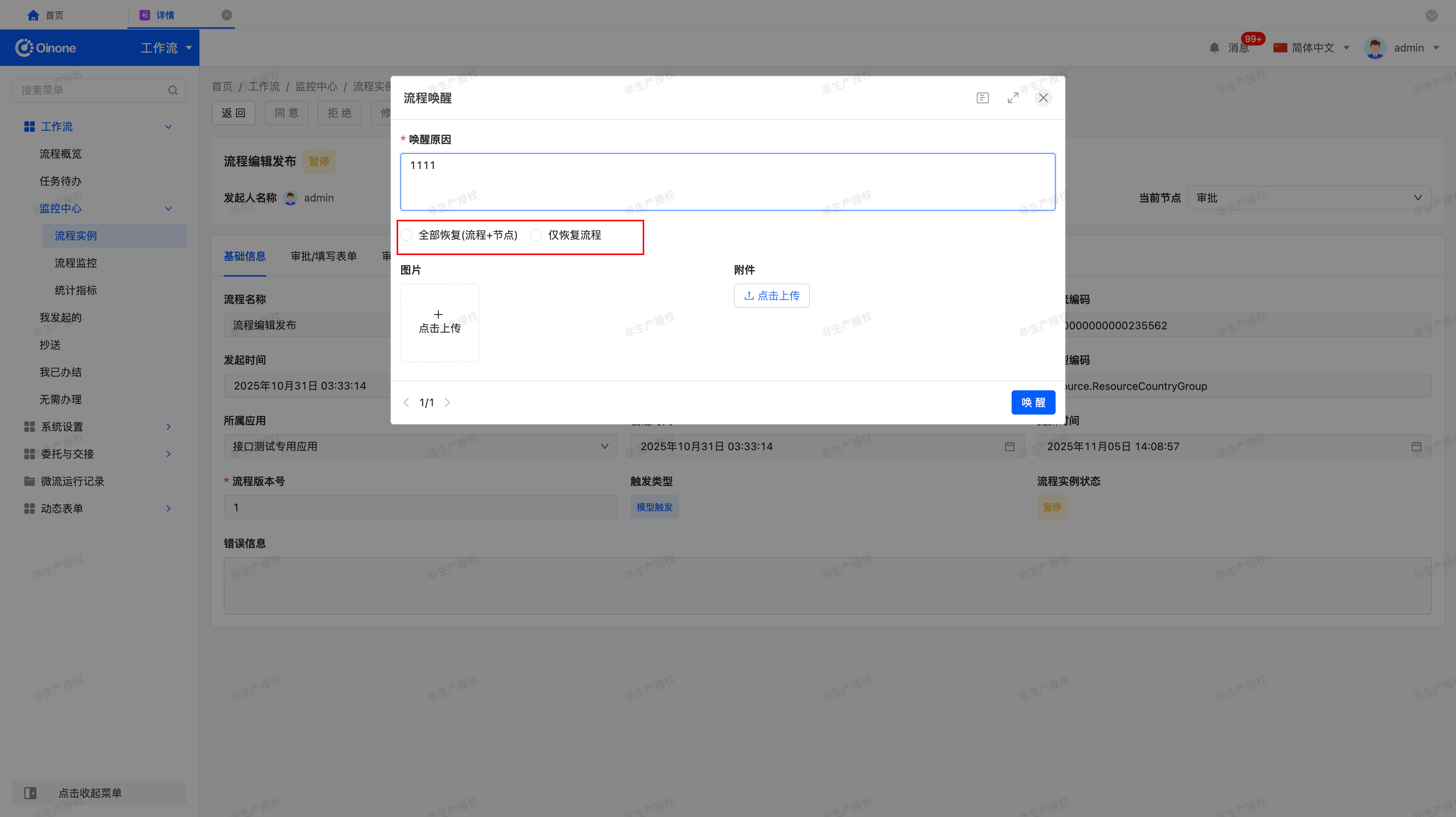
| 4️⃣ Process Paused + Node Paused | ▶ Resume Process | 1. Pop up the "Recovery Options" dialog box. 2. The user selects the recovery method. | May change to State 1 or State 2. |
Explanation of Recovery Options for Process Pause + Node Pause
| Option | System Backend Processing Logic |
|---|---|
| Recover All | 1. Clear all pause marks. 2. All nodes resume normal flow. 3. The approval deadline rules during the pause take effect again. |
| Recover Only the Process | 1. Only remove the process-level pause mark. 2. The paused nodes remain frozen. 3. Other non-paused nodes resume operation. |
(Ⅱ) Detailed Explanation of Modifying Assignees
In the process approval, due to scenarios such as position adjustments, organizational changes, personnel substitutions, and exception repairs, administrators can perform the [Modify Assignee] operation. This operation allows the re-specification of the assignee configuration of the current node without destroying the process history and integrity. The system will retain the original approval traces, record change logs, and incrementally update pending tasks to ensure auditability.
1. Execution Logic of Modifying Assignees
A. Incremental Update Principle
The system compares the [Old User List] with the [New User List] and executes the following incremental update logic:
| Comparison Result | System Behavior |
|---|---|
| Old and new users are the same | Prevent the modification and prompt: "The new assignee is the same as the current assignee. No modification is required." |
| Processed users (exclusive to the old list) | Retain the approval record and mark it as [I Have Completed - Invalidated] (can be viewed historically but not included in the process diagram display). |
| Unprocessed users (exclusive to the old list) | Automatically invalidate the pending tasks and mark them as [No Need to Process - Invalidated]. |
| Intersection users (both in the old and new lists) | Retain the pending tasks (do not add new ones or invalidate them); update their attribution information to the latest configuration source. |
| New users (exclusive to the new list) | Add new pending tasks and push reminders. |
Rule Supplement:
If an intersection user exists in multiple sources (e.g., originally belonging to "Role A" and then changed to "Department B"), the system will display their latest source attribution in the process diagram and approval record.
B. Execution Process Example
Configuration before modification:
- Employee: A
- Department: Finance Department (B, C)
- Role: Approver (C, D)
- Model-related: Creator (E)
Parsed users: A, B, C, D, E
Configuration after modification:
- Employee → F
- Department → Administrative Department (B, G)
- Role → Senior Approver (D, H)
- Model-related → Updater (I)
Parsed users: F, B, G, D, H, I
Incremental analysis:
| Category | Users | Processing Result |
|---|---|---|
| Intersection users | B, D | Retain the pending tasks and update the source attribution. |
| Removed users | A, C, E | A and C have approved → "I Have Completed - Invalidated"; E has not approved → "No Need to Process". |
| New users | F, G, H, I | Add new pending tasks and push reminders. |
Final result:
- Pending users: B, D, F, G, H, I
- Approved (invalidated) users: A (Agreed), C (Agreed)
The approved and invalidated records will not appear in the business process diagram or approval record, but will only be retained in the [I Have Completed - Invalidated] tab.
C. Handling of Pending Tasks
| Action | Trigger Condition | System Behavior |
|---|---|---|
| Cancel pending task | Remove unapproved users | The pending task is changed to [No Need to Process - Invalidated]. |
| Add pending task | Add new users | Generate new pending tasks and push reminders. |
| Retain pending task | Intersection users | Retain the task status unchanged and only update the display source. |
D. Records of "I Have Completed - Invalidated"
- Display all historical approvals that have become invalid due to the modification of assignees.
- The approval results and comments are still retained, and the status is displayed as [Invalidated].
- Only administrators and process initiators can view them.
E. Handling of Concurrent Approval and Rules
| Type | Adjustment Logic |
|---|---|
| Concurrent approval node | The conditions for passing concurrent approval are recalculated based on the latest assignee list after modification. Users who have approved but been removed are not included in the result. |
| Automatic approval rule | After the administrator manually modifies the assignee, the system no longer triggers the automatic approval logic, and the new assignee needs to handle it manually. |
| "System" approver placeholder | If only the empty department (the "system approver" automatically filled by the system) is removed, the system does not invalidate or recalculate, maintaining logical consistency. |
F. Derivative Operations and Restriction Rules
| Rule Item | Description |
|---|---|
| Derivative operations are invalid | Co-signing, forwarding, entrusting, handover, and retracting are all invalidated. |
| Leave a trace | The system records a log including the receiving time, node name, operator, operation type, and reason. |
| Processed nodes | Cannot be modified. If it is a concurrent approval node, only unprocessed users can be modified. |
| Starting node | Can be modified if it has not been processed. |
| Retraction logic | Completed nodes cannot be retracted, and modifying the assignee does not affect this rule. |
| Continuous modification | Unprocessed nodes can be modified multiple times, and a log is recorded each time. |
G. Hierarchical Approval and Leadership Linkage
| Configuration Item | Logic Description |
|---|---|
| Hierarchical display | "Hierarchy + Username - Status (whether it can be modified)", for example: Level 1 Approval - Zhang San - Completed (Cannot be modified) |
| Modifiable range | By default, it is the current hierarchy; only unprocessed hierarchies can be modified. |
| Modification target | Modify the original assignee (without considering forwarding and entrusting); the interface displays the actual responsible user. |