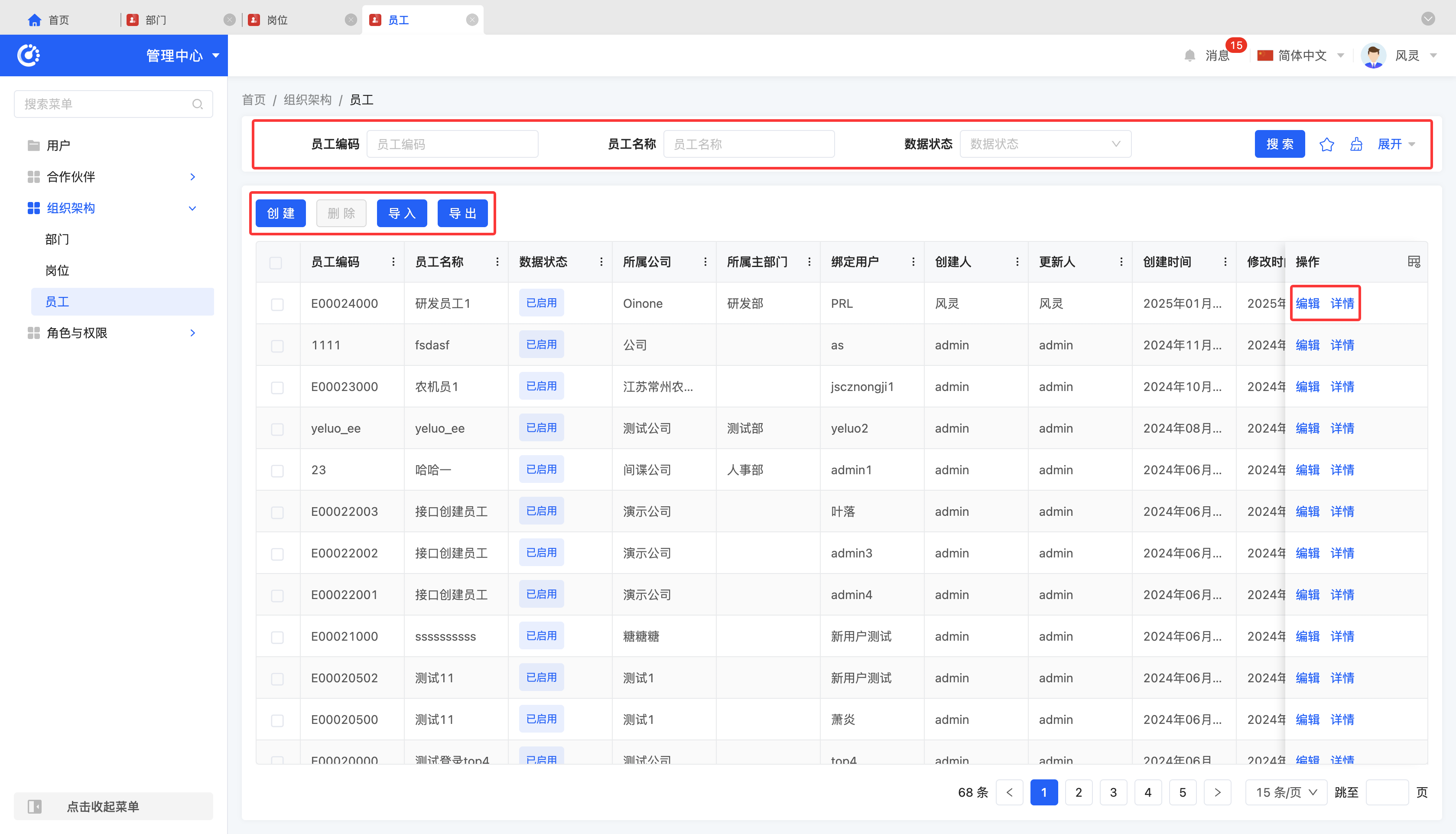
I. Departments
1. Function Introduction
Supports the creation and management of departments, facilitating the division of the company's internal organizational structure.
2. Operation Methods
- Filtering: Enter or select the corresponding filtering conditions according to the actual scenario requirements to filter the departments.
- New Creation: Click "Create", enter the required configuration information and save it to successfully create a new department.
- Editing: Click "Edit" to update or modify the relevant information of the department.
Notice
When creating or editing a department, you can set the positions included in the department. The specific relevant information of positions needs to be maintained and managed in the "Organizational Structure - Positions" module.
- Deletion: Select a department and click "Delete" to remove the department.
- Import: Supports importing department information using a file. You can download the import template, fill in the information completely, and then upload the file to complete the import.
- Export: Supports exporting departments. You can choose to use the preset export template or customize the export fields according to actual needs.
- Details: Click "Details" to view the detailed information of the selected department.
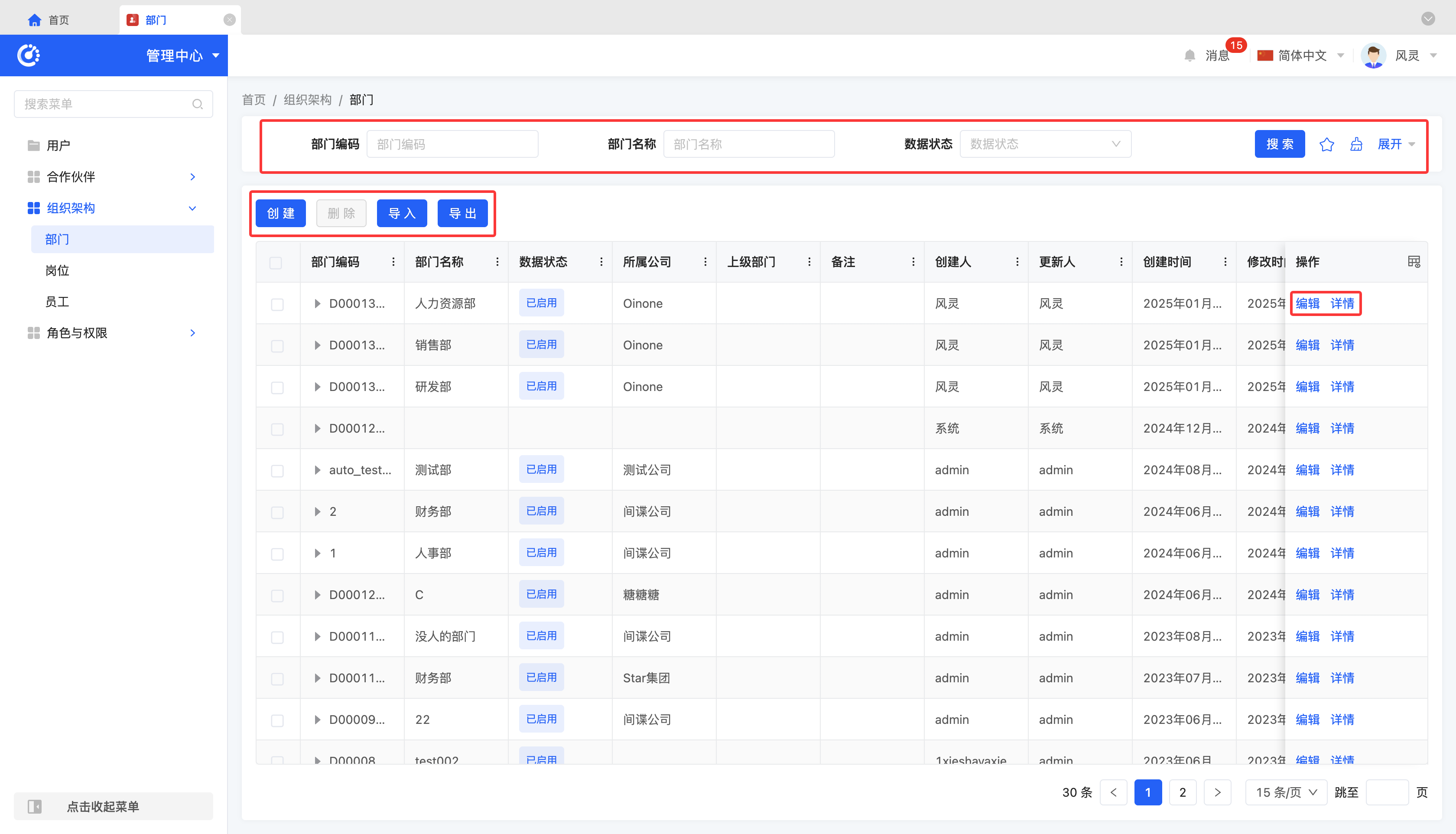
II. Positions
1. Function Introduction
Supports the creation and management of positions in each department, used to define employees' responsibilities and positions in the company.
2. Operation Methods
- Filtering: Enter or select the corresponding filtering conditions according to the actual scenario requirements to filter the positions.
- New Creation: Click "Create", enter the required configuration information and save it to successfully create a new position.
- Editing: Click "Edit" to update or modify the relevant information of the position.
- Deletion: Select a position and click "Delete" to remove the position.
- Import: Supports importing position information using a file. You can download the import template, fill in the information completely, and then upload the file to complete the import.
- Export: Supports exporting positions. You can choose to use the preset export template or customize the export fields according to actual needs.
- Details: Click "Details" to view the detailed information of the selected position.
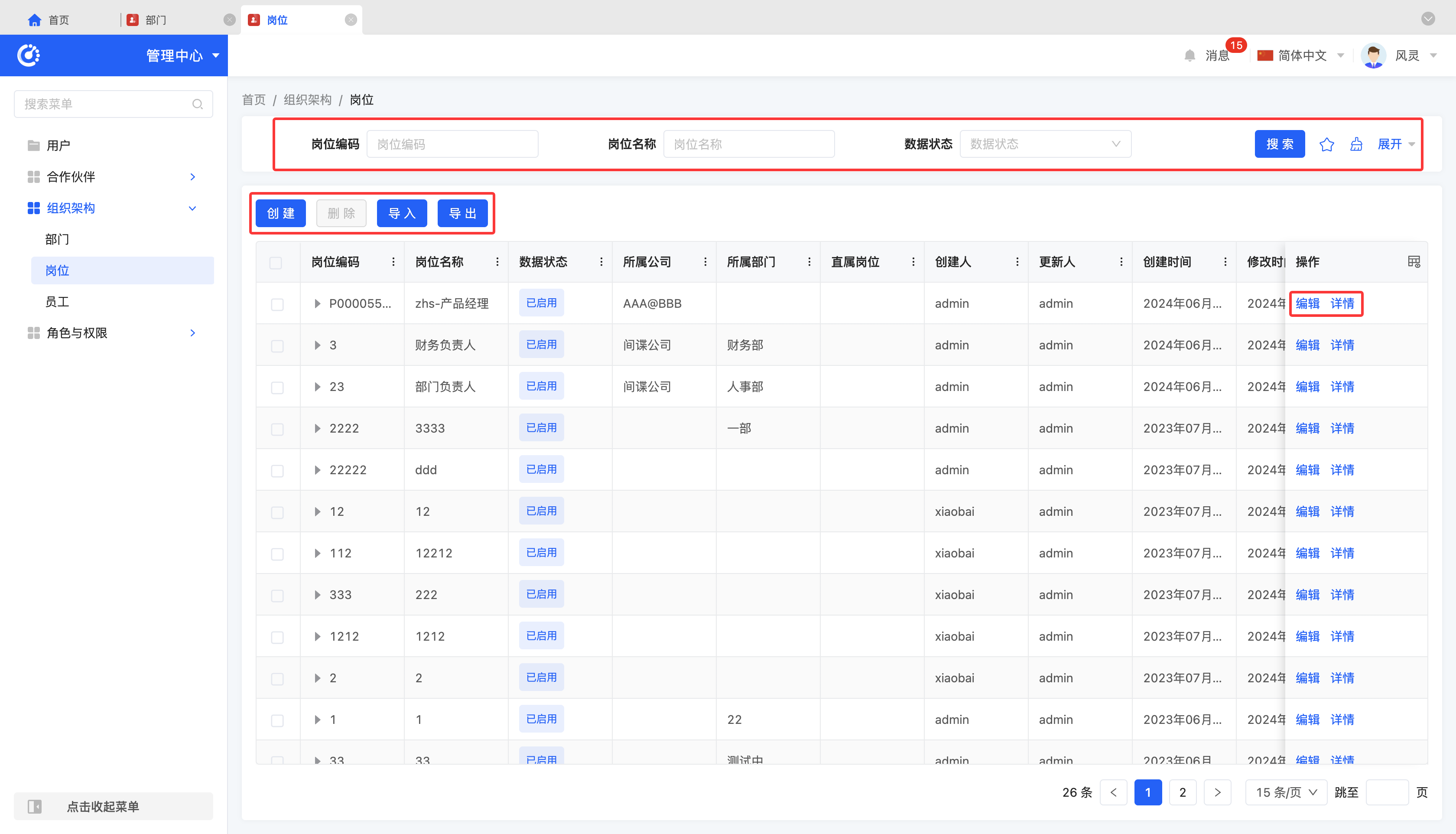
III. Employees
1. Function Introduction
Supports the creation and management of employees, including employees' basic information, affiliated departments, positions, etc.
2. Operation Methods
- Filtering: Enter or select the corresponding filtering conditions according to the actual scenario requirements to filter the employees.
- New Creation: Click "Create", enter the required configuration information and save it to successfully create a new employee.
- Editing: Click "Edit" to update or modify the relevant information of the employee.
Notice
- When creating or editing an employee, you can assign the affiliated department and position to the employee. The relevant information of departments needs to be maintained in "Organizational Structure - Departments", and the relevant information of positions needs to be maintained in "Organizational Structure - Positions".
- An employee can be bound to an existing user account or a new user account can be created for the employee. The relevant information of users can be maintained and managed in "Management Center - Users".
- Deletion: Select an employee and click "Delete" to remove the employee.
- Import: Supports importing employee information using a file. You can download the import template, fill in the information completely, and then upload the file to complete the import.
- Export: Supports exporting employees. You can choose to use the preset export template or customize the export fields according to actual needs.
- Details: Click "Details" to view the detailed information of the selected employee.