1. Feature Introduction
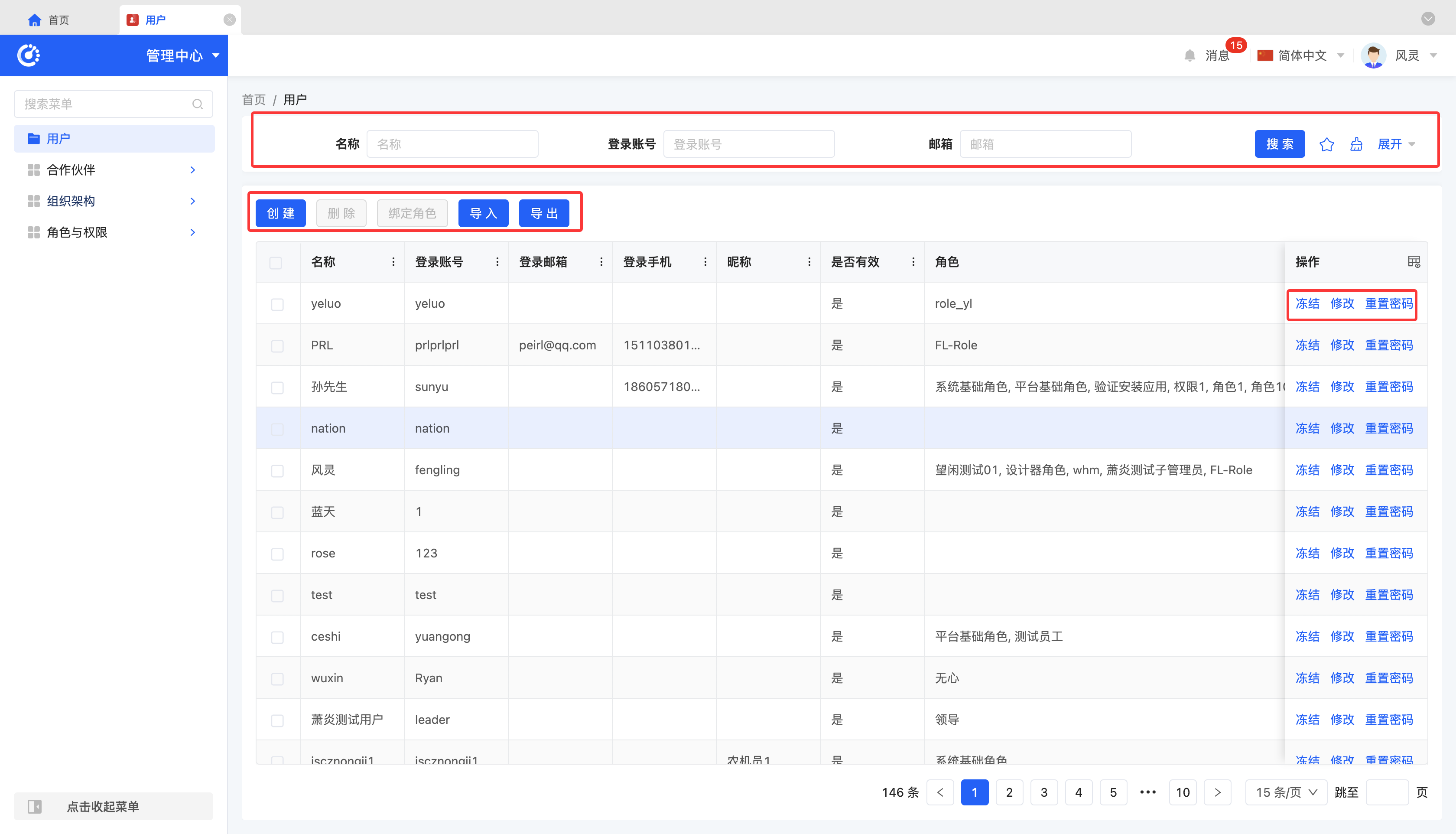
Supports creating system users, facilitating system access and management.
2. Operation Methods
- Filtering: According to the requirements of the actual scenario, input or select the corresponding filtering conditions to filter users.
- Adding: Click "Create", enter the required configuration information and save it to successfully create a new user.
- Deleting: After selecting a user, click "Delete" to delete the user.
- Binding Roles: Supports adding system roles to users to obtain specified permissions.
Note
When selecting a role for a user, the role must contain at least one accessible application or module.
Prompt
Three ways to bind roles to users:
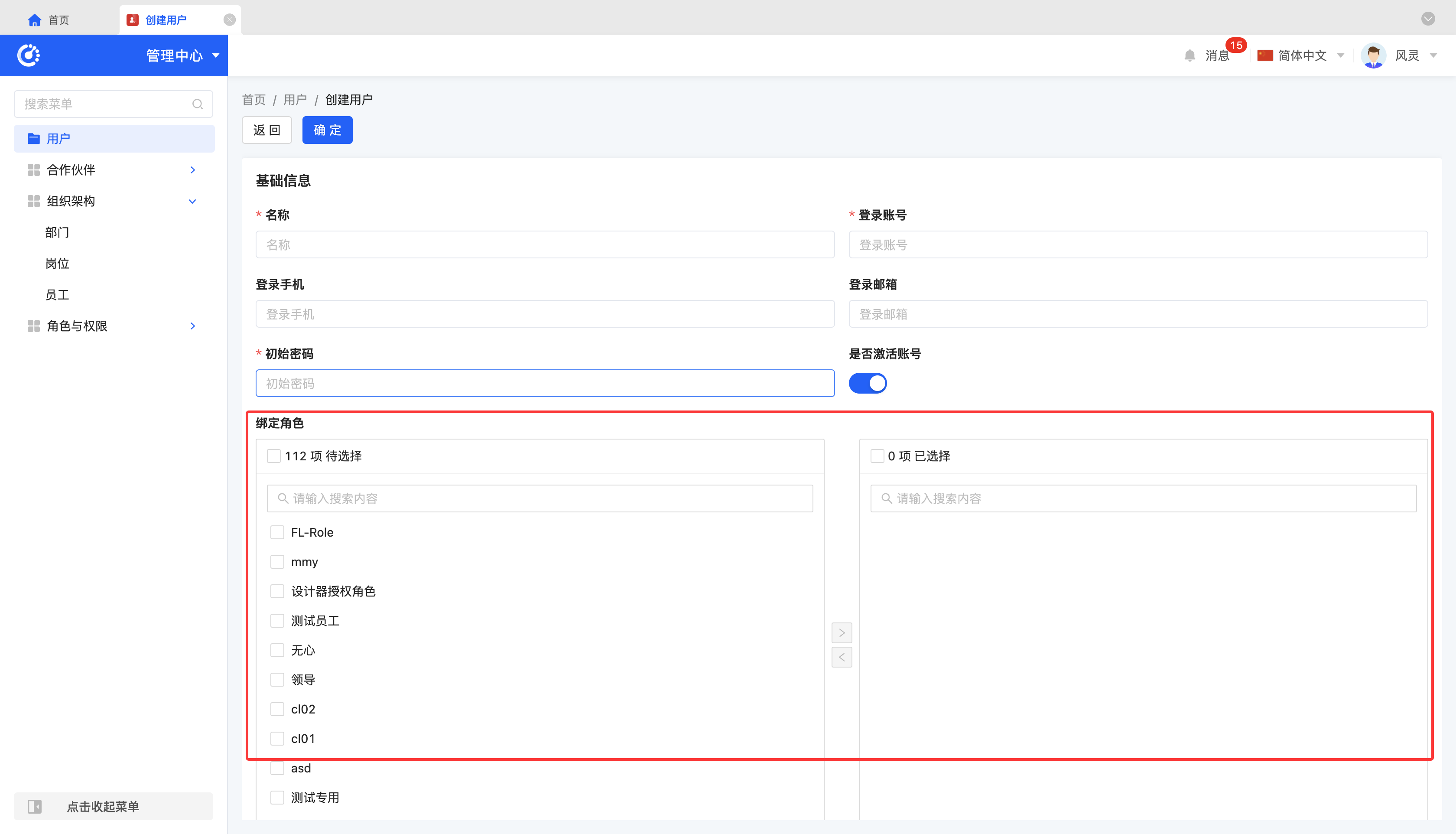
- Bind roles to a user individually or in batches when creating the user.
Add and bind roles on the user creation page. After checking the roles, click "OK" to complete the role addition.
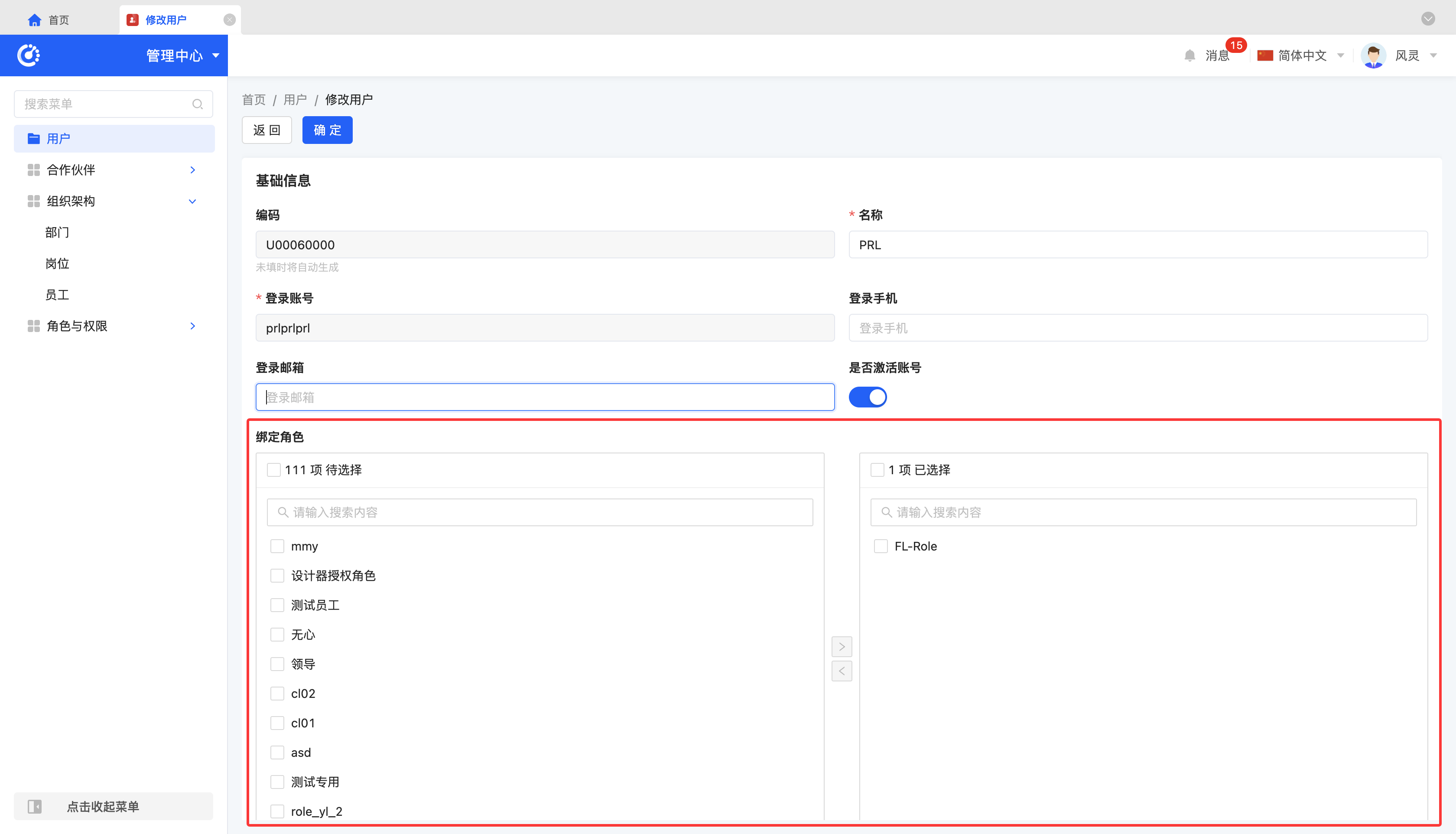
- Bind roles to a user individually or in batches when modifying the user.
Add and bind roles on the user modification page. After checking the roles, click "OK" to complete the role addition.
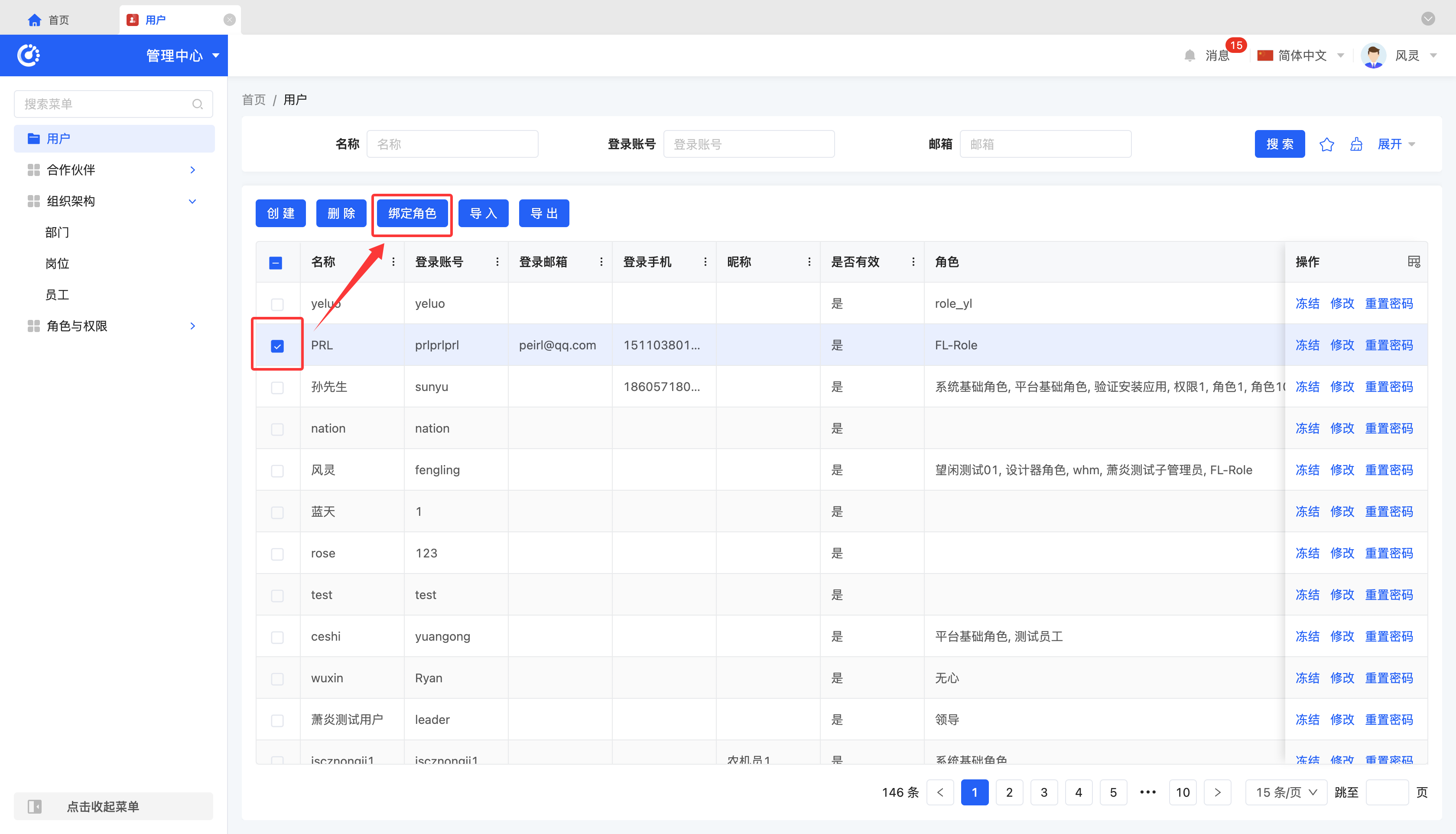
- Select a specified user to bind roles to it individually or in batches.
After specifying a user, click "Bind Roles", select the roles and click "Confirm" to complete the role addition.
- Importing: Supports importing user information using a file. You can download the import template. After filling in the information completely, upload the file to complete the import.
- Exporting: Supports exporting users. You can choose to use the preset export template or customize the export fields according to actual needs.
- Freezing: When a user no longer needs to use the account, click "Freeze" to freeze the user account. If you need to use the account again in the future, click "Activate" to quickly restore its usage permissions.
- Modifying: Click "Modify" to update or modify the user's relevant information.
- Resetting Password: If you forget the password, click "Reset Password". After resetting, a new password will be randomly generated.