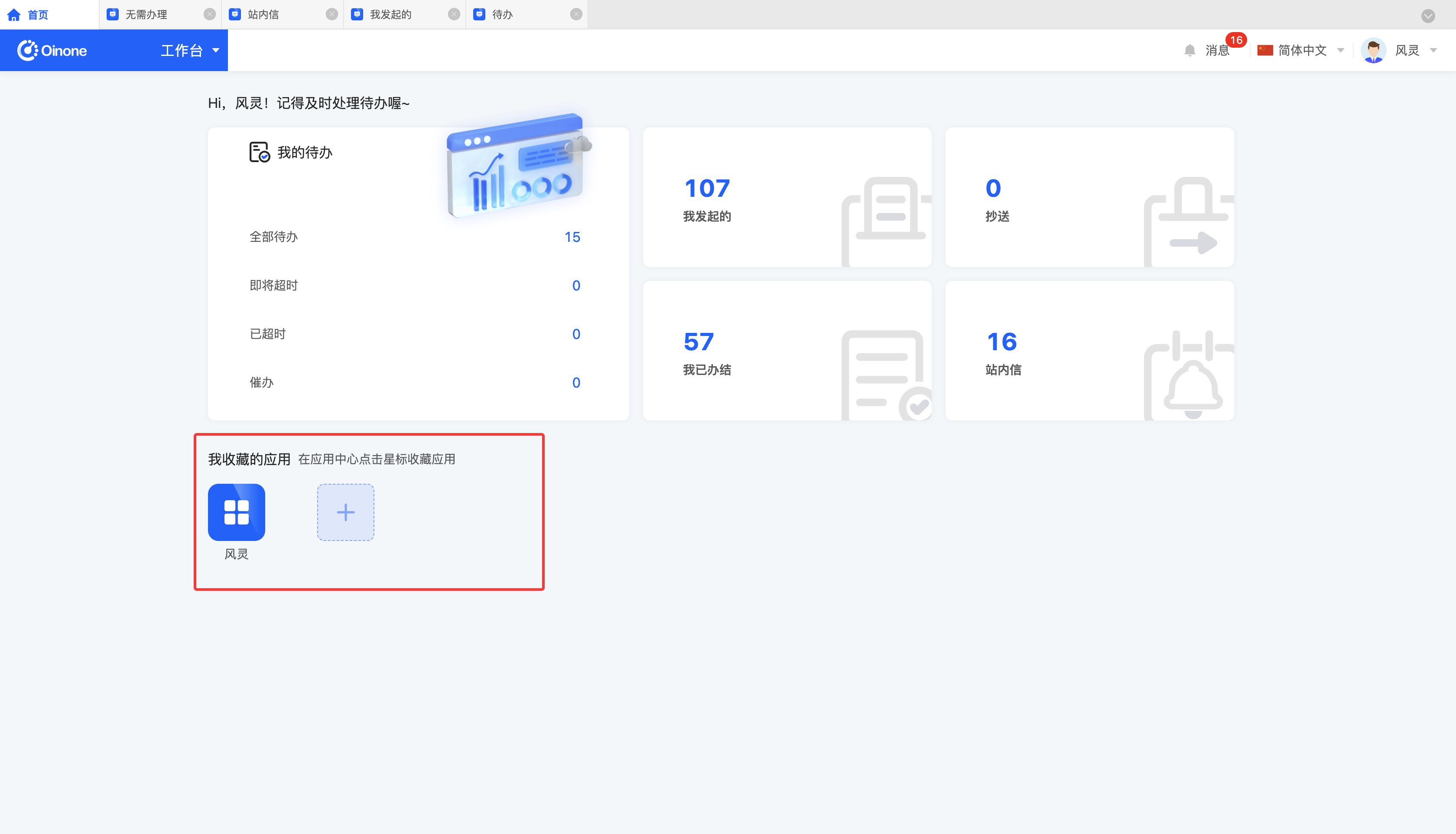
The workbench is the core interface for users to perform task operations and management. Its design features an intuitive and user-friendly interface layout, enabling users to quickly handle various tasks and easily manage applications. Oinone's workbench displays the quantities of pending tasks, initiated tasks, copied tasks, completed tasks, and in-site messages. Additionally, it provides quick access to favorite applications.
Notice
For users with workbench access rights, the workbench is the default page after logging in. Meanwhile, users can also access the workbench through the APP Finder or the user drop-down menu.
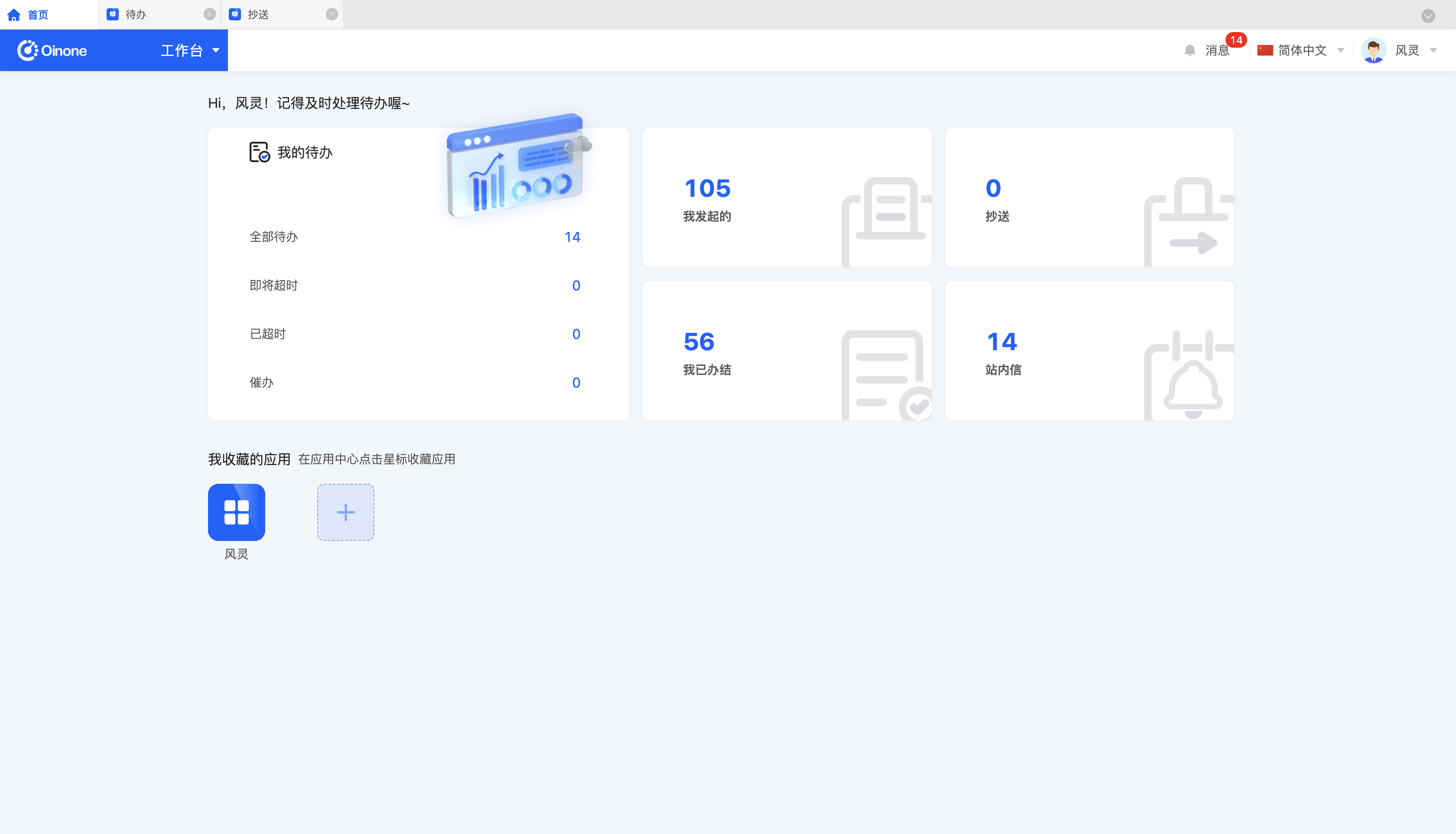
I. Task Processing
(I) Viewing Tasks
1. Function Introduction
In the workbench, users can view all the tasks included in various types of tasks and perform operations such as approval, filling, and reminder on them. Below each process, there are actions for processing that process, and users can view the detailed processing page.
2. Operation Method
- Select or enter conditions in the filtering area to filter tasks.
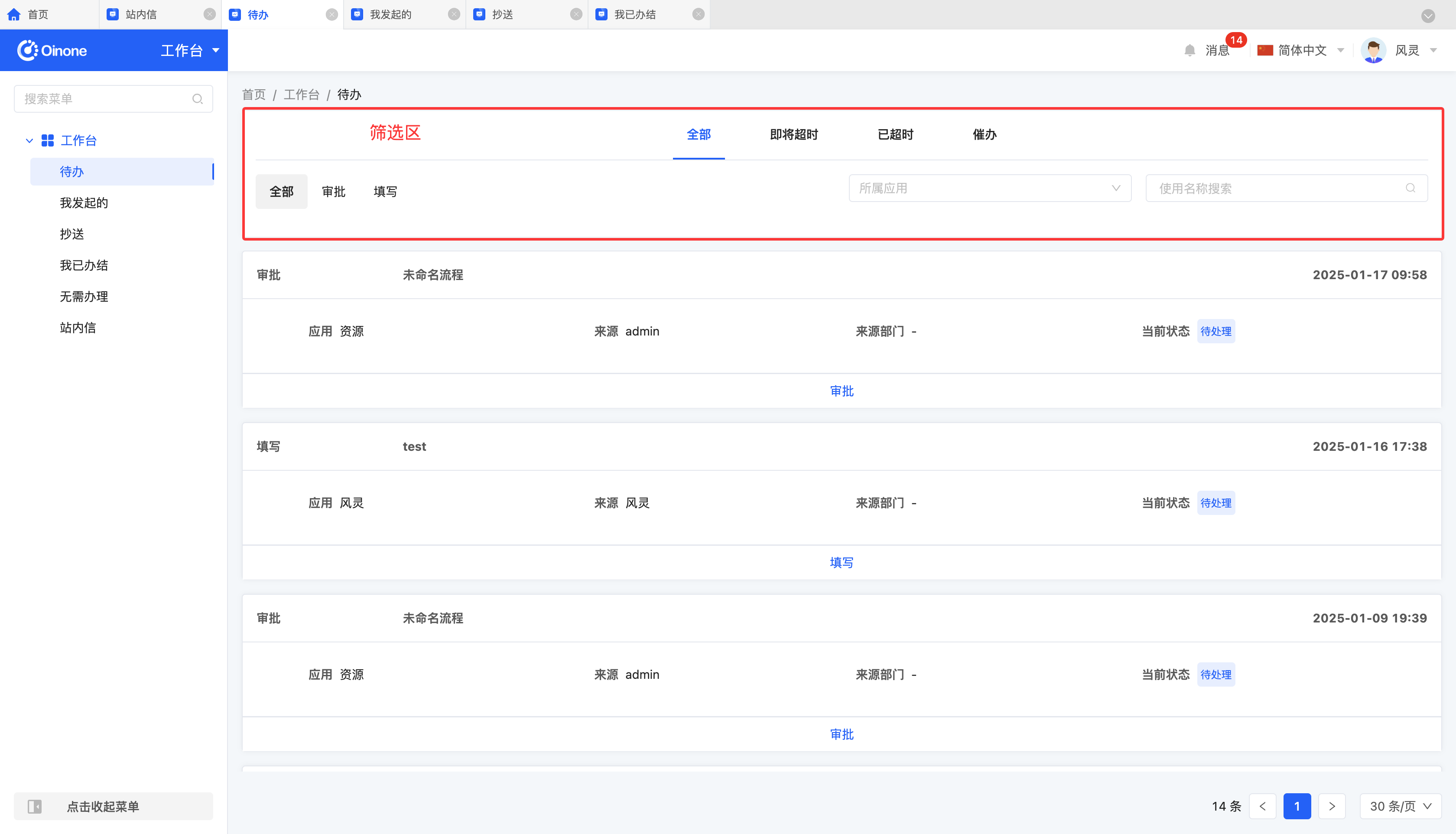
- Click the action below a task to enter the process handling page and view task details.
- The action below an approval task is "Approve".
- The action below a filling task is "Fill".
- The action below other tasks is "View".
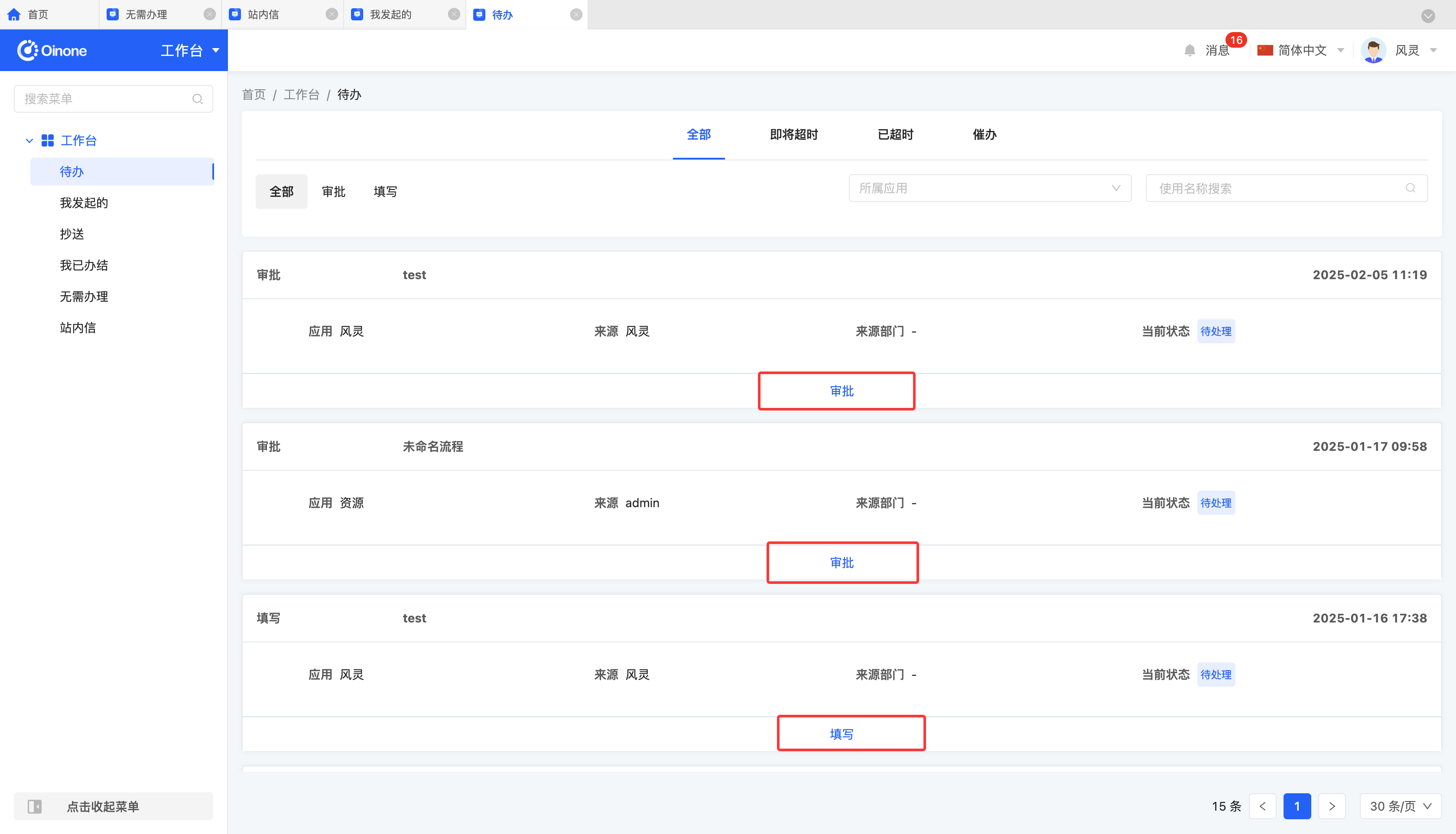
(II) Handling Tasks
1. Function Introduction
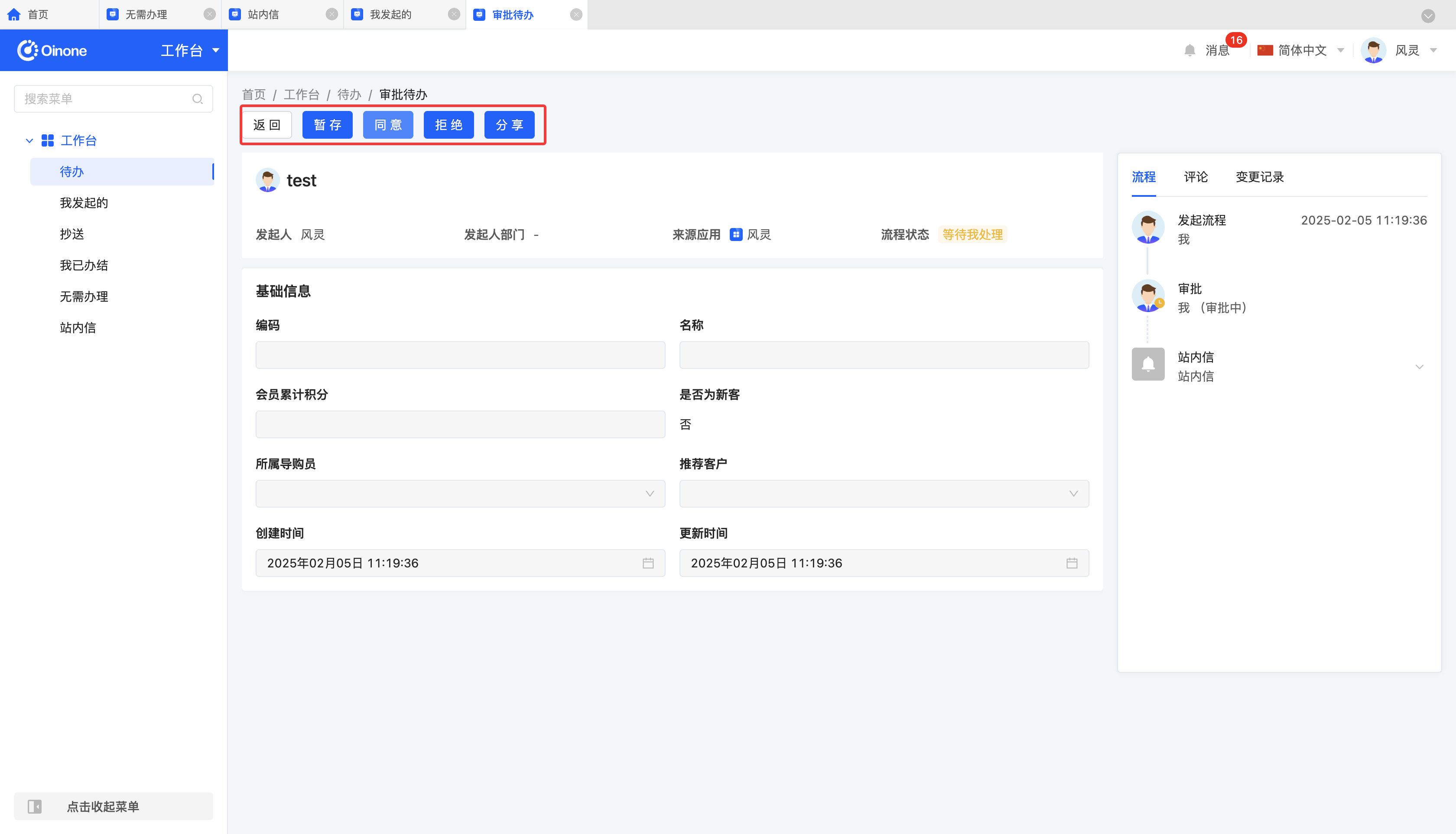
When entering the details of an approval task or a filling task, users can operate on the task process. All tasks include "Back" and "Share" actions. The "Share" action allows users to share the current task with other employees.
- The approval operation page may include actions such as "Approve", "Reject", "Return", "Add Signature", and "Transfer". The specific actions are set in the process designer during process design (for detailed action settings, refer to the Process Designer - Node Action Document).
- The filling operation page includes "Submit" and "Save Draft" actions.
Note
In the "Tasks I Initiated" list, when the current status of a task is displayed as "In Progress", the user has the right to perform a reminder operation on the task or choose to cancel the task.
Notice
The message icon in the upper right corner will display unprocessed or unread operations in real-time bubbles. After clicking to expand, users can quickly handle tasks.
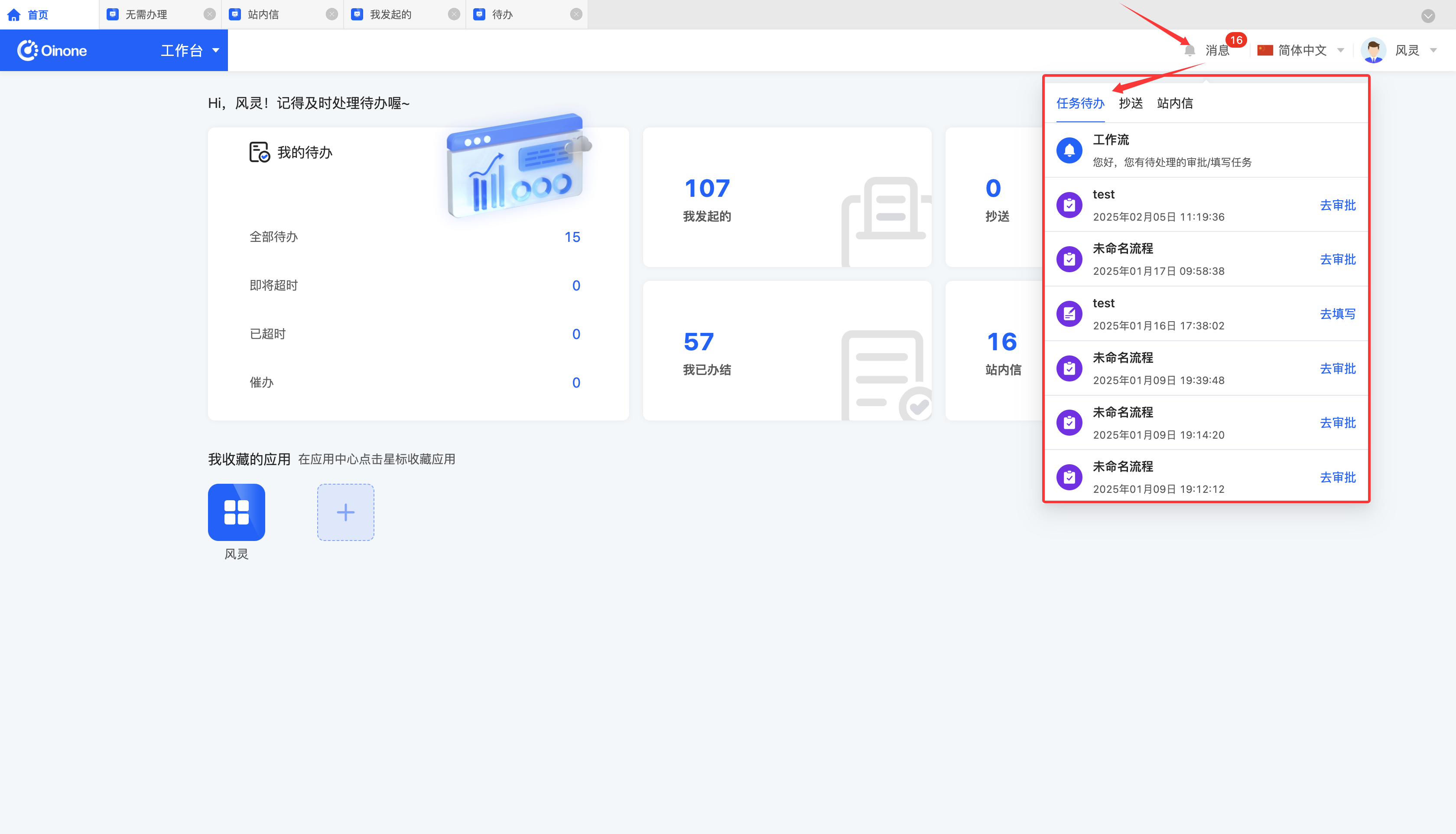
2. Operation Method
Click an action on different operation pages, fill in the information according to the actual situation in the pop-up window, and confirm to complete the operation.
II. Quick Access to Applications
1. Function Introduction
Favorite applications marked with a star in the application center will be displayed on the workbench, allowing users to quickly access the applications.
2. Operation Method
- Click the star on an installed application in the application center to add it to favorites.
- Click a favorite application on the workbench to enter the application.
III. Appendix: Glossary
| Term | Description |
|---|---|
| Pending | Refers to the process nodes that the currently logged-in user has not processed. |
| Tasks I Initiated | Refers to the processes actively triggered by the currently logged-in user (triggered based on models). |
| Copied | Refers to the processes copied to the currently logged-in user, including processes that require approval or filling. |
| Tasks I Completed | Refers to the process nodes completed by the currently logged-in user through manual/auto approval, manual rejection, or manual filling. |
| No Need to Process | Refers to the tasks transferred by the currently logged-in user, or tasks that have been returned, cancelled, or signed, or tasks rejected by other branch tasks and have not been processed. |
| In-site Message | Refers to the in-site messages received by the currently logged-in user. |